
 [ Disclosure: I purchased both these scanners for my own use. Updated March 17. 2024, with better information on dust removal technology.]
[ Update: Dec. 31, 2024. I just did a quick test comparing the scanning speed of a 2018 Intel Mac mini with an M4 Pro Mac mini using an Epson V600 scanner and SilverFast 9. While the processing was faster (i.e. descreen, color correction, dust removal) the scanning speed was the same. Since the actual scan takes the most time, a faster computer delivered results only about 7% faster. ]
[ Update: Aug. 13, 2025. After a comment from a reader, I went back to retest automatic dirt removal. This involved rewriting the whole last section. ]
I am a long-time fan of the Epson Perfection V600 Photo scanner (V600). I’ve owned and used one for many years and it has provided highly reliable, high-quality scans. It has never failed in years of use.
Recently, though, I inherited hundreds, perhaps even thousands of historical slides that need to be digitized. After researching a scanner that would allow me to scan more slides faster but with precise image control at high-quality, I selected the Epson Perfection V850 Pro (V850).
Why? Because the V850 has all the resolution I need, saves into uncompressed formats like TIFF and PNG, has the image controls I need for high-quality scans from 35mm slides, and can scan up to 12 slides at the same time in a batch.
Both Epson scanners are very similar, but there are clear reasons to choose one over the other, depending upon your needs.
EXECUTIVE SUMMARY

Epson Perfection V600 Photo
In one paragraph, if all you need is to scan documents and photos, the V600 is the scanner of choice. It is fast, creates great images and is affordable. However if you need to scan transparencies as well as photos, are scanning dark, damaged or faint images, need somewhat better dust and scratch control, or want faster performance scanning multiple slides, the V850 is the better choice. While both scanners scan at close to the same speed, the 850 using SilverFast software, can scan three slides at the same time.
Epson makes excellent scanners which live in the sweet spot of providing high-quality, high-resolution professional-grade scans without breaking the bank. Both systems, depending upon the scanning software you use, can scan up to 6400 dpi and save into PDF, PNG, TIFF, and JPEG. Epson scanners are popular (which means lots of third-party support), reliable and high quality.
NOTE: Both scanners offer interpolation for higher-resolutions. However, interpolation is like scaling a video image beyond 100%; all you are creating is fatter pixels, not better quality.
Scanners are one half of a two-part system: To make the most of your scanner, you also need high-quality scanning software. Both scanners come with Epson Scan 2, Epson’s scanning software. The latest version of Epson Scan 2 has problems running on M1 Macs. I’m disappointed in it. Epson seems to be taking the software in the wrong direction. Better scanning software is LaserSoft Imaging’s SilverFast SE Plus 9, which I cover in a separate review. (Read it here.)

Epson Perfection V850 Pro
Both scanners scan photos, 35mm slides, 35mm negatives and medium format film. Both have optical resolutions up to 6400 dpi (which you will never need). Both scanners work at 48 bit depth for color and 16 bit depth for black and white. Both scan images up to 8.5 x 11.7 inches though both reserve about 1/4″ around all images that won’t get scanned. The V600 has an optical density of 3.4 Dmax, while the V850 has an optical density of 4.0 Dmax. (Dmax only applies when scanning slides, the higher the Dmax, the greater the image detail in shadow and highlight areas.)
Both can remove dust and scratches, though the V850 does a better job. As well, dust removal works best with slides, rather than prints. Both scanners are excellent at scanning documents as well as photos.
NOTE: Though, truthfully, if you are just scanning documents, one of Fujitsu’s SnapScan family of scanners is probably a better choice.
If all you need is to scan photos and occasional slides, the V600 is an excellent choice. If you need the highest quality slide and film scans, along with great photo scans, the V850 is a better choice. The V850 is also marginally faster than the V600.
Manufacturer: Epson
Website: Epson Perfection V600 Photo scanner
Website: Epson Perfection V850 Pro scanner
V600 retail price: $249.99 (US) at the time of writing
V850 retail price: $1,149.00 (US) at the time of writing
GET STARTED

Both scanners include all the hardware you need to get started: scanner, power brick, plastic trays for holding transperencies, and Epson scanning software. However, the V850 (shown above) is also bundled with SilverFast. I’m not sure whether this software is included in the V600.
Connecting these is no different from any other computer hardware: plug it in and turn it on.
Installing the Epson Scan 2 software is also relatively straightforward and doesn’t take long. However, please read the manual. Don’t connect the scanner until after the software is installed.
SCANNING PHOTOS

From a spec point of view, the two scanners are essentially identical. Epson Scan 2 supports connecting and scanning from multiple scanners on the same computer, though only one scanner can be active at a time.
So, as a test, I used the Epson Scan 2 software to scan the same images on both scanners. Images can be scanned into TIFF, PNG, PDF or JPEG. I generally prefer TIFF, but PNG is uncompressed as well.
NOTE: I am not a fan of creating a high-quality image scan and mastering it as a JPEG.
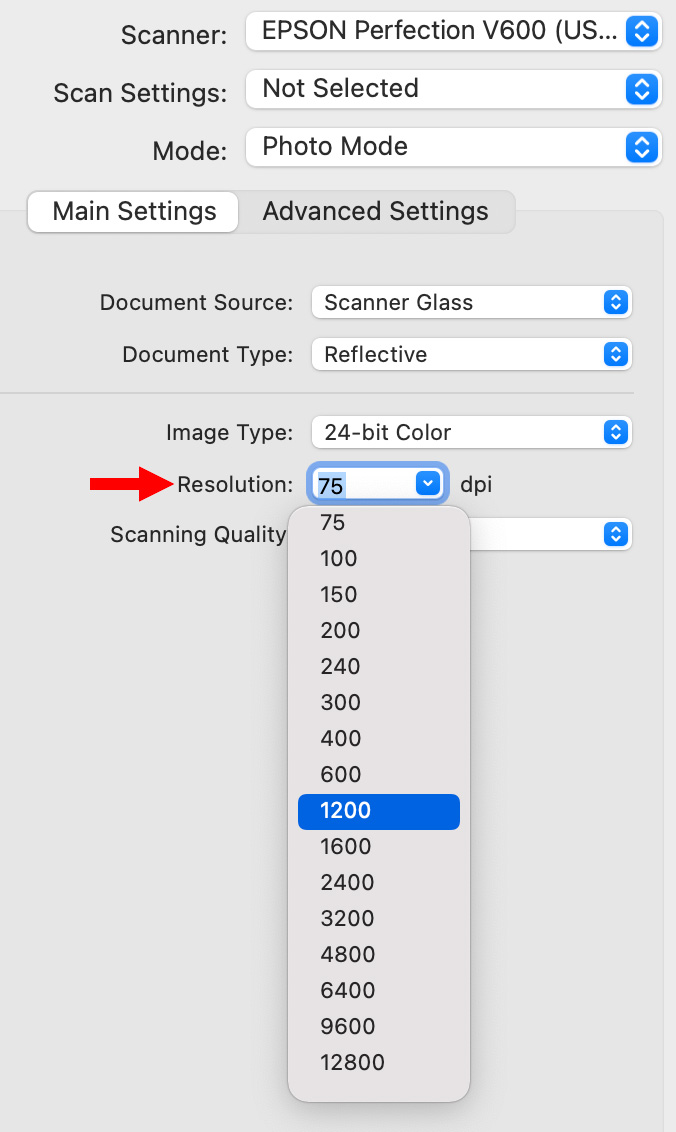
For this review, I scanned two 4×6 color prints and one color slide at a variety of resolutions and color bit depth on both scanners, then compared them.

This is the Epson Scan 2 interface, showing my two sample photos, which contain a wide range of gray scale and lots of color.
When I first wrote this article, I adjusted the Histogram of each image before scanning to get the best image possible. Epson Scan 2 provides Histogram, Curves and Color Balance adjustments. Then I realized that it would be better to use the default settings from the software for each scanner. Using the defaults gives a better idea of the results a new user would get.
NOTE: The following images were all scanned at 6K which created an image too big to post to the web. I then moved them into Photoshop and scaled them to 2K JPEGs so they could be posted. I did not make any adjustments to the image in Photoshop other than scaling. The scan settings were 600 dpi, 24-bit color, TIFF, with dust removal turned on for both scanners.


(Click to see larger image – or drag to your desktop.)
The V600 image is on top, the V850 on the bottom. Even with dust removal turned on, the V600 didn’t remove many speckles. However, from a scanning point of view, both images are very similar in quality.


(Click to see larger image – or drag to your desktop.)
Again the V600 image is on top and, again, notice the significant amount of dust the V600 did not remove using its default setting. (I explain this further in this article, it was caused by bad settings in the Epson software, not the scanner.)
Based on multiple tests, the two scanners create very similar scans at their default settings, though the V850 does a better job of dust removal. However, remember, image quality is a combination of both hardware and software; and the software was the same in both cases.
NOTE: As you can see in this second example, if the focus isn’t perfect in the print, it will look worse in a high-resolution scan. It is amazing to me how many really bad photos I’ve taken in my life.
I scanned both images as a batch and timed the total scan duration. Here are the timing and file size results for the V600:
Here are the timing and file size results for the V850:
When the two resolutions (1200 & 600 dpi) were loaded into Photoshop, they looked virtually identical when scaled to the same size. At actual size, both images looked blurry because the print didn’t have enough detail to support 1200 dpi scanning.
NOTE: The same resolution yielded the same file sizes on both scanners. This is what I expected. What I didn’t expect was that changing color bit depth did not change scan times, though it did change file size.
When working with printed photos, as opposed to transparencies, there is no reason to scan at more than 600 dpi or 24-bit color. Much though I would love to endlessly enlarge photos of family and friends, the resolution and color detail in the print itself just isn’t there.
NOTE: While there is no difference in scanning speed when adjusting color bit depth, there is a significant difference in scanning speed when adjusting resolution (dpi).
THE IMPORTANCE OF DMAX
The Epson v600 has a dMax of 3.4, while the 850 has a dMax of 4.0.
dMAX measures the highest density that can be captured by a scanner. What this means is that the 850 is able to pull more details out of shadows and dark images than the 600. Higher dMax captures more image details and reduces visual noise.
If you have a well-exposed, well-focused image, dMax won’t really matter. But for older, darker, faded images, it will.
SLIDE SCANNING

The V600 can scan up to 4 slides at a time. However, while the plastic slide holder holds the slides, it does not do so very securely. They can be easily bumped out of position. (The open strips to the left hold film negatives.)
If you have badly curved/bent slides, this holder won’t flatten them at all.
NOTE: Slides should be loaded into the scanner so they look correct (left / right and up / down) when you look down on them from above.

The slide holders for the V850 are more carefully thought out. The plastic guides feel a bit heavier (while you need to be careful as they can break, after two years of use, I haven’t broken any), and they hold the slides in place with little clips.
NOTE: If you have badly curved slides, these clips can help in flattening them.

The guides themselves slip into pins on the side of the scanner which assures that the position of the slides won’t change as you close the cover. I like both these features a lot.


(Click to see a larger version of each slide. Please do so to better see dust and sharpness.)
The top image is scanned from a 35mm slide by the V600 at 4800 dpi (scaled to 2040 x 1378) with dust removal turned ON. The bottom image was scanned by the V850 at 4800 dpi (scaled to 2040 x 1378) with Digital ICE dust removal turned on. The bottom image is MUCH better! Essentially slide dust removal is not properly enabled on the V600.
UPDATE: The Digital ICE dust removal technology makes a big difference, though it does slightly soften the image. However, while this first scanner test used the default ICE settings, the defaults on the v600 are incorrect.
Here are the file size and timing results for the V600 scanning the image at 4800 dpi, 24-bit color. (Note: I think the key reason these times are so close is that Epson Scan 2 software does not properly implement the infra-red scan required for dust removal.)
The V850 scanned the sample 35mm slide at 4800 DPI, 24-bit color:
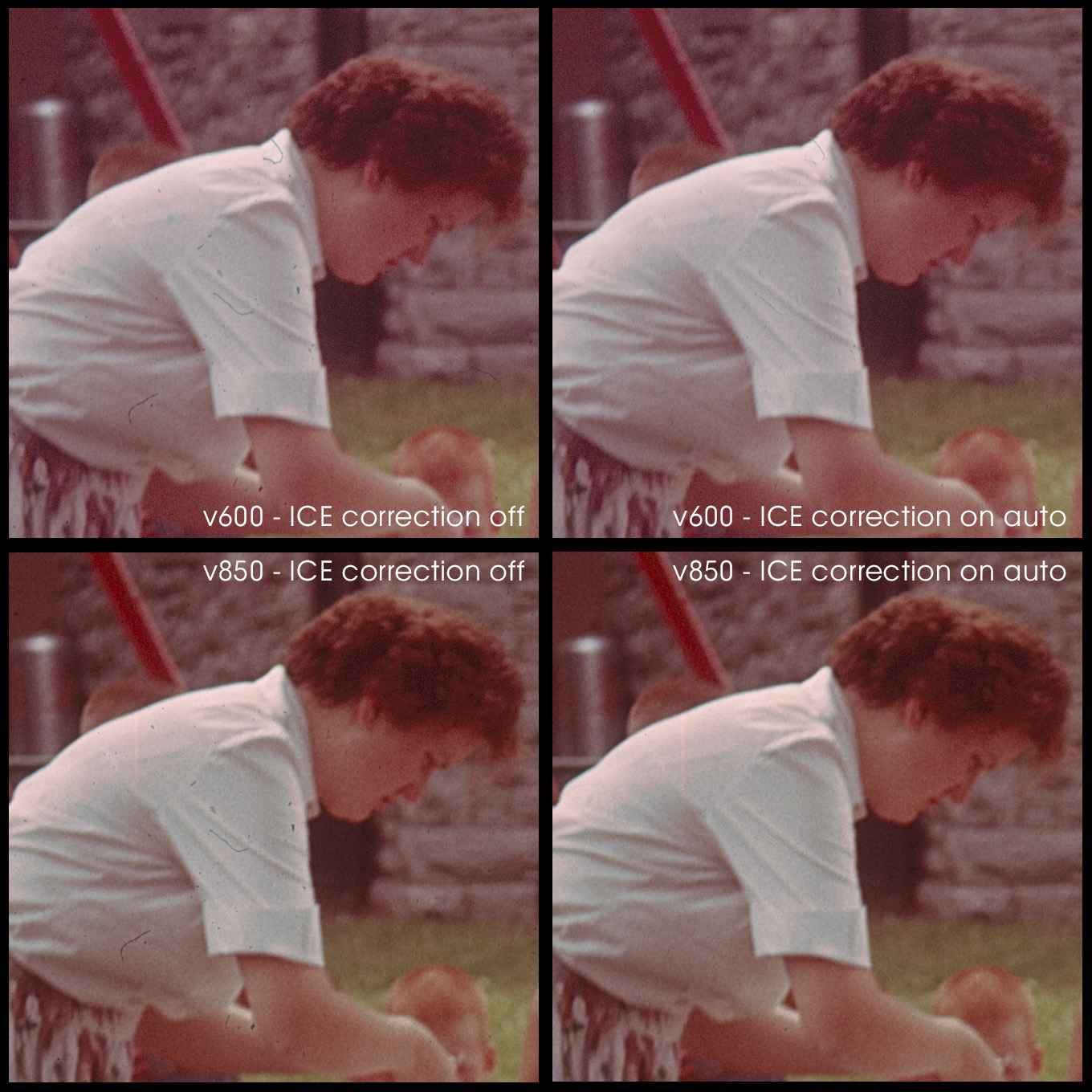
I mentioned there is a big difference in dust removal between the two scanners. Let’s compare the two, again, this time using SilverFast 9.
(Click to see larger image.)
The reason for using Silverfast, rather than Epson scanning software is that the default dust removal settings in the Epson software essentially disable it. Once the dust removal settings are adjusted to a higher level (12 in the case of SilverFast 9), dirt disappears.
Personally, I like how the 850 handles skin tones and color correction. The slide above is 71 years old and leans red. Note the speckles of dust throughout her white shirt. While the 600 removes dirt, if you look carefully you’ll still see remnants in the image. Those remnants are gone with the 850.
Also, the 600 tends to add a bit more sharpness than the 850. To match the images, I added one step of sharpness to the 850.
Both these images were scanned at 1600 dpi, and white balanced on the sleeve of her shirt. Manual gray-scale corrections were matched between scanners and scans. The softness in the image is less from the scanner and more due to poor consumer lenses that long ago.
NOTE: Dust removal for prints is MUCH less robust due to the infra-red technology used in both scanners. And, dust removal doesn’t work at all for B&W slides or negatives. It will work for a color slide that is scanned as black-and-white.
ADDITIONAL THOUGHTS

Both scanners connect via USB 2, which is more than fast enough to support the data coming from a scanner. If you have a Mac with only USB 4 ports, you’ll need a USB adapter, which costs about $20 for a set of two.
Epson Scan 2 really does not like running on M1 Macs. It continually lost connections with both scanners. This forced multiple restarts of both the scanners and software.
UPDATE: This review was written when M-series Macs were new. I haven’t tested Epson Scan 2 software since, as I use LaserSoft Imaging’s SilverFast SE Plus 9, exclusively.
A big advantage to using SilverFast for scanning slides on the 850 is that it will scan three slides at the same time on the 850 – all those in the same horizontal row. It also supports scanning up to 12 slides at once. This cuts scanning time almost two-thirds. The 600 only scans one slide at a time, with a maximum of four.
Though I’ve used Epson Scan for many years, the latest version is really difficult to use. Epson keeps trying to streamline the software. This effort is misdirected. While everyone likes automation to speed their work, if we wanted fast and cheap, we would not spend the money for an Epson scanner. As pros working with pro tools, we need easy access to image enhancement tools like the histogram, the ability to set and load presets and Curve and Histogram screens that don’t keep disappearing.
For example, after a preview scan, Epson Scan 2 sets the histogram levels such that both shadow and highlight detail are lost; this means that the Histogram needs manual re-setting for each slide before scanning. Also, tools like the Histogram are hidden multiple menus deep and there’s no way to save setting presets to speed scanning similar slides.
SUMMARY
Epson’s Scan 2 software is OK, but should be avoided if you are running on an M1 Mac. Instead, I highly recommend Lasersoft’s SilverFast 9 SE plus scanning software (the version just above the free version). It provides much better control over the scanner with higher-quality results.
If you are only scanning documents and printed photographs, the Epson Perfection V600 Photo scanner is an excellent choice. It creates scans that are the equal of the V850 for 1/4 the price and at roughly the same speed.
If you are scanning a few slides occasionally, the V600 is still a good choice, but only if you use LaserSoft’s SilverFast SE plus scanning software.
If you are scanning documents, photos, slides, negatives, or transparencies, especially where the source image is of poor quality, the scanning controls and quality of the Epson Perfection V850 Pro is unsurpassed, especially when you want to remove dust and other blemishes without degrading image quality. It is also slightly faster than the V600.
I’m very happy with the Epson Perfection V850 scanner because I have so many slides to scan. But the V600 is an excellent choice for those on a budget. And, in all cases, I’m using SilverFast 9 as my software.
NOTE: Here’s my review of SilverFast SE Plus 9 software, from LaserSoft Imaging.



60 Responses to Review: Epson Perfection v600 vs. v850 Photo Scanners
← Older Comments-
 Bengt Hermansson says:
March 10, 2025 at 2:32 pm
-
 Larry says:
March 10, 2025 at 2:40 pm
-
 Archivist says:
March 18, 2025 at 9:28 pm
-
 Larry says:
March 19, 2025 at 3:19 am
-
 Chuck Braverman says:
August 11, 2025 at 7:19 am
-
 Larry says:
August 11, 2025 at 8:29 am
-
 Larry says:
August 13, 2025 at 5:37 am
-
 JOE says:
June 13, 2025 at 10:29 am
-
 Larry says:
June 13, 2025 at 10:37 am
-
 rl1856 says:
August 1, 2025 at 10:52 am
-
 Larry says:
August 1, 2025 at 10:58 am
-
 Bryan Benn says:
September 8, 2025 at 2:09 am
-
 Larry says:
September 8, 2025 at 4:17 am
-
 Chris says:
November 30, 2025 at 10:04 am
-
 Larry says:
November 30, 2025 at 10:39 am
-
 Chris Marsh says:
December 1, 2025 at 4:09 am
-
 Larry says:
December 1, 2025 at 6:36 am
← Older CommentsThank you for a very comprehensive review. I have the v600 and SilverFast 9 and find it OK. However I did not find anything said about SHARPNESS, ie grain. All my slide and negativescans lacks grain sharpness compared with a Coolscan. I realise the huge price difference but I would like “grain sharpness” in my Ectachrome 400 slides. I believe the 850 negative carrier has adjustable height for focus. Have you any commetn on that.
Bengt:
Nope. I’ve never used the Coolscan, so I have no basis for comparison. And with many of my truly older slides, the photographer was a little unclear on the concept of focus. You might ask the support team at SilverFast, and, yes one of the slide trays can be adjusted for elevation, but I’ve never played with it.
Larry
Youre nuts i you think the 850 did better in that last 2 images. It destroyed image detail to remove some dust. That is NOT in ANY WAY better. You threw out the baby with the bath water here. Terrible, i would hate having you as my archivist.
Archivist:
Smile… you are correct. Anytime you retouch a photo – whether manually with Photoshop or automatically with ICE you are removing or altering detail. That’s why this option is a choice, not a requirement. If you want to capture the image exactly as it is, leave it off. However, if you are prepping an older image for publication or video, using ICE can save hours of manual retouching.
Larry
On the four hand close up photos and the people just above the hands, the 600 looks noticeably sharper than the 850.
Chuck:
You are absolutely correct AND you are the first person to point this out – I never noticed this as I was writing this review. There should NOT be this much of a difference.
Let me re-run this part of my test – I still have both units, get the settings correct, and update this article.
Thanks for pointing this out.
Larry
Chuck:
In looking into your question further, the difference seems to be in a sharpening setting. Setting the 850 sharpening one notch higher seems to create equivalent images.
I’m continuing to test but finding an old image that is both tack sharp and dirty is harder than it seems. Old consumer lenses were not known for their focus.
Larry
How much more time does the Epson V600 or V850 require to scan negatives at 1200 dpi versus the Epson FF680W photo scanner at 1200 dpi. Is the quality difference significant between the V600 or V850 relative to the Epson FF680 Photo scanner. Note the FF680 only scans photos not negatives.
Joe:
This is a good question, but I don’t own and have never used the FF680. So I don’t have an answer.
Sorry,
Larry
Excellent review and comparison. I have an older Epson 4490, so a V600 or higher scanner would be an upgrade. I understand that Silverfast software is a free download for the V600 and higher models and I agree that it is much better than Epson Scan 2. I looked very closely at the scanning examples included in the review. It appears to my eye that the V600 scans contained more detail than the V850 scans. The best example is the last set of scans. The v600 scan clearly shows individual hairs in the man’s mustache and on his head, fingernails of the women, and individual pickets in the fence in the background. Fingernail closeups (pre ICE removal) show relatively clear fingernails for the V600 and blurry almost indistinct fingernails for the V850. However, scans from the V600 are much noisier. How much of the noise is due to less effective dust removal, and how much of the noise and artifacts can be corrected in Photoshop or Lightroom ? What are your thoughts ?
These are great questions. There are several hidden issues here. First, you are seeing reduced size JPEGs created from the original TIFF scans. (And I always recommend scanning as TIFF or, secondarily, PNG.) JPEGs introduce their own artifacts, as does down-sampling. So, we can’t judge too critically from a copy of a scan.
Based on my work, principally with small (3″ x 5″) color photos and LOTS of 100-year-old prints and tin-types, the v600 is fine for those. The real strength of the v850 is grayscale and color details it pulls out of transparencies (slides and negatives). It has truly salvaged some really, REALLY dark shots. (Remember, once a slide or print is overexposed, nothing can save the over-exposed area. Dark is better.)
Resolution is also dependent on the source photo. A blurry camera master cannot be improved in the scan. (Some AI tools can make it look more unfocus, but recent experience shows that those results are, at best, hit or miss.)
Larry
Larry, a reply from over the pond in the UK. Many thanks for the trouble you have gone to with your review. As Epson have now said both V600 and V850 are discontinued due to the CCDs no longer being made I jumped at the chance of getting an almost new V600 from Amazon as all the usual decent UK suppliers had run out of V850s; but I see the supplier I use for almost all my photo gear now has more than three V850s back in stock! So your review is now very important as I need to think about changing to the V850. Firstly, I was suprised to see your two sets of photos did indeed show the V600 images sharper than the V850. And secondly I use Photoshop Elements and can get any residual dust removed very quickly. Many of my scans will be 35 mm slides and some B & W negs. Apart from one Kodachrome 64 film that didn’t look good – a bad day by Kodak I think – I am so far getting superb detail etc from the others that include Ecktachrome 160, on my V600. All up to 50 years old.The 35 mm negs? Not done many yet. Then it’s my very large collection of 120 B & W negs and Ecktachtome 160 slides using the V600. The negs have been in Patterson files and are very flat, the slides are in holders and are fairly flat – I just lay them in their holders in the ‘right place’ on the scanner bed. The scans of the 120 size negs and slides from the V600 are outstanding. I am using the results to publish in my German Steam Locomotive Memoirs book, and so far, having gone though your review, I am most likely to stay with the V600 – even though almost everything I am scanning are negs and slides. Regards, Bryan.
Bryan:
I’m saddened to read that Epson is discontinuing the v600 & v850. They were, and are, workhorses.
I appreciate your comments. The v600 does amazing work – I use it for all my documents. And, because I have it, I use the 850 for all slides and negatives – the improved DMAX allows me to pull greater detail from shadows. And I can essentially match the sharpness of the 600 by increasing sharpness of the 850 one step.
As for dust removal, my experience indicates that using ICE on the scanner provides better results than Photoshop – AND it is much faster.
All that being said, if you are getting results that you like from the 600, by all means use it. If you have a tool that works, there’s no need to upgrade. I wish you and your book success!
Larry
Larry, another reply from the uk. I have a Nikon Coolscan 8000 which is very slow. The 9000 is apparently three times faster but I’m also considering an Epson v600 or v850.
I have a lot of 35mm and 120 transparencies and negatives. As well as 6x6cm I have an even greater number of 6x7cm. Does the Epson film carrier take 6×7? I cannot find it mentioned in any reviews.
Chris:
For transparencies you want the 850 – faster, with better scanning in shadows. It can also scan up to 3 slides at the same time.
As for holders, here’s a link that describes what’s available: https://compassmicro.com/products/scanners/perfection-v850-pro.html
Plus, you can also just put a transparence on the glass plate – no holder is required.
Larry
Larry, thank you for your prompt reply and advice.
1st December – is it too early to wish you and all scanner people Happy Holiday?
Chris
Chris:
It is never too early to wish someone happiness. Thanks!
Larry