
 Auditions are a little-understood feature in Final Cut Pro that can simplify and speed-up selecting a B-roll clip or graphic. But where I find them most helpful is in choosing the right sound effect or music clip for a specific spot in my project.
While there are apps that can simplify scoring such as ADD or SmartSound, Auditions are a built-in feature you can use immediately.
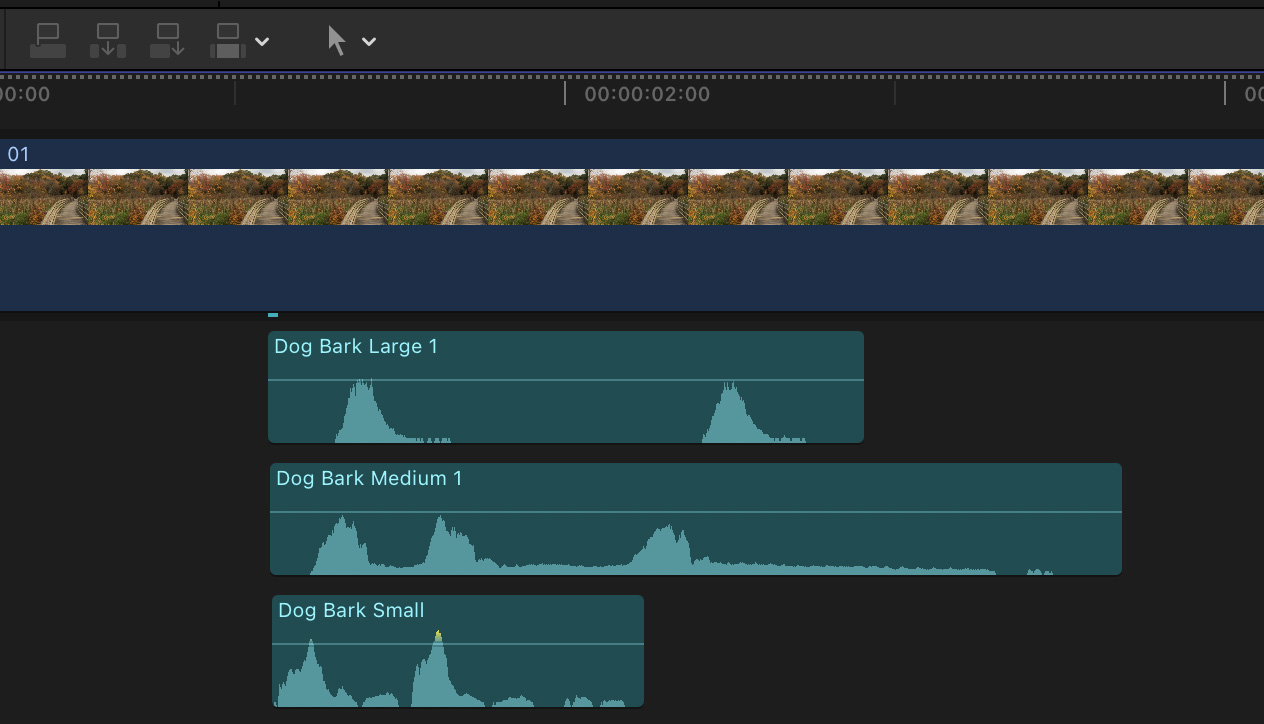
Traditionally, when we want to compare sound effects – say a dog barking – we would stack clips under the video track, enable or disable each effect, then play the timeline to decide which to use. This process worked, but it wasn’t very fast.
Auditions automate this whole process. Here’s how.
There are two ways to create an Audition:
CREATE AN AUDITION IN THE BROWSER
To create an Audition in the Browser, first set any relevant Ins and Outs first, as the Audition will respect them.
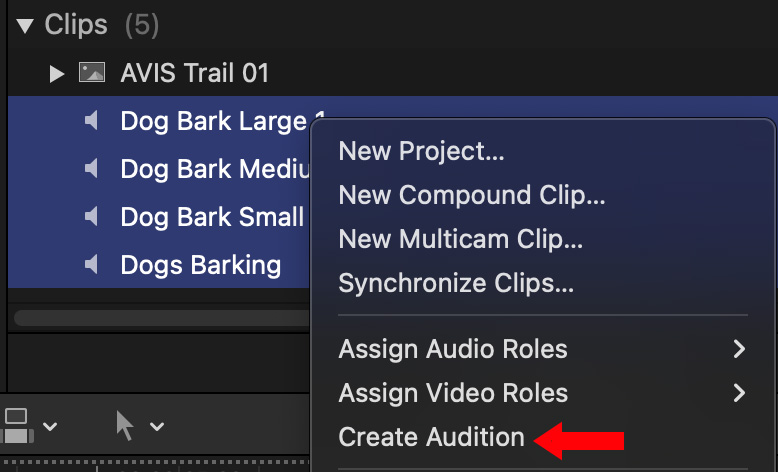
Select the clips you want to bundle into an Audition, then right-click and choose Create Audition.

The Audition is created using the name of the first selected clip and given a spotlight icon. You can rename this clip as you would any other.
Edit the Audition clip into the timeline as you would any other clip.
CREATE AN AUDITION IN THE TIMELINE
To create an Audition in the Timeline, again, first set any Ins or Outs to clips in the timeline or Browser that are needed.
Edit one clip into the timeline or work with an already existing clip.
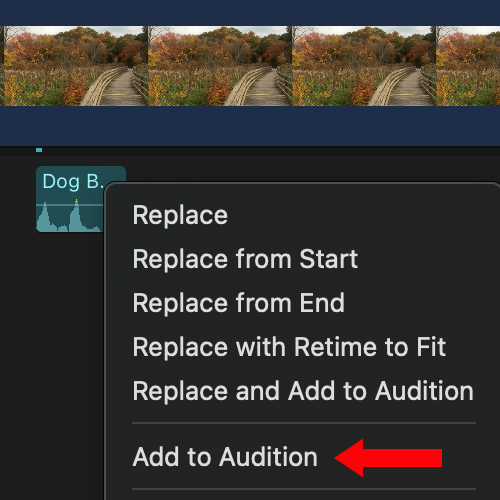
Drag one or more clips from the Browser on top of the timeline audio clip and choose Add to Audition from the popup menu that appears.
NOTE: You can choose other options, but, since we are using this to review audio clips, Add to Audition is the easiest.
PREVIEW AN AUDITION
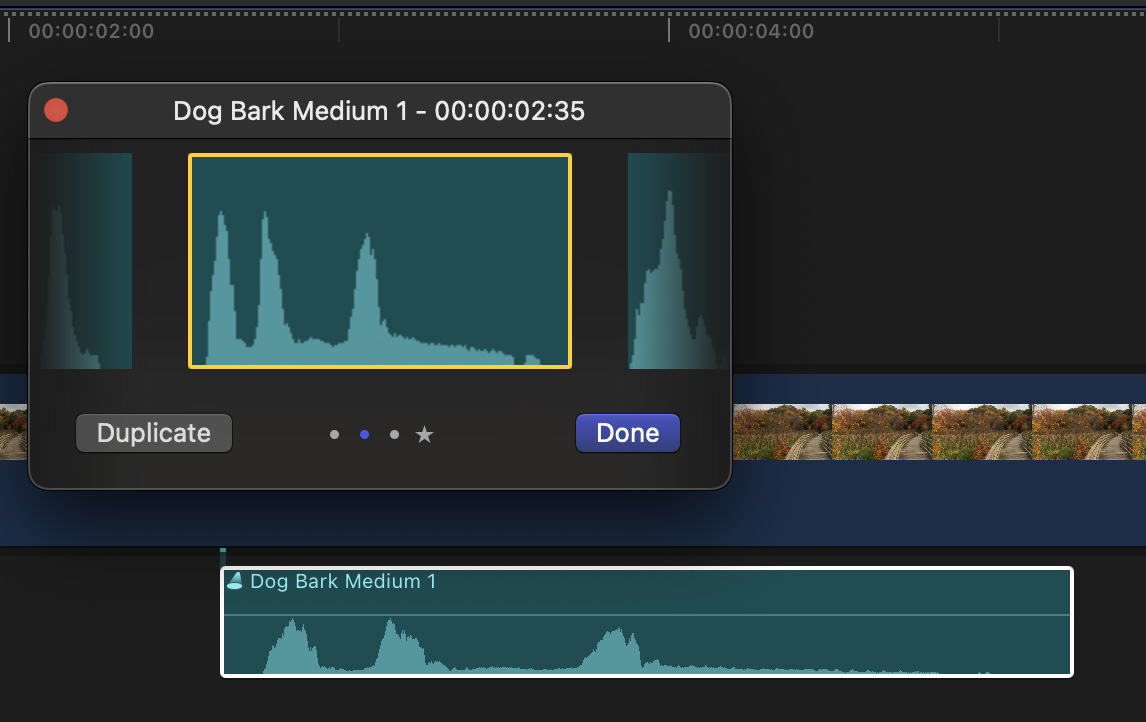
To view the contents of an Audition, select the Audition clip in the timeline and type Y (or choose Clip > Audition > Open.
This displays all the clips contained in the Audition (four in my example). Switch between them using the left/right arrow keys.
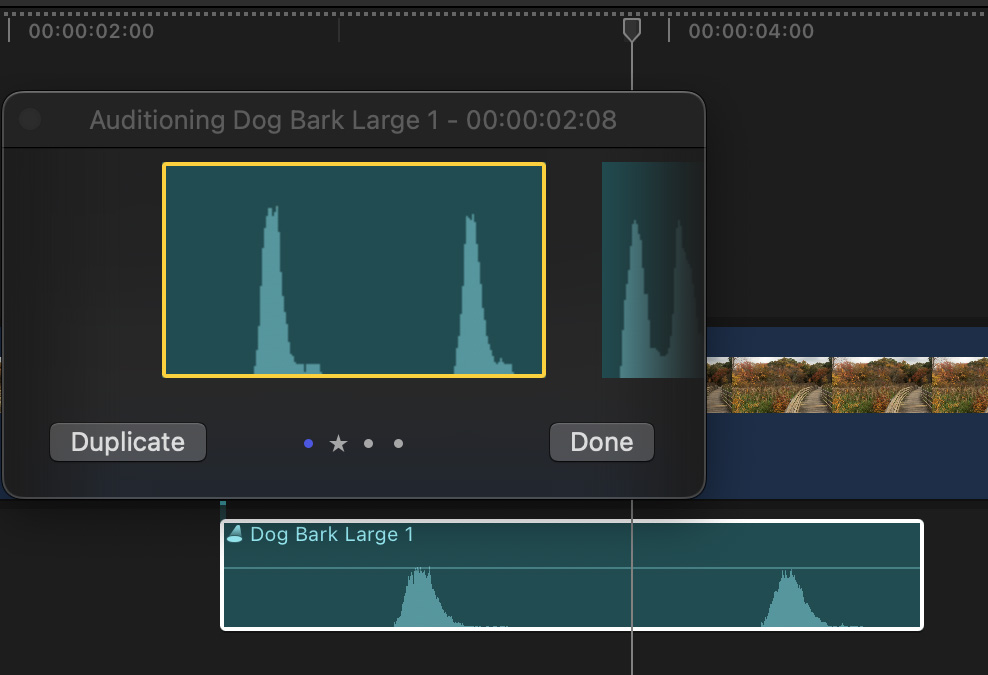
But it is previewing an Audition where you’ll see the true benefit.
Select the Audition clip in the Timeline, type Control + Cmd + Y (or choose Clip > Audition > Preview).
Instantly, the playhead backups up two seconds from the start of the Audition and starts playing in a loop. Press the left/right arrow keys to switch between the different audio clips. Each time you switch, the playhead backs up and plays again.
NOTE: The distance the playhead backs up and continues playing after the Audition is determined by the Pre-Roll and Post-Roll durations in Final Cut Pro > Settings > Playback.
Auditions are the fastest way to preview sound effects, music, even video clips, because playback never stops as you switch from one option to the next. Plus, you see and hear everything else in the timeline; for example, you would hear the dog barking along with the rest of the mix.
FINALIZE AN AUDITION
Once you find the clip you like, finalize the Audition (similar to finalizing a multicam clip) by selecting the Audition clip and choosing Clip > Audition > Finalize Audition (or type Option + Shift + Y).
The currently-active clip will remain in the timeline, while the others are disconnected. The Audition reverts back to a simple audio clip. All clips will remain in the Browser.
SUMMARY
What makes Auditions so useful is that they are fast to create, easy to preview and blindingly fast to switch between options.
You can modify an existing Audition using the Clip > Audition menu choices.
Once you start to play with these you’ll find many different ways to put them to use – not just with audio, but video clips as well.



2 Responses to Use Auditions in Final Cut Pro to Select Music and Sound Effects
This is great. I’ve never used Auditions before but I can see they will be very useful in the future.
“ similar to finalizing a multicam clip”-I’ve been using multicam a long time, but don’t know what this is-something else to research.