
 Over the years, Premiere Pro has improved greatly in stability. Now, it is a dependable friend in editing your work. Until… it crashes, taking your project with it.
Or… you forget to save at the end of a long day of editing.
Or… your pet rhinoceros stomps your computer into oblivion.
Whatever disaster befalls your system, you now have a sequence or project that’s damaged or destroyed. Now what?
Well, obviously, the first step involves a lot of strong language and railing against the fates. This won’t actually solve the problem, but it does get all that anger out.
After that, there are several things you can do to get back to work.
RESTORE FROM A DUPLICATE SEQUENCE
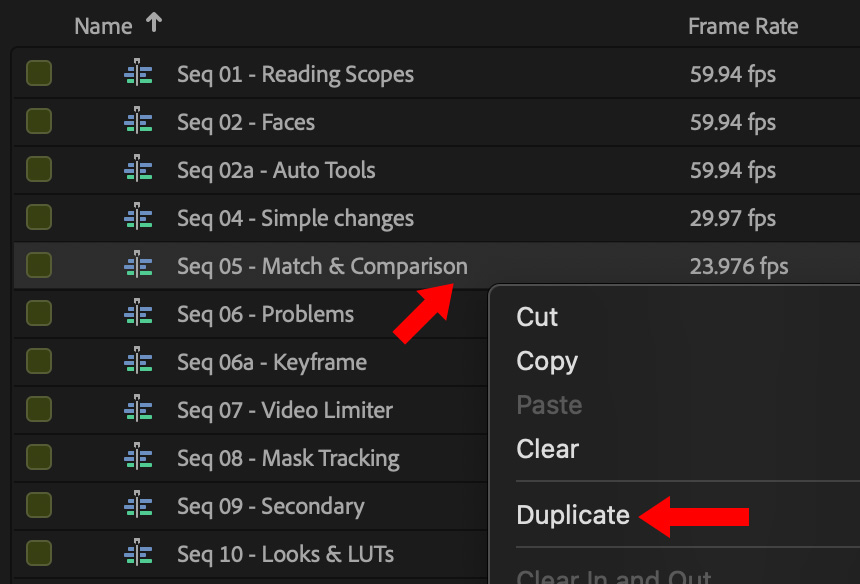
As a fast first option, duplicate the sequence you are working on at the end of each editing day. (Then, delete duplicates after they get a few days out of date.)
To do so, right-click the sequence you want to backup and choose Duplicate.
Duplicates are the only way to make a backup of a single sequence. However, they are stored in the same project as the source sequence, so, while this is a good practice, it doesn’t help if something corrupts the project file itself.
RESTORE FROM A BACKUP
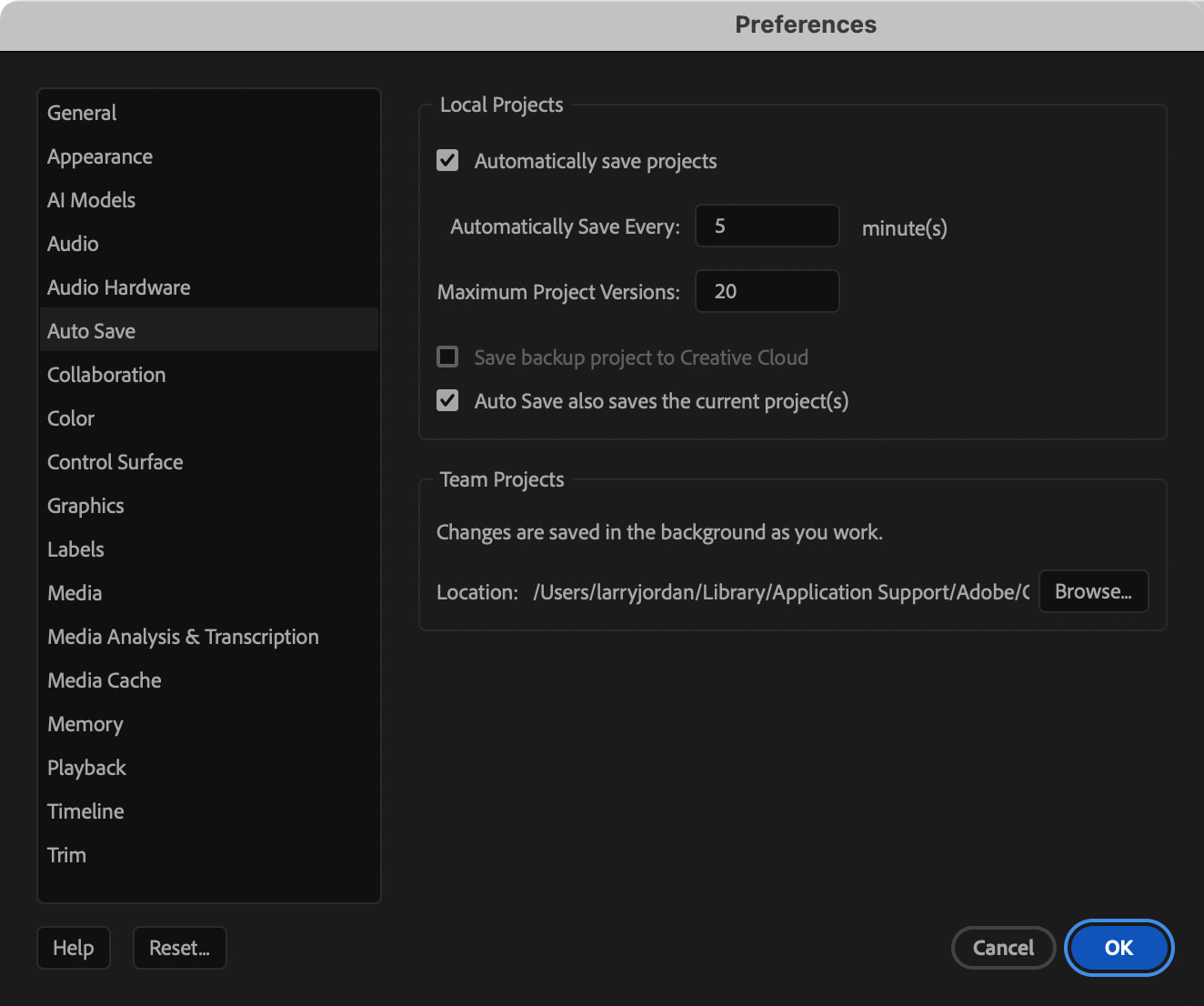
If you haven’t done so already, be sure to set up Preferences > Auto Save. The screen shot above illustrates how I configured my system:
NOTE: You can also save a project to the Creative Cloud. Keep in mind that, if you do so, it will not backup media. Auto-save, regardless of location, does not back up media.

Premiere is quirky about where it stores Auto Save and Backup files. To start your search, go to [Home directory] > Documents > Adobe > Premiere Pro.
At this point, depending upon how many versions of Premiere you’ve own, you’ll find a series of folders numbered by version number. Your backup is hidden somewhere in one of them.
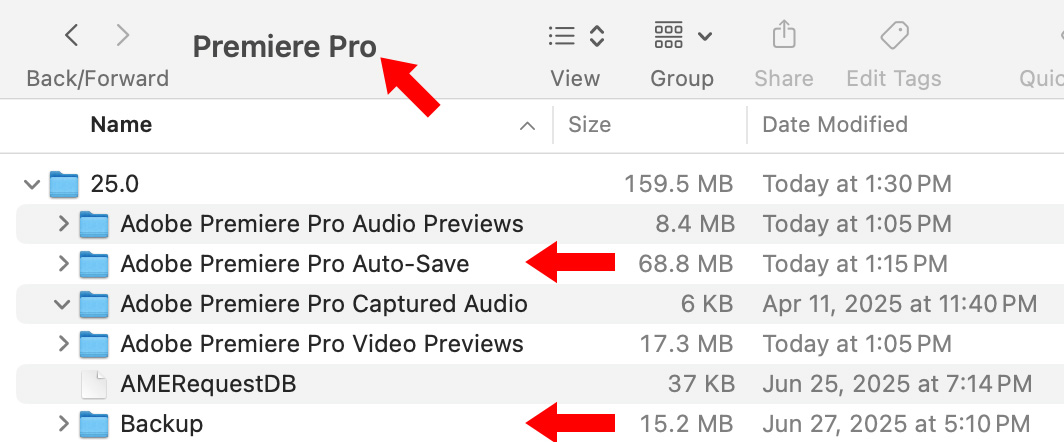
Open a numbered folder (25.0 in my example) and inside you’ll find two key folders:
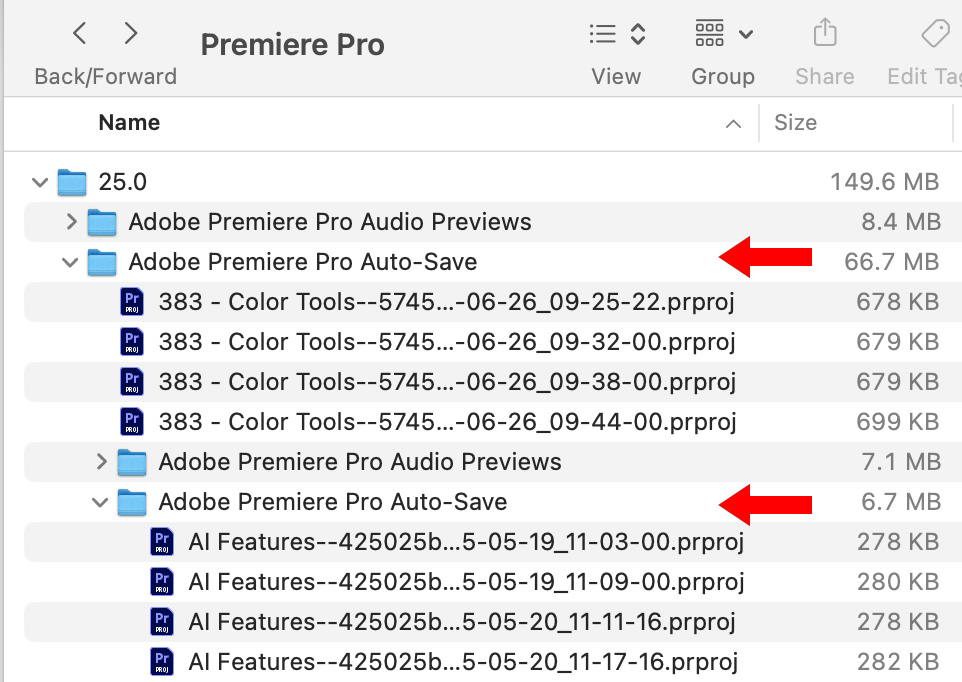
Auto-Save and Backup folders are located at the same location in which you stored the Project itself. If you owned multiple versions of Premiere, the numbered folders will stretch back toward zero. As far as I can tell, Premiere stores files in the lowest numbered folder, unless you change the location when you create a project.
If you are like me, and don’t pay close attention to where you are storing your project files, you’ll probably find multiple Auto-Save and Backup folders nested inside other Auto-Save and Backup folders. Some spelunking will be necessary to find the Auto-Save or Backup folder holding the backups for your project.
Backups are named with the project you were editing along with when it was saved.
NOTE: Each file is a self-contained Premiere Pro project, containing everything except media.
Copy the file you want to open to a different location – retaining the backup in its original location “just in case.” Then open the file, relink any media that you might have moved after the project was saved, and restart editing.
Yes, you’ll lose any work that occurred after the project was saved, but you won’t lose everything.
NOTE: In the event of a system crash, go to the folder in which you stored the original project. Inside it, you’ll find the Auto-Save folder which contains a subfolder named Recovery Projects. This holds files for each project saved during crashes or forced quits.
RESTORE AFTER BACKUPS WERE DELETED
If you deleted the Backup folder – say, because it was ancient – navigate to and open the Backup folder so you can see its contents.
Open Time Machine and navigate back in time until you see the files you need displayed again in Time Machine. Select them and click Restore to move those missing files out of Time Machine back into their original location in Backups.
NOTE: If you don’t find the files you are looking for, repeat the process except looking in Auto Save.
You can use this process to find any missing file. Time Machine is an amazing backup/restore utility.
RESTORE AFTER YOUR COMPUTER WAS DESTROYED
After that rhinoceros runs amok in your office, stomping everything in sight, you have a two options:
This is a good time to discuss the 3 – 2 – 1 system of backups. This is a data protection strategy that recommends keeping three copies of your data, stored on two different types of media, with one copy kept off-site. This approach helps ensure data safety and accessibility in case of hardware failure, theft, or disasters.
Personally, while I don’t have data stored off-site (I know, I should), I do have three copies of my data – one on my main computer, one on a backup hard drive (RAID), and one on a server in my office. I use both Time Machine and Carbon Copy Cloner to keep backups current.
If your project is critical and all backups are lost, you may still be able to recover your data using a professional data recovery service. Do an internet search for companies in your area.
HOWEVER!, in the event of a data loss like this, do NOT run any programs that promise to restore data until after you talk with a data recovery expert. Far too many utilities that promise to restore data actually damage it further. (I’m speaking from experience here.)
SSD drives are small and very rugged. While your computer may be dead, the SSD may still hold data. If the data on it is critical, a professional data recovery service may be able to bring it back. This option is NOT cheap, but for some libraries, it may be worth it.
SUMMARY
Hopefully, you and your projects are never parted. But, in the event disaster strikes, knowing where backups are stored and how to access them can quickly minimize stress and get you back to work.



2 Responses to Rescue a Premiere Pro Project Using Backups
I generally just do a Finder search for “auto-save” (why the worthless hyphen, Adobe?), and any and all “auto-save” folders pop up, making it easy to browse them for your damaged project.
Mike:
Good point. I seem to have hit or miss results with searching on the Mac. Knowing where stuff is located gives me an option when Spotlight can’t find it.
Larry