
 This tutorial began with a plea from Scott:
I’m desperately trying to embed CEA-608 captions into a .MXF for broadcast television using Final Cut Pro. Everything says I should be able to but neither Compressor nor FCP let me select captions to embed. What am I missing? Please help.
MXF is a standard media container (just as QuickTime is a container) used by many broadcasters. Broadcasters prefer embedded captions because all elements – audio, video, timecode and captions – are contained in a single container file. However, only one language can be embedded at a time. If you need to support multiple languages, export standalone files, like SRT.
NOTE: Embedded captions are not burned-in. Embedded means they travel as part of the media file. Embedded captions can be turned on or off. Burned-in means that the captions are always visible. We are embedding, not burning-in.
Just to save time, here’s the short answer: While FCP supports embedding CEA-608 captions into QuickTime files, FCP does not support embedding CEA-608 captions into MXF files. I don’t know why. If you need to do this, use Adobe Premiere Pro or a third-party utility.
With that being said, here’s how to embed CEA-608 captions in QuickTime files.
GET CAPTIONS INTO THE CORRECT FORMAT
Open your project in Final Cut. If captions don’t exist, choose Edit > Transcribe to Captions (shortcut: Shift + Cmd + C).
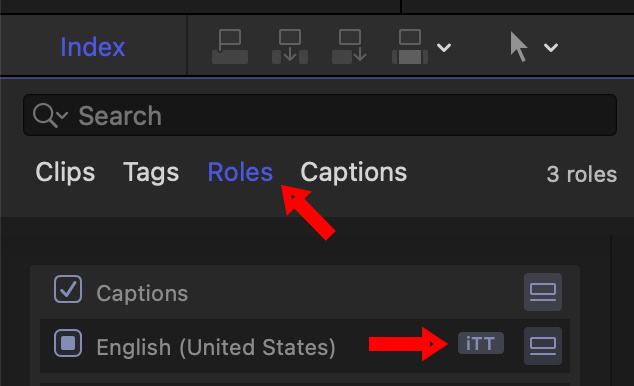
By default, FCP always creates iTT captions. Which are OK, but we need to convert these to CEA-608, also called “SCC.”
Select any single caption in the timeline.
Type Cmd + A to select all captions
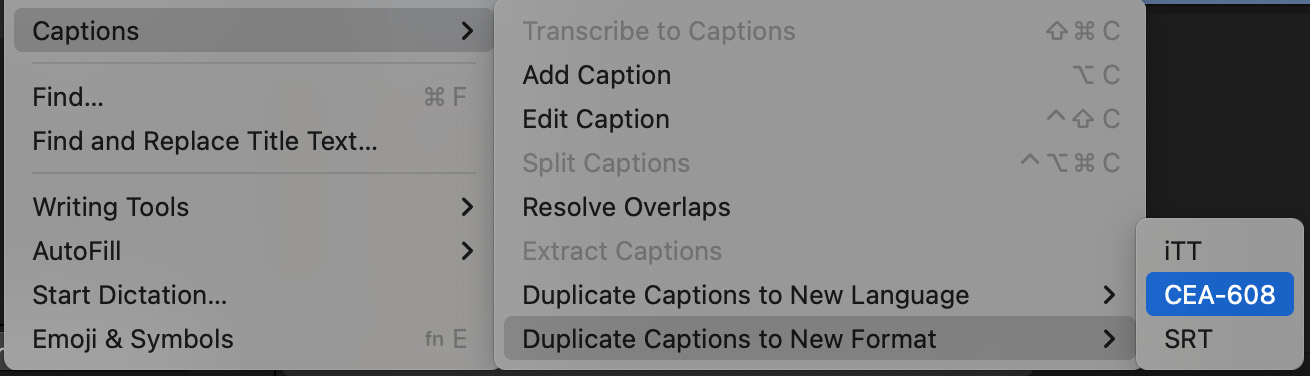
Choose Edit > Captions > Duplicate Captions to New Format and select CEA-608.
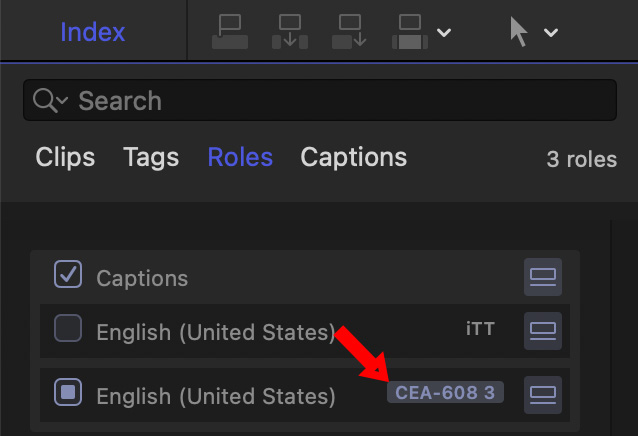
There are now two caption tracks in your project: iTT and CEA-608. Uncheck the checkbox for iTT to disable it, then made sure the CEA-608 track is enabled.
Next, as with any captions, go through to adjust timing and accuracy. Since embedding captions is only done when the project is complete, finish the project.
When the project and captions are ready to export, choose File > Share > Export file (shortcut: Cmd + E).
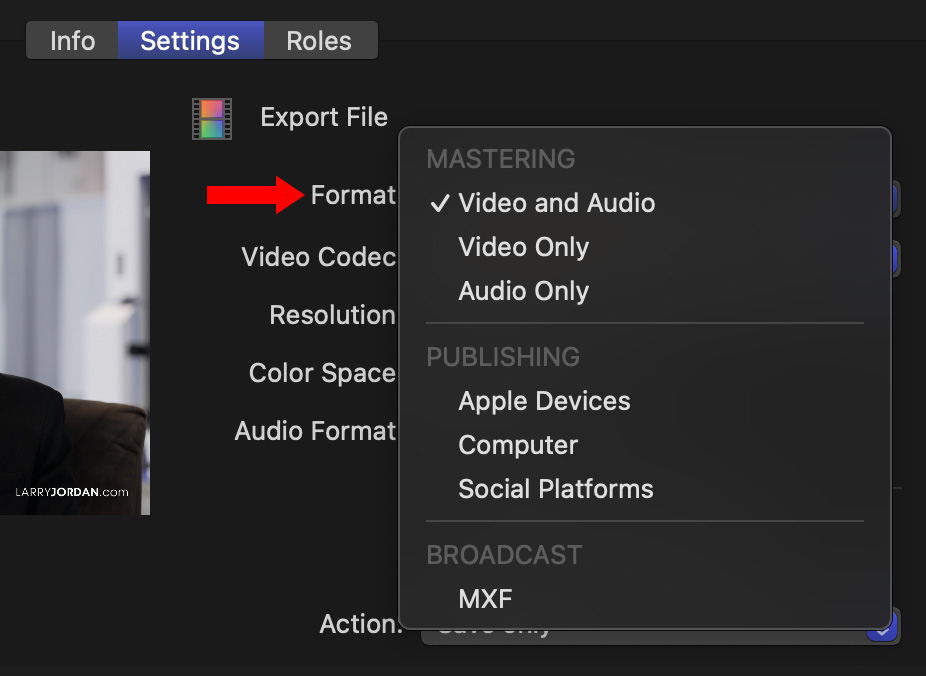
In the Settings panel, choose the appropriate Format. Remember, captions cannot be burned into MXF video.
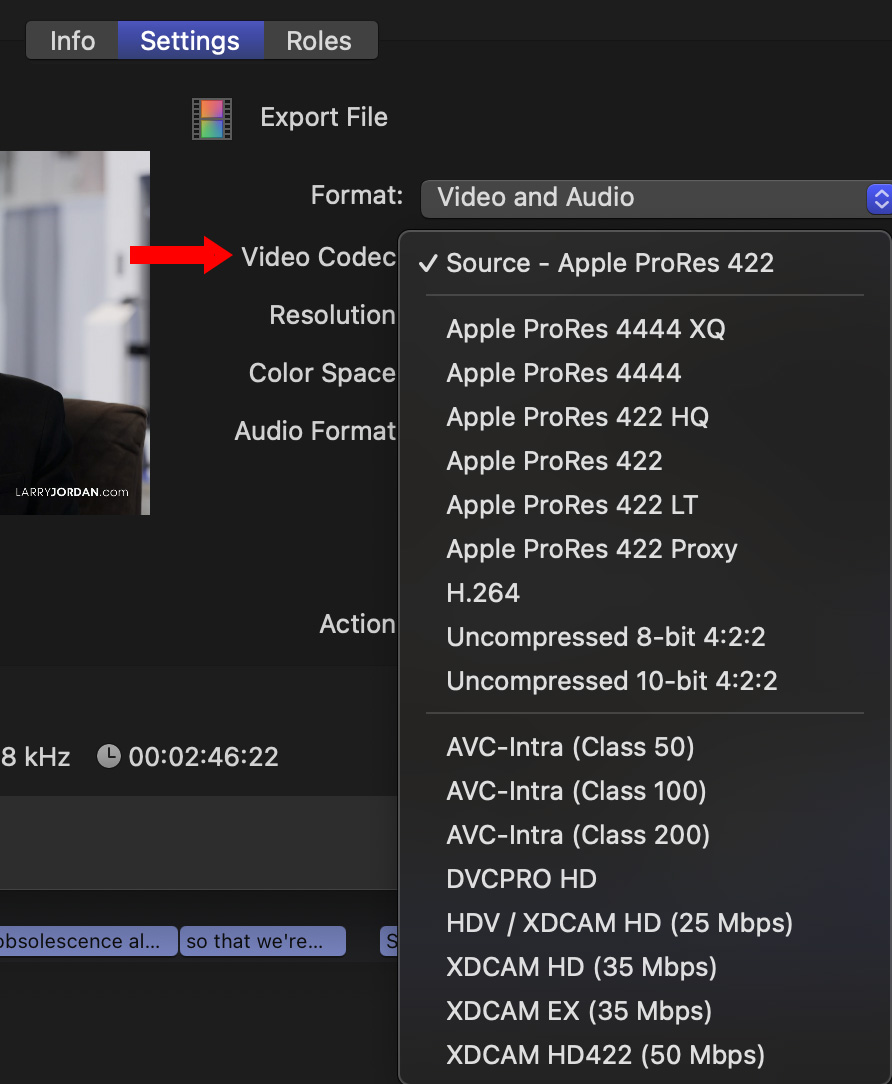
Next, choose the appropriate video codec.

Click the Roles text button in the top right of the Export file window (red arrow).
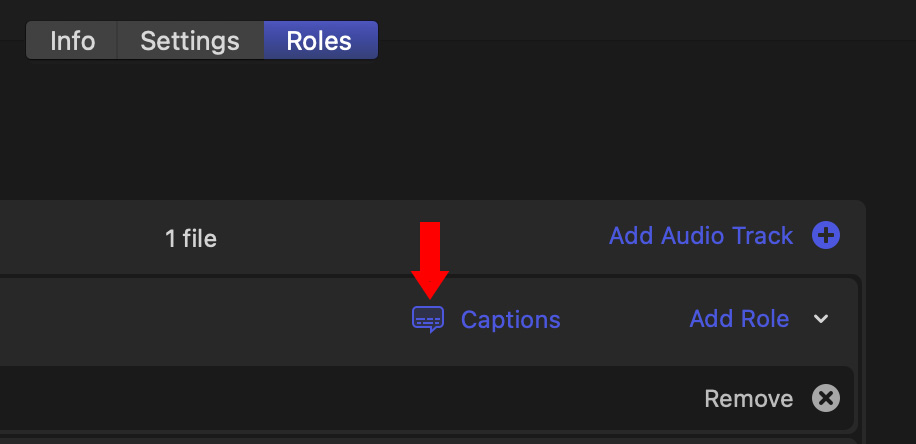
Click the blue Captions button.
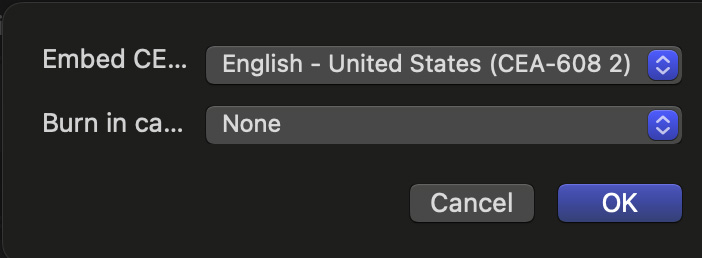
Select the correct CEA-608 track.
Click OK, then, once all other settings are set, click Export/Save.
Done.
SUMMARY
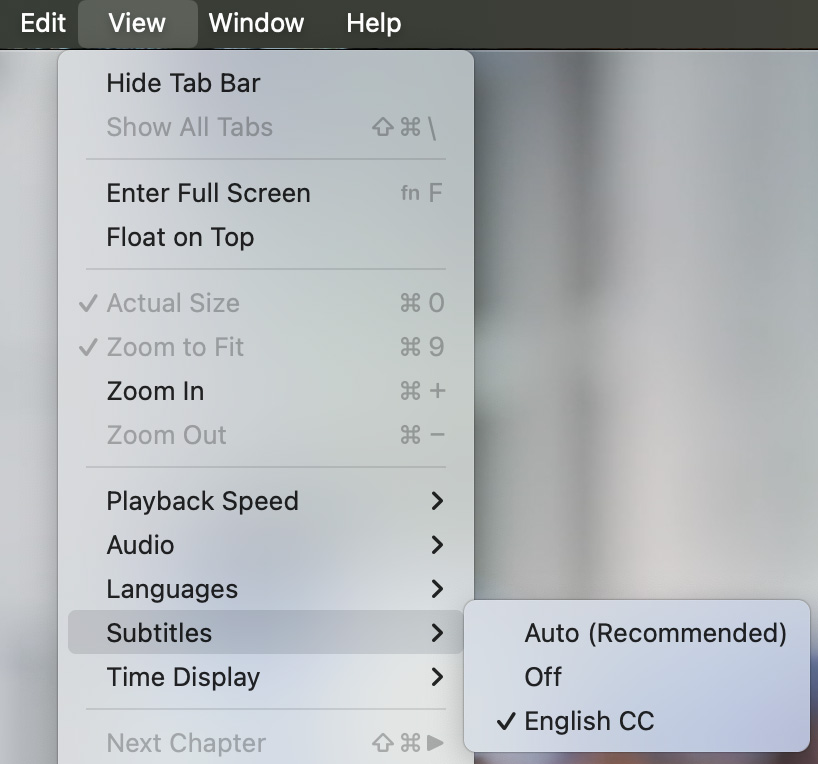
You can verify the captions are OK by opening the file in QuickTime Player and enabling subtitles. I’ve found that leaving this setting on Automatic does not always display subtitles, but selecting a specific language does.
I’ve also discovered that, while subtitles can be embedded in ProRes files, they cannot be embedded (or they do not display) in H.264 media. I’ve also seen problems with displaying embedded captions in VLC Player.



6 Responses to Embedding SCC (CEA-608) Captions Into Video Using Apple Final Cut Pro 11
This is a rabbit hole I have gone down seriously for years, here’s my perspective (using Premiere, but applicable here), sorry for the long rant, Larry.
ACCEPTABILITY–Most stations I have found want 708 CC embedded (not 608 as in this post) as that is a newer digital standard. Many stations ask for both 608/708 embedded within same file.
–Some stations take the formats that Premiere can export embedded (MXF and MOV (maybe just ProRes?) only), but most I have found want embedded CC in MPG (meaning old school MPEG-2) or MP4.
PROGRAMS—I’ve seen a lot of articles that say ‘use a third party CC program’ – but never list any? I’ve tried several programs that SAY they embed 708, then when actually checking the file it is 608 only – OR the station’s QC comes back saying there’s nothing embedded that they can see and file gets rejected.
–Many programs might SAY they embed captions (VLC, Handbrake, Compressor, small programs in the App store, many others) but in all cases so far I found they export 608 but NOT 708 and are not accepted by as many stations.
–SIDE NOTE – a great program we use on Mac called “MediaInfo” shows immediately if a file has 608/708 embedded, and a million other things. We use it all the time – best $0.99 spent ever.
–We’ve been using “CaptionMaker” by Telestream (used to have Mac option but now PC only – as all options I have found are) and it’s great but our version is old and can not be re-installed, and to update to full version that embeds is $7k+. Ouch. They have a great looking web-based version called “Stanza” (therefore I assume cross-platformable(?), another big plus if so), but subscription only at around $1.7k/year (last I heard). Far more than we would make on CCing so I never tried it.
–I believe one that might work was “Closed Caption Creator” (PC) but it was $1.5k one-time and then $300/year thereafter so I never tried it.
–Best bet thus far I’ve seen is “Expert Caption” by PixelTools (again, PC only.). Still working on this – you can buy for $1.5k – OR you can rent for $249/3 months. Now THAT is more like it since our CC work comes in smaller waves. They have been really great at answering my questions and it looks like it can do everything we need (MPG and MP4 CC embedded) but I have not fully tested all the way through with any station’s QC department.
CHECKING—Many playback options do not show CC at all or accurately – for example, VLC can show MPG CC (once you immediately go to the ‘Subtitle’ menu and choose an option), but does not show for embedded MP4s. Best I’ve seen so far are “SMPlayer” for PC and “IINA” for Mac.
But what do I know? You want to call me out for wrong/outdated info or have any better suggestions? I’m all ears as this has been an ongoing problem, esp. for a Mac solution.
Clark:
Smile… I would NEVER call someone out for providing this much detail. This is both fascinating and depressing.
If a reader has a suggestion for a Mac-based app, I’d like to hear it. I’ll also contact Apple to see if they have recommendations for embedding 708 captions.
Larry
Thanks, Larry! Yeah, making and timing captions is now no longer the issue (it used to be before NLEs started building that in), but once you need to embed into another format, most every solution got really PC-only and really expensive. Unless I am just missing something obvious that everyone else with this problem knows about…
Clark you are not missing anything. 708 embedded captions are strangely difficult and expensive.
I’ve too have tried to solve (simplify/less $) this problem for a colleague of mine for years who produces an outdoor show for regional TV. Twenty years ago they settled on the expensive MacCaption solution.
I once thought FFMEG would be the answer, no dice. I searched high and low for inexpensive software, nope.
And now my friend will be handing the program off to me and I once again went looking for a better way…but found very little (except for your very informative discussion post, thank you Clark..and Larry).
The outdoor show is using a very outdated MacCaption software on a very outdated iMac, so I guess I’ll keep using that until it no longer works.
On a side note, one of the better developments in the CC workflow is the way AI can effortlessly create the captions of your video, generally for free.
So, for anyone that may come across this post in the future, here are the results of my research on the topic of “Current solutions for embedding CEA-708 captions into an MXF wrapped file (Oct 2025):
Closed Caption Creator: https://closedcaptioncreator.com/
Subscription based, from the demo it show a very nice one click AI captioning feature. The caveat with this service is that you have to upload your video file to their server to create the embedded file then download it back again. (which costs extra, sheesh.) For a weekly 30 minute show it works out to be almost $100/mo.
$50/mo + $2/file + $0.40/GB
Pixel Tools
https://www.pixeltools.com/expert-caption.html
Windows only, Expert-Caption can caption all video files in a folder. And the processing is all done locally on the computer and not in the cloud.
$1595 one time purchase or $249/quarter ($83/mo)
CaptionMaker (Telestream, formally MacCaption)
$7403
Of course the following are full video editing software with the (reported) ability to export a file with embedded 708 captions. If you are not editing your project on these it calls for a clunky import/export exercise.
Premiere Pro (Adobe)
$23/mo (annual sub)
Avid Media Composer
$260/yr ($22/mo)
From everything I’ve read Blackmagic DaVinci Resolve can possibly do 608 but not 708.
And that’s it. For the life of me, I can not understand why this is not easily programmed into a new or existing software. But it must be voodoo, atom splitting, secret sauce or something.
Please add or comment to this list for others searching. For a law that went into effect 20 years ago, you think we would have more options. Anyway, happy captioning.
Hmmm, maybe AI can write me a program to do this…
David:
Thanks for your detailed response.
Larry
[…] wrote this response to a post over on Larry Jordan’s website about broadcast […]