
 Adobe Premiere supports displaying two or more timelines at the same time. For example, this can help when you need to compare two versions of an edit.
NOTE: Two timelines can be easily displayed on a single-monitor system. More than two will probably require a second computer monitor.
This technique takes advantage of the flexible interface in Premiere. It isn’t hard to do, but it isn’t obvious. Here’s how this works.
DISPLAY TWO TIMELINES ON A SINGLE-MONITOR SYSTEM
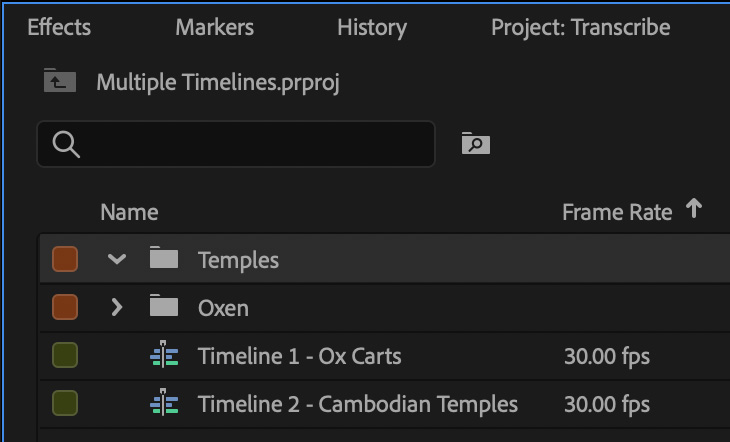
Here, I created two sequences, as shown in the Project panel.
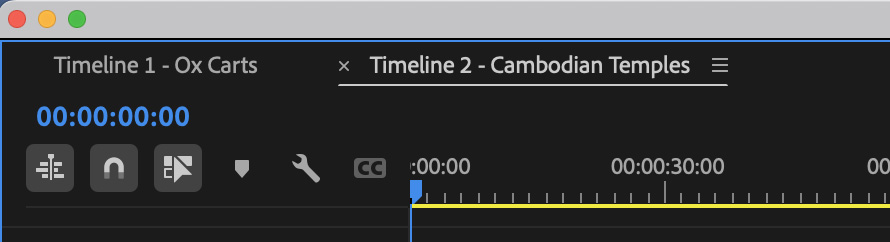
Open both into the Timeline panel, as you would normally.
 (Click to view larger image.)
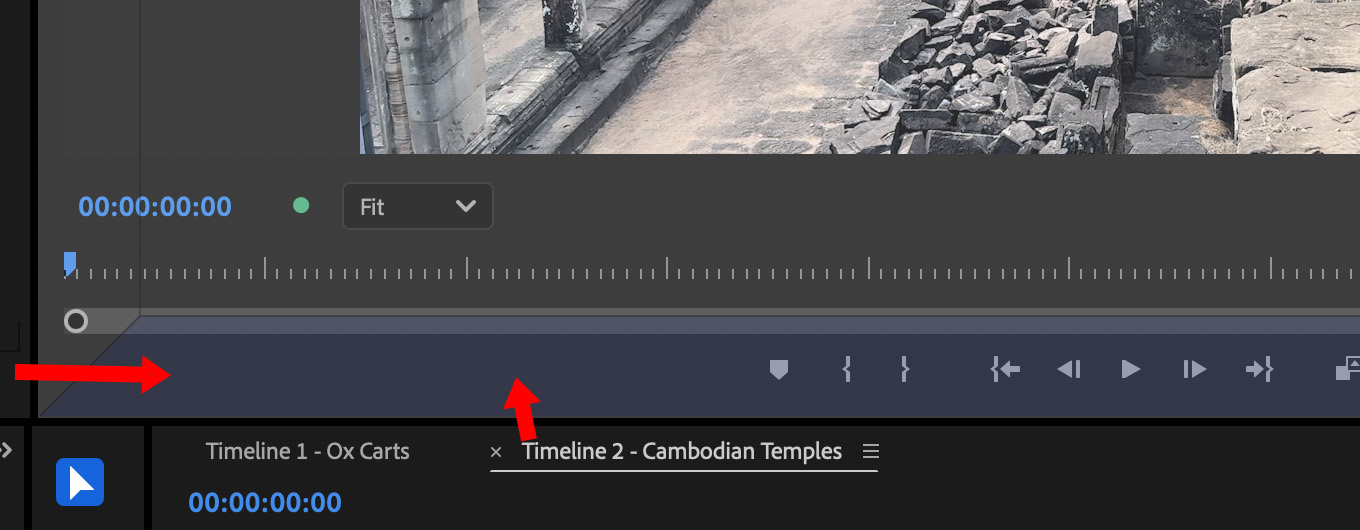
Grab the name of the sequence that is NOT opened into the timeline panel and drag it up so that the lower edge of the Program monitor shows a purple stripe (red arrow).
Click to view larger image.
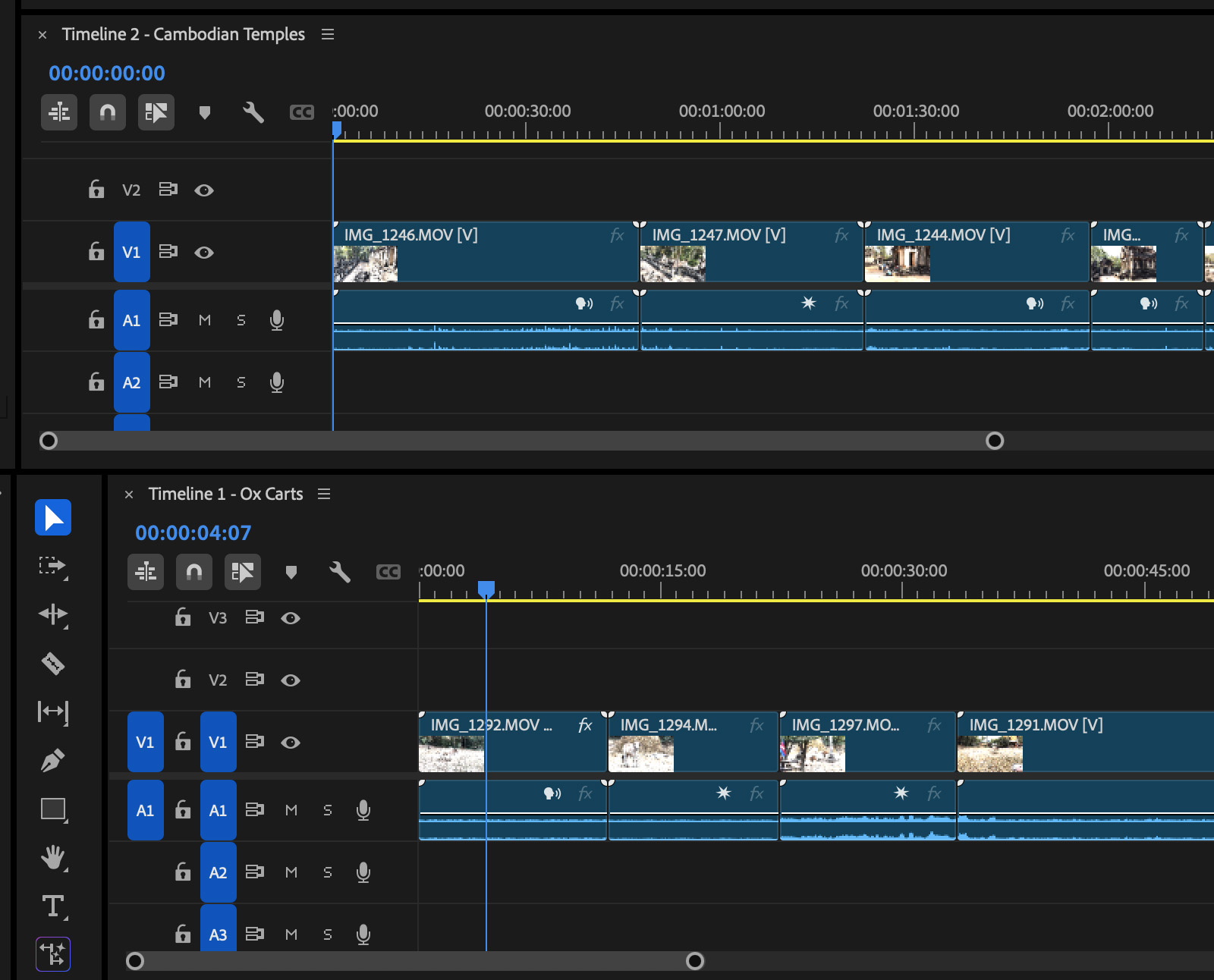
When you let go, the sequence you dragged is now displayed in its own timeline panel above the original timeline. Drag the edges of the panel to size it the way you want.
DISPLAY TWO TIMELINES ON A TWO-MONITOR SYSTEM
Using a second monitor to display multiple timelines makes this process easier.
Open both sequences into the timeline window, as before.
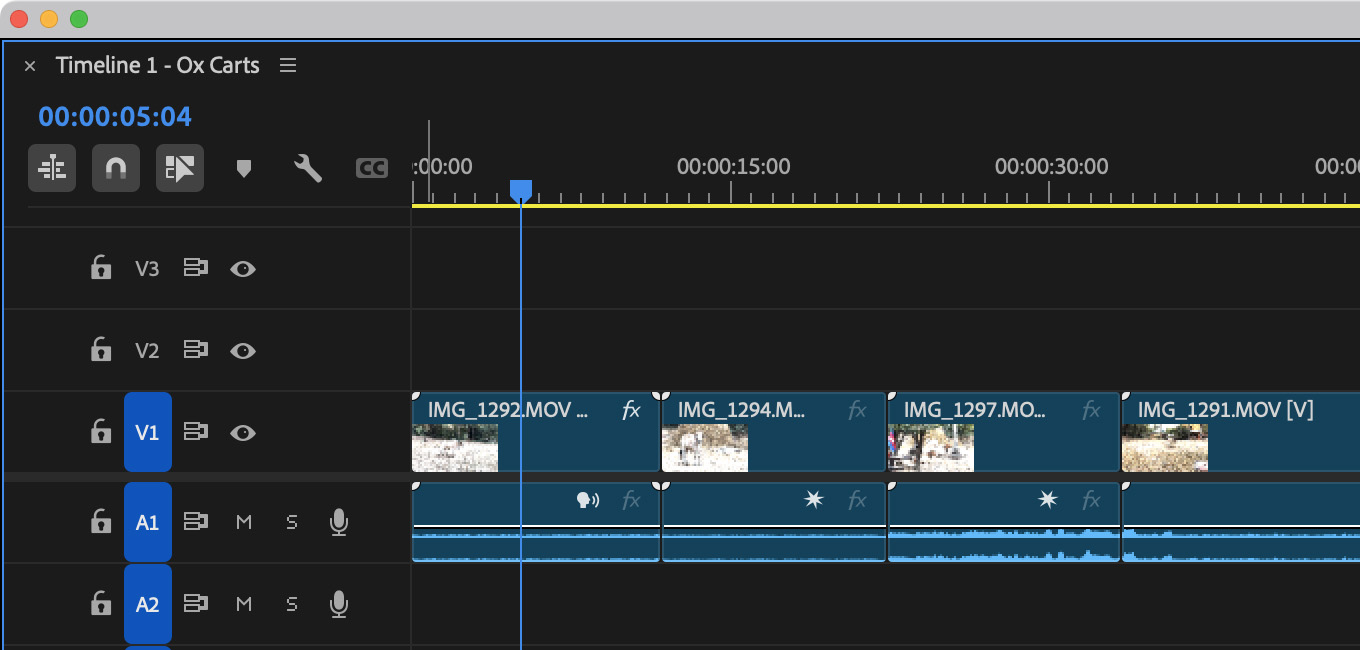
Click to view larger image.
Drag one of the sequence names into the second computer monitor. It opens to become a stand-alone panel. (See the traffic lights in the top left corner?)
Open the next sequence into this same window by double-clicking the sequence name in the Project panel. (If the Program Monitor appears, close it to reveal the sequence loaded into the Timeline window behind it.)
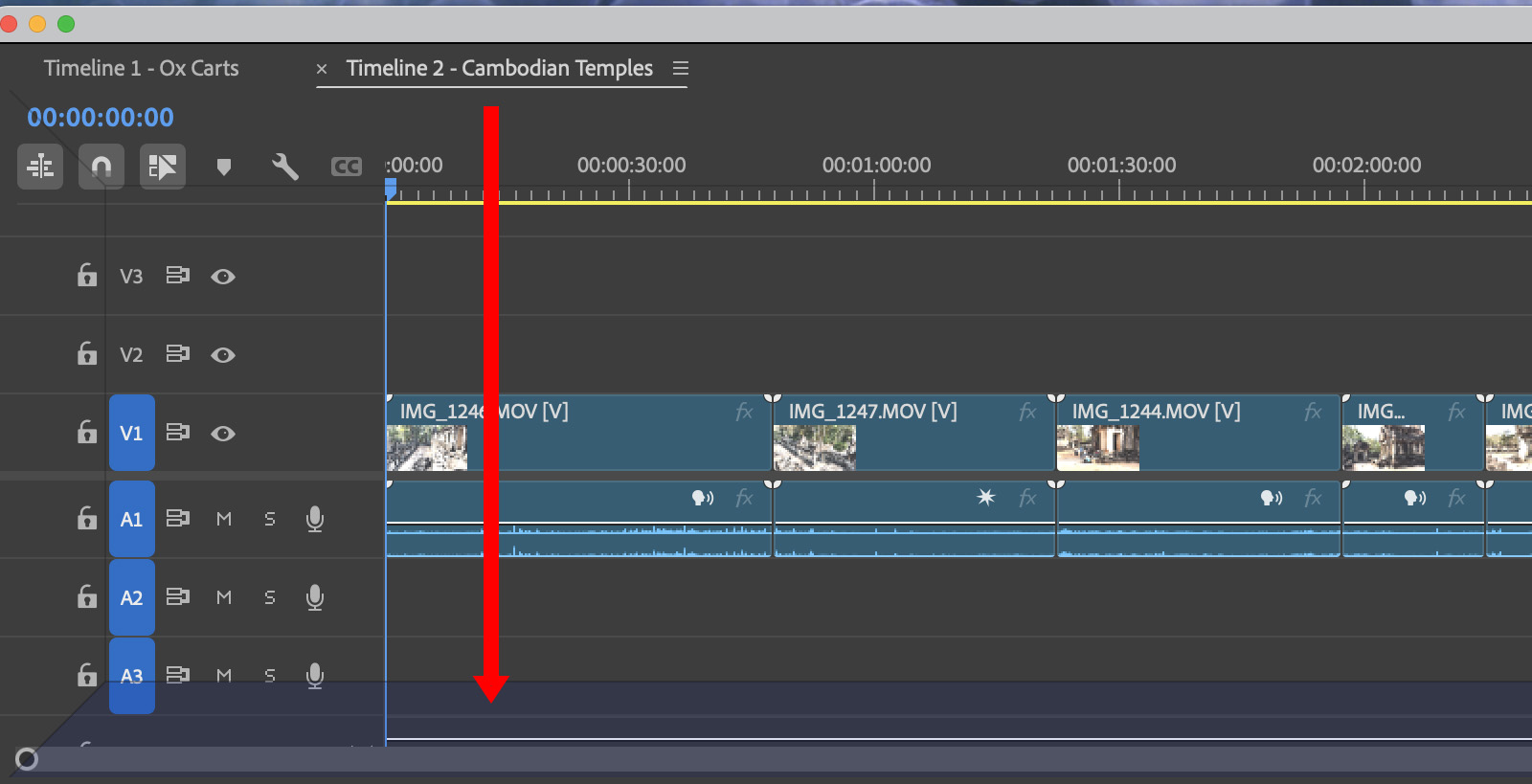
Click to view larger image.
Drag the name of the second sequence to the lower edge of the floating timeline panel. When a purple bar appears, let go.
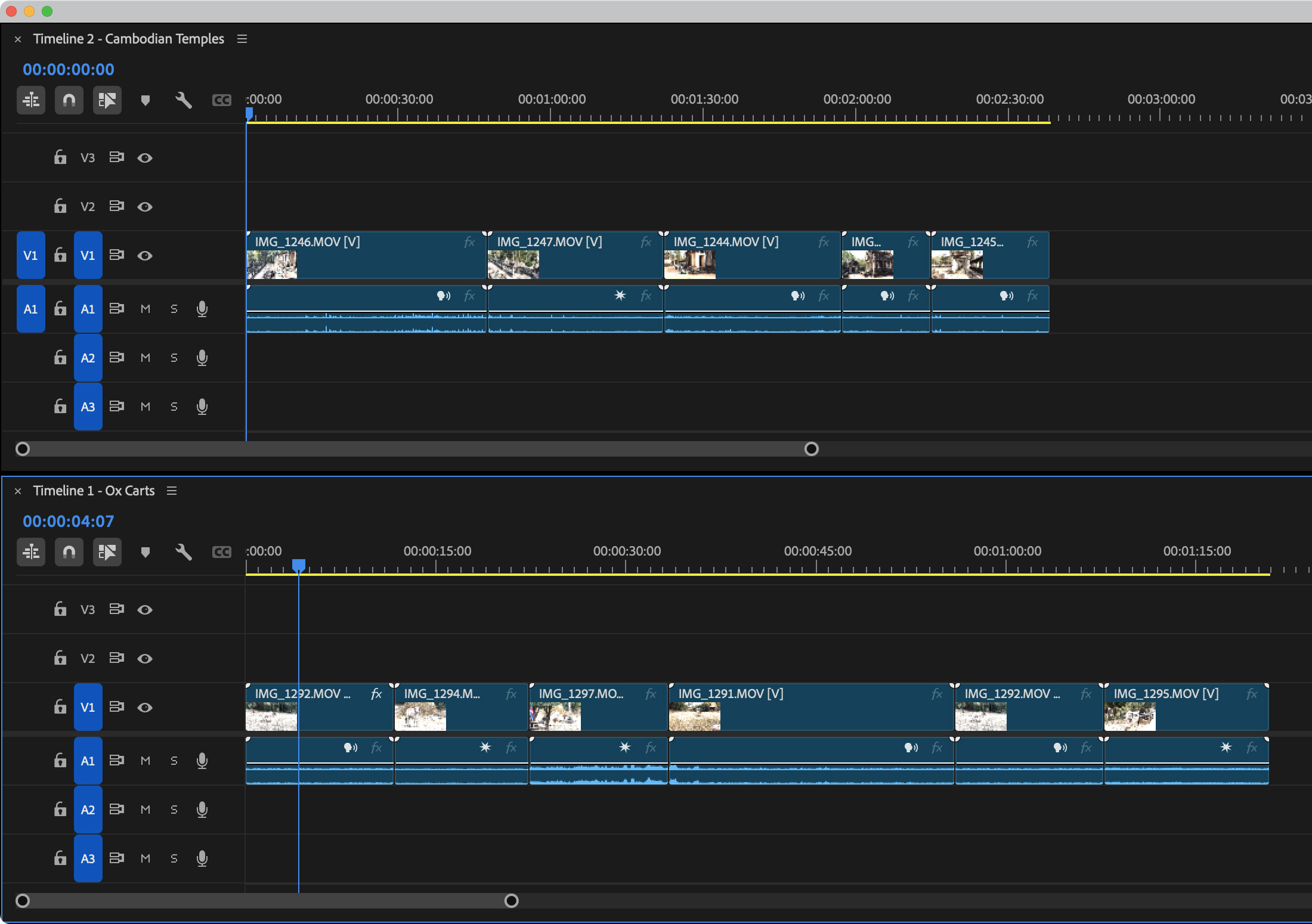
Click to view larger image.
Both sequences are now displayed in the timeline window. Size the panel as you wish.
SUMMARY
I don’t use this technique very often, but when I need it, Premiere makes the process easy.



4 Responses to Display Stacked Timelines in Adobe Premiere Pro (v25.2)
The panel settings in the timeline window includes “panel group settings” which allows you to stack or unstack timelines, as well as to “solo” one timeline at a time while collapsing the others.
Eric:
Thanks! More settings for me to play with.
Larry
What I keep running into is premiere highlighting and separating a timeline when I DONT want it to…
it’s like I click somewhere, the timeline flashes, then the time indicator follows the cursor (despite that setting usually being deselected) and I end up with stacked timelines.
Would love to figure out what it is, as I keep having to return the timeline into my preferred tabs…
John:
The KEY is not to double-click sequence names at the top of the timeline. Doing so opens them as separate timelines. Just single-click to select them.
Larry