
 Lawrence Kerr asked a really good question:
I’m about to start a very big project. Where should I import my media first: Into a media asset manager or, in my case, Final Cut Pro?
Larry replies: This is a fascinating question because, the more I looked into it, the more options appeared. So, let’s tackle this and see which works best for you.
OTHER SOFTWARE
BACKGROUND
A Media Asset Manager (MAM) is software which catalogs your media, allowing you to search for it using a variety of criteria, then transfer a link to that media from the MAM to your video editor (an “NLE,” such as Final Cut Pro).
MAMs don’t store your media. Instead, think of them, ah, if you’re old enough, like the card catalog in a library or, if you’re younger, like a Google search. Neither of these stores the information it references, it simply points to where it is located.
This assumes that both Axle and the editing computer are on the same local area network and the media being shared resides in a location accessible to both. If they aren’t, then Axle will download the files to the editing computer. The process is similar, but downloading takes longer and requires more local storage space.
NOTE: Local storage, however, is often faster than a server connection, so downloads may support faster editing in the long run.
There are a variety of MAMs available today. I’ll illustrate this tutorial using Axle.AI because I own it. I first bought Axle eleven years ago and there are many reasons why I like Axle:
EXECUTIVE SUMMARY
Axle is independent software that runs on a server, generally connected to your local area network, which automatically indexes all media stored on all drives to which Axel has access. This means that you don’t “import” media into Axle, it just shows up. The key effort you need to make is in organizing that media within Axle, adding custom metadata (like location, scene, actor, costume, etc.) to help you find the clip you need when you need it. (Axle also provides AI tools that can help automate this process.)
Because Axle works in the background, you can start editing immediately. Axle will find and index all your media automatically, even if it is not yet added to your library. Then, as time permits or after the project, switch back to Axle and revise any custom metadata for the media files that were indexed by it while they are still fresh in your mind.
There are two exceptions to this:
A wild card – and it’s a big one – is that metadata; this is text that describes some aspect of your media. Most metadata is derived automatically from the media: Frame size, frame rate, date shot, codec, etc. But, often, more critical metadata is entered manually by you or via an AI assistant: Location, scene number, actor, costumes, weather, or anything else that can’t be determined simply by reading the technical specs of the file.
As we will see, while auto-generated metadata transfers automatically, custom metadata does not.
THREE EXAMPLES
To illustrate these options, let’s work with some grizzly bear video I shot recently in Canada. (No grizzly bears, or videographers, were injured during this shoot.)
These clips are all stored in a “Grizzly Bear” folder on a server shared by Axle and the Final Cut computer. Since both systems have access to the same server with the same media, all that needs to be shared between them is a link to the media. No media files need to be copied from one system to another which makes this process very fast.
NOTE: The Axle server is running on an M4 Pro Mac mini in my office. The shared server is a Synology system, also in my office. Both are connected to my local area network as is the editing computer.
TRANSFER MEDIA FROM FINAL CUT PRO TO AXLE
If you are storing media outside the FCP library, you never actually need to “import” media into Axle. As long as the media is stored on a storage device, like a server, that Axle can access, Axle will automatically find that media, link to it, catalog all automatic metadata, generate previews and have it ready for us the next time we need it.
The exception is when media is stored inside a Final Cut library.
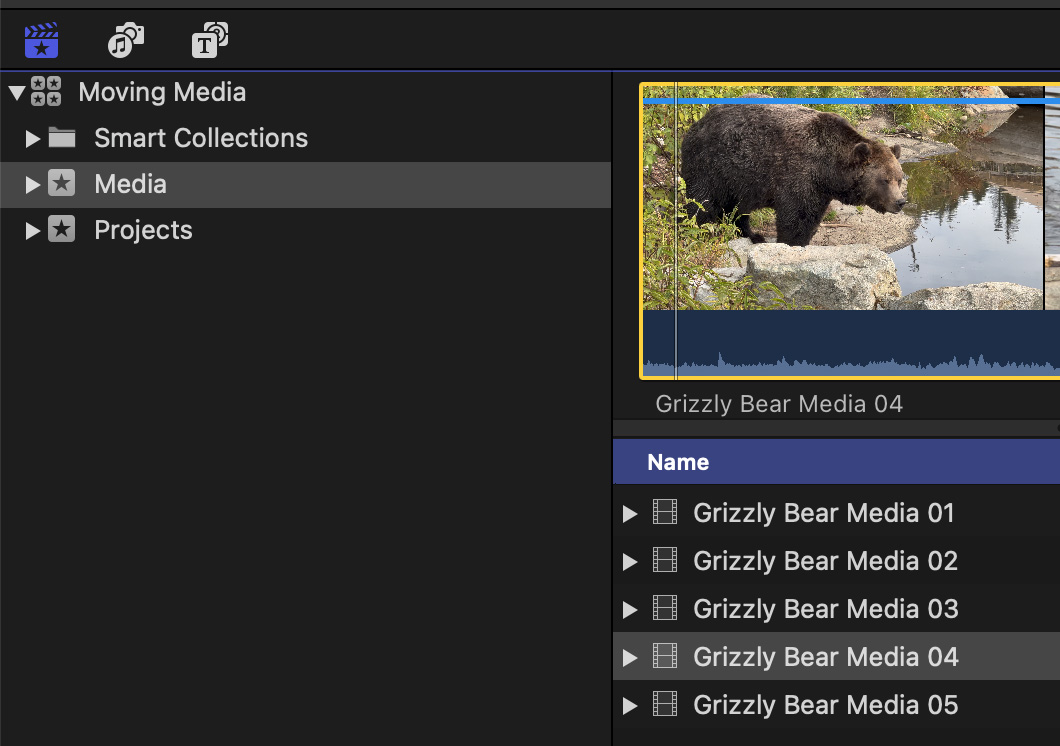
Here’s a library with media featuring grizzly bears. However, that media is stored inside a Final Cut Pro library. When you look at the library in the Finder, the media is not visible. Still, I want Axle to index that media for a future documentary on large, scary beasts.
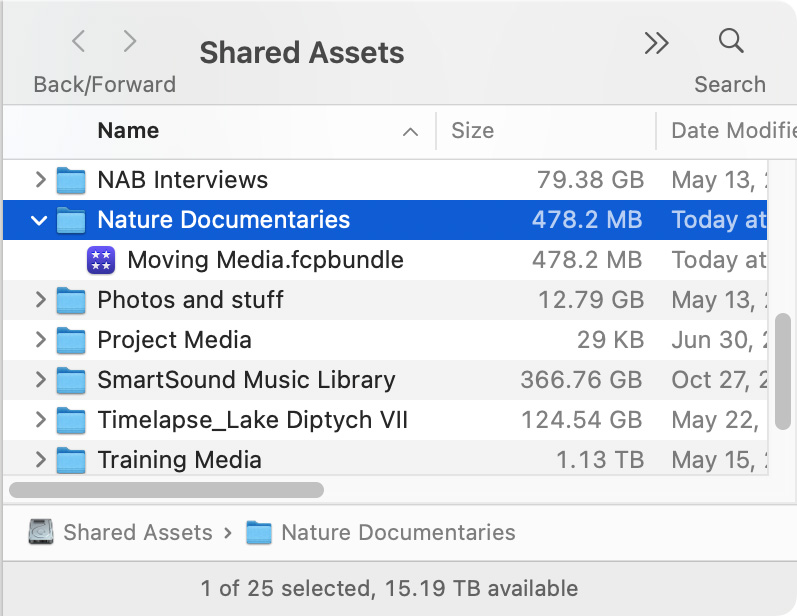
To make this media accessible to Axle, all I need to do is copy or move my library from local storage to a shared server that Axle can access.
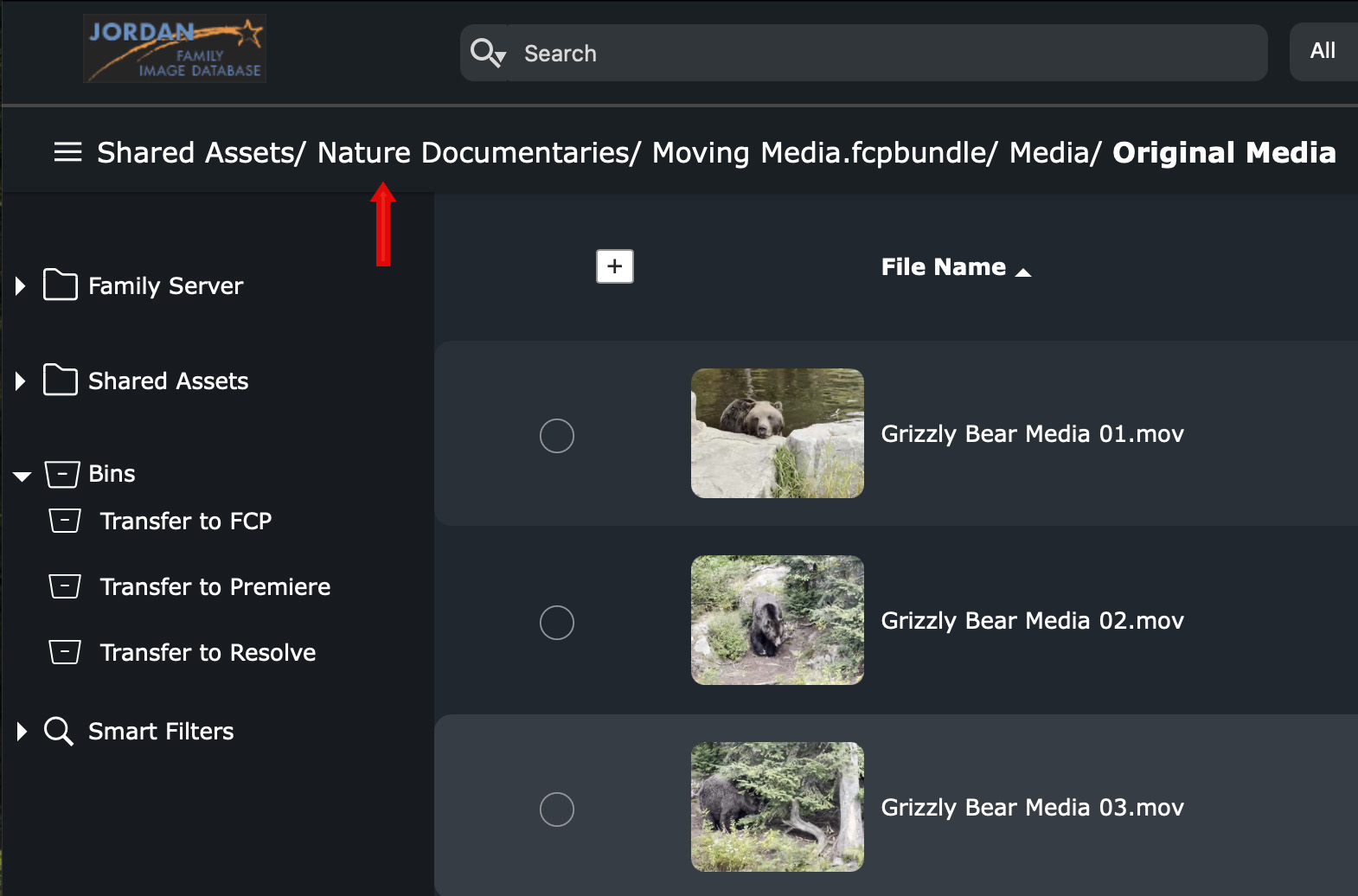
When the library is stored or transferred to a shared server, Axle will immediately open the library and index the media files stored inside it into the Axle database. (The path to the media is indicated by the red arrow.)
TRANSFER MEDIA FROM AXLE AI TO FINAL CUT PRO USING XML
 Click to see larger image.
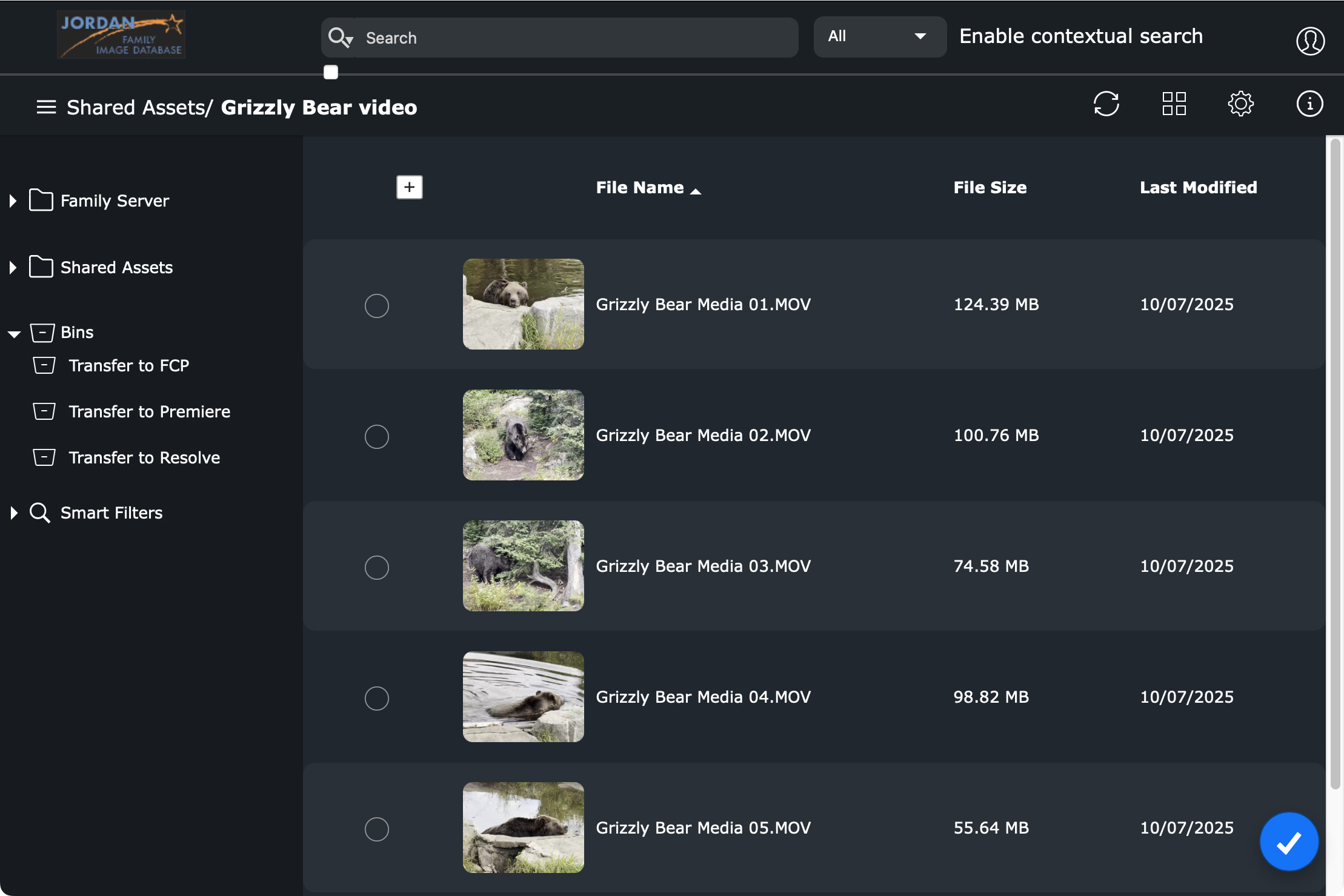
This is the basic Axle interface. Sources and destinations are shown in the sidebar on the left, with media displayed in the middle.
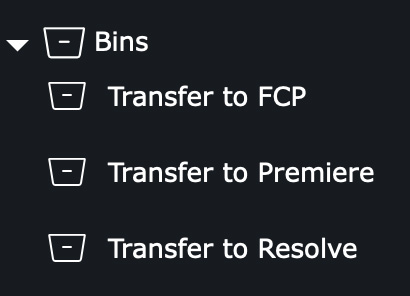
The bins, on the left, were created by me and are used to transfer files between Axle and an NLE. Since I use FCP, Premiere and Resolve, I have a bin for each.
You can also use bins in Axle to organize footage, the same way you use events in FCP or bins in Premiere and Resolve. Bins allow you to group media in any way that makes sense to you.
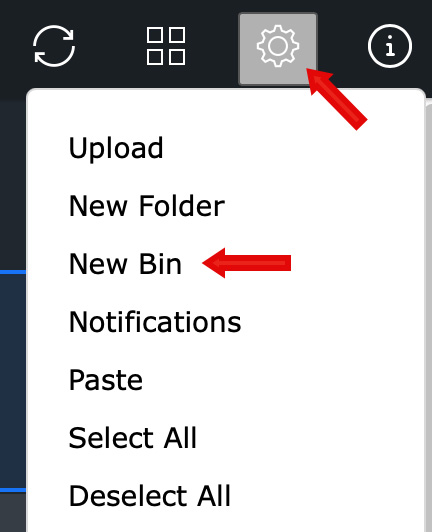
Bins are created using the Gear menu in the top right corner. There is no limit to the number of bins you can create.
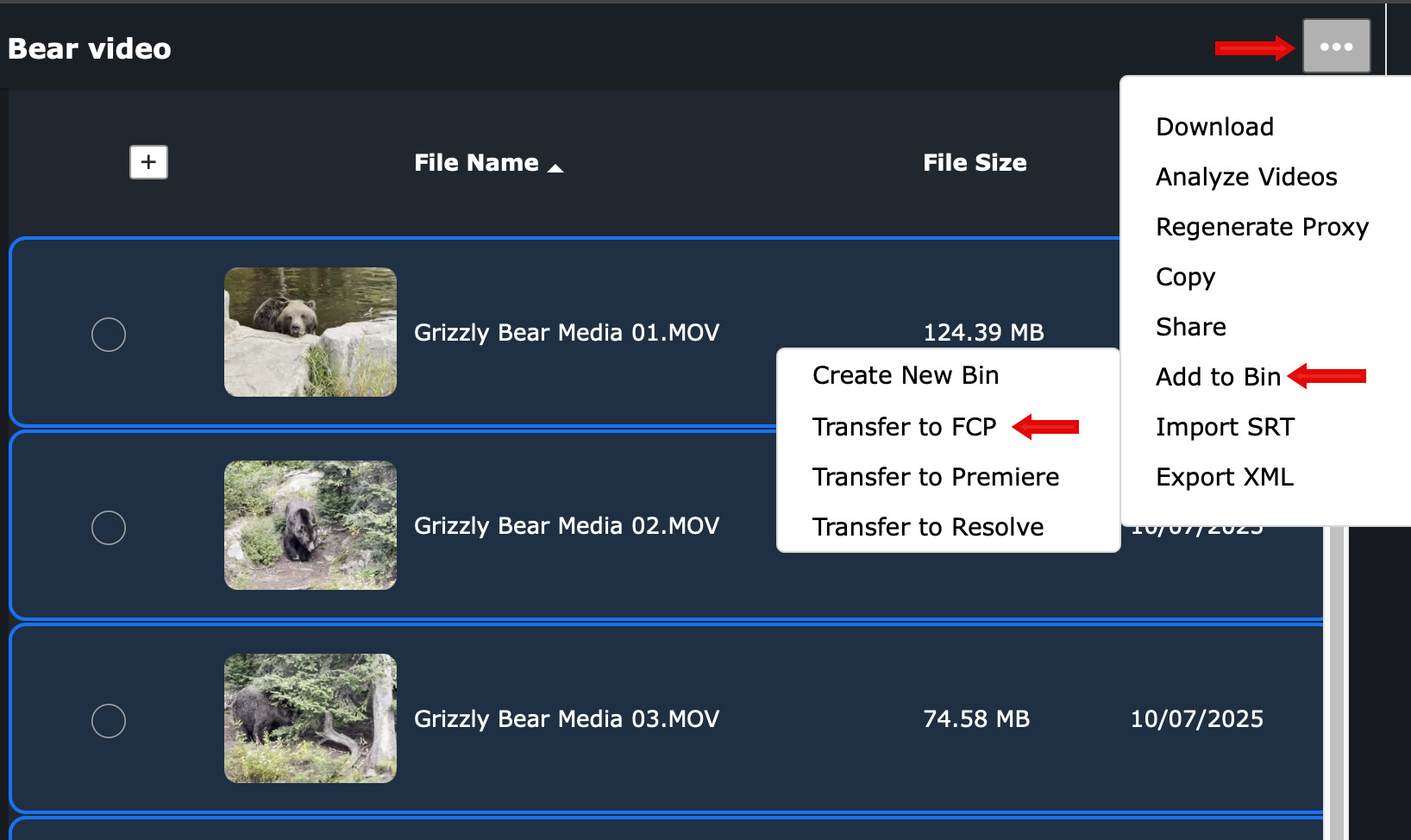
To add files to a bin, select the files you want to transfer, then click 3 dots > Add to Bin and pick the bin you want to use.
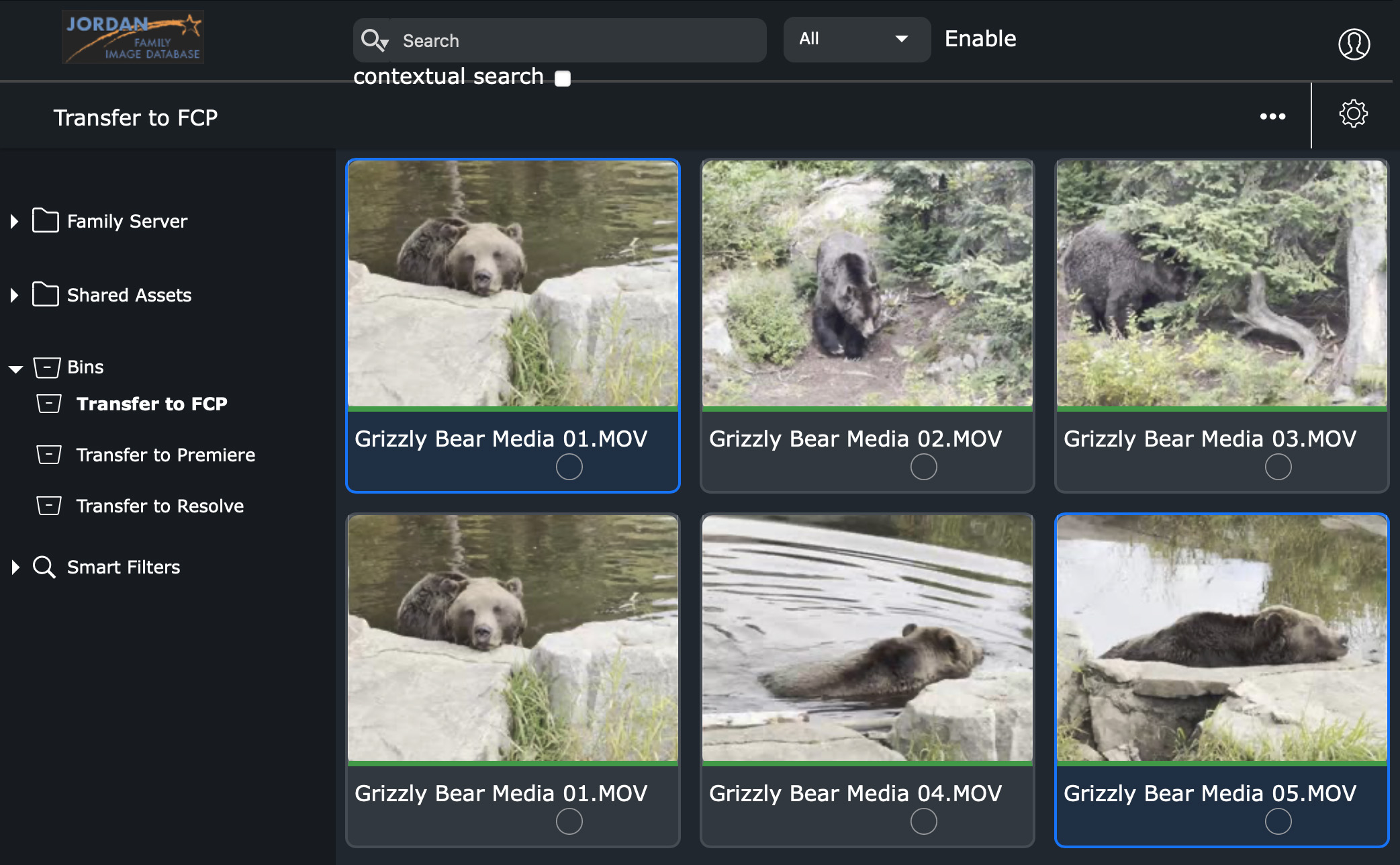
Click the name of the bin, in the left sidebar, to see the files stored inside it. This screen shot shows the contents of the “Transfer to FCP” bin.
NOTE: Remember, this does not transfer the actual media files. This only transfers links to the media files. The media files themselves have not moved nor changed.
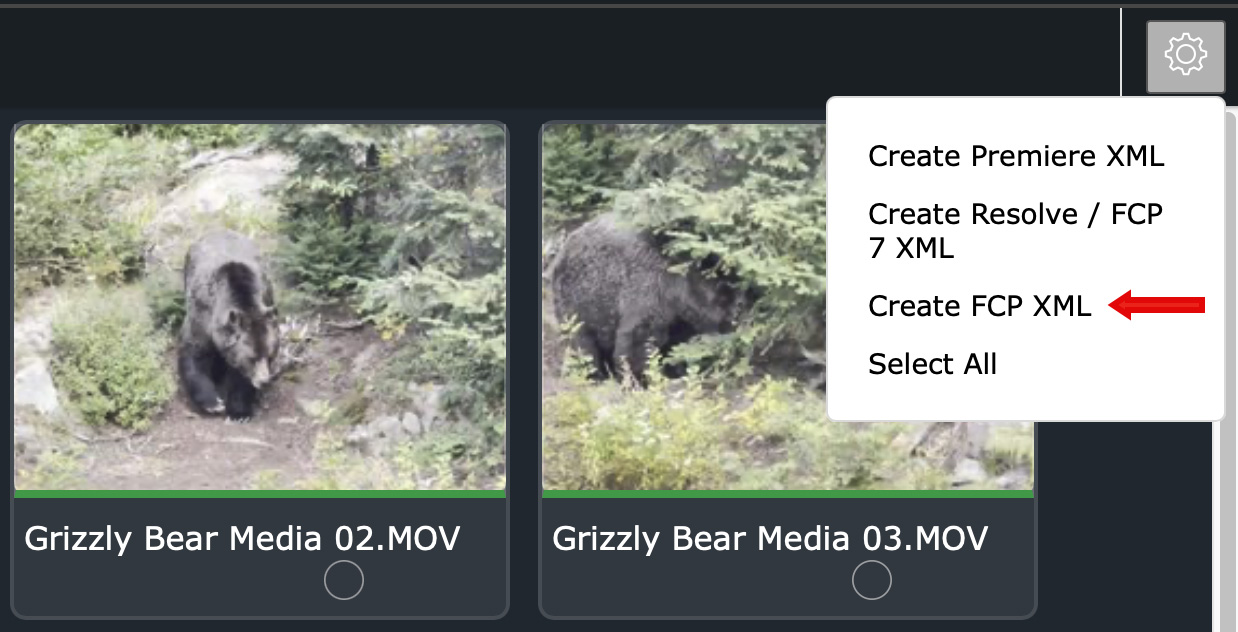
To send these files to FCP (or Premiere or Resolve), open the bin then, from the Gear menu choose Create FCP XML.
NOTE: If no files in the bin are selected, links to all files will be sent. If you only want to send a few files from the bin, select the files you want before creating the XML.
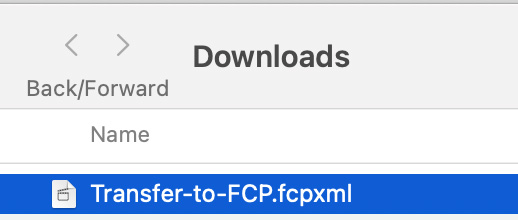
The XML file is named after the bin and stored in your Downloads folder.
NOTE: You cannot change this XML file name. If you export another batch of clips from the same bin, the new file will overwrite the old file.
Open Final Cut. If you want to add the media to an existing library, open that library. If you want to add the media to a new library, create that library.
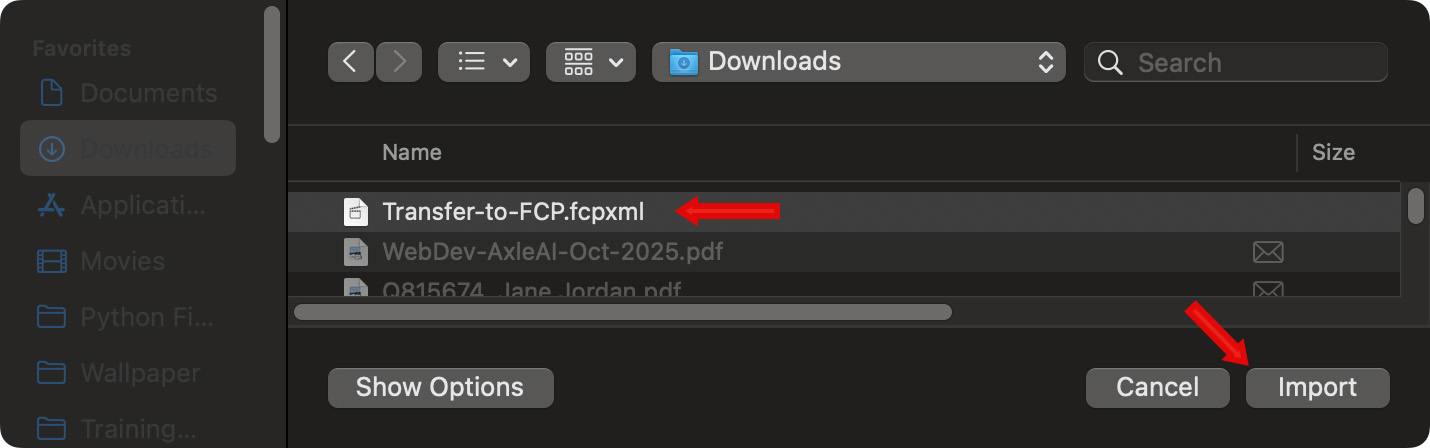
Then, in Final Cut, choose File > Import > XML.
Navigate to the Downloads folder where the XML file is stored, select it, then click Import.
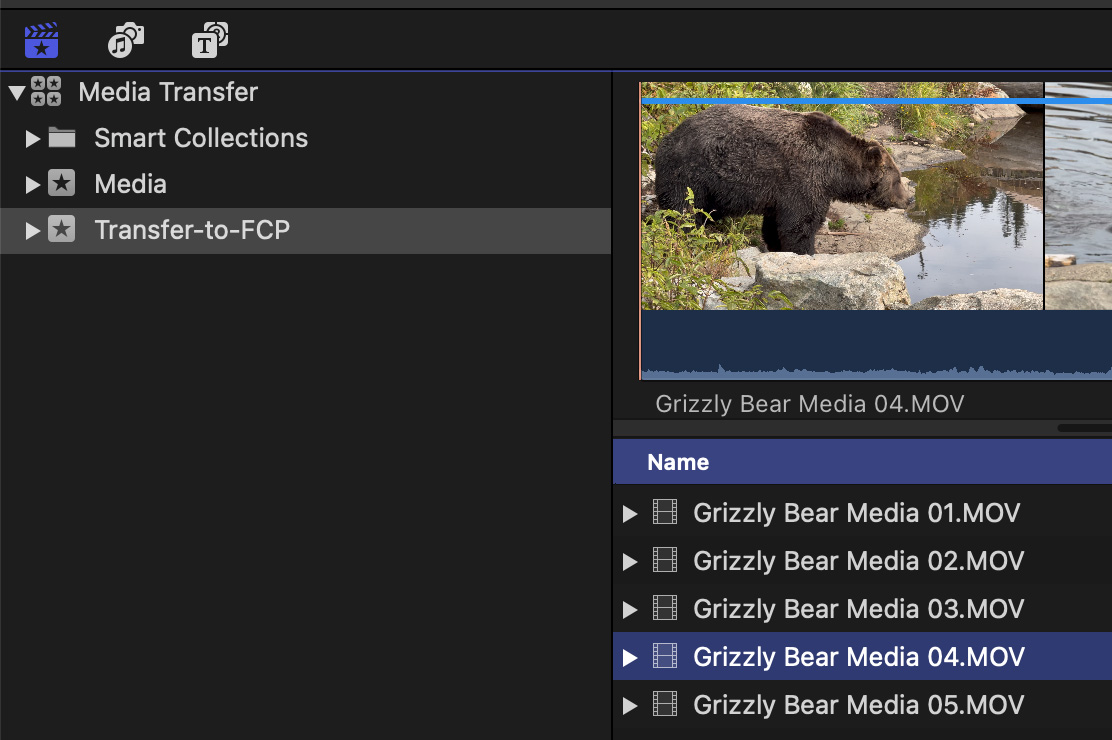
All media from the Axle bin is imported and ready for editing.
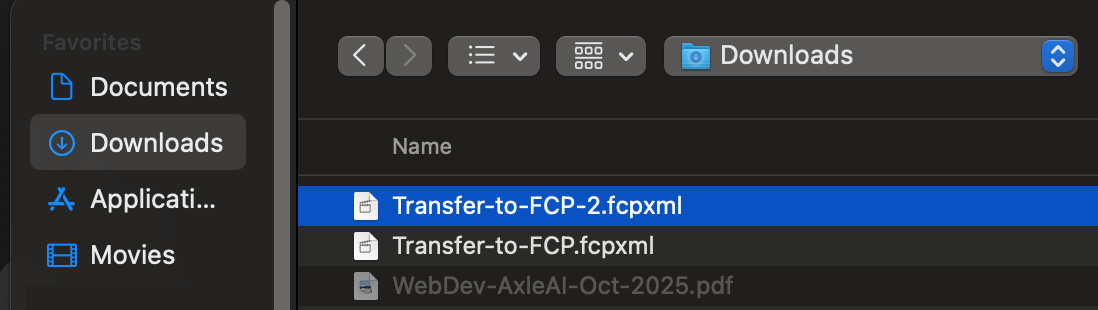
NOTE: Axle does not allow naming the XML export folder. Instead it names it after the bin. It is a good idea to rename the XML export file in the Downloads folder as soon as it is created to prevent confusion in the future.
CAUTION ABOUT KEYWORDS AND CUSTOM METADATA
As I mentioned earlier, the wild card is custom metadata; labels that you added to your media in editing or when organizing media in Axle. Custom metadata does not transfer between Final Cut and Axle.
This means that any keywords you add in Final Cut, or custom labels you add in Axle, are not shared.
SUMMARY
In terms of workflow, I recommend importing media first into Final Cut and editing it. If the media is stored in a location that Axle can access, Axle will automatically add it to the Axle database. If the media is stored inside the library, Axle will index it as soon as that project is copied or stored in a location it can access.
Keep in mind that metadata is not shared, so plan on spending time after the media is linked into Axle for assigning custom metadata to your clips. This is a good reason to use AI tools to help organize your media, because entering labels manually into lots of media is a wearisome task.


