
 One of the mind-bending new features in Adobe Premiere 25.6, desktop version, is Media Intelligence-assisted search. This provides extremely quick search for specific text, visuals or sounds across clips in the Project panel or timeline.
In other words, this searches on content, not file names or metadata.
Let me illustrate.
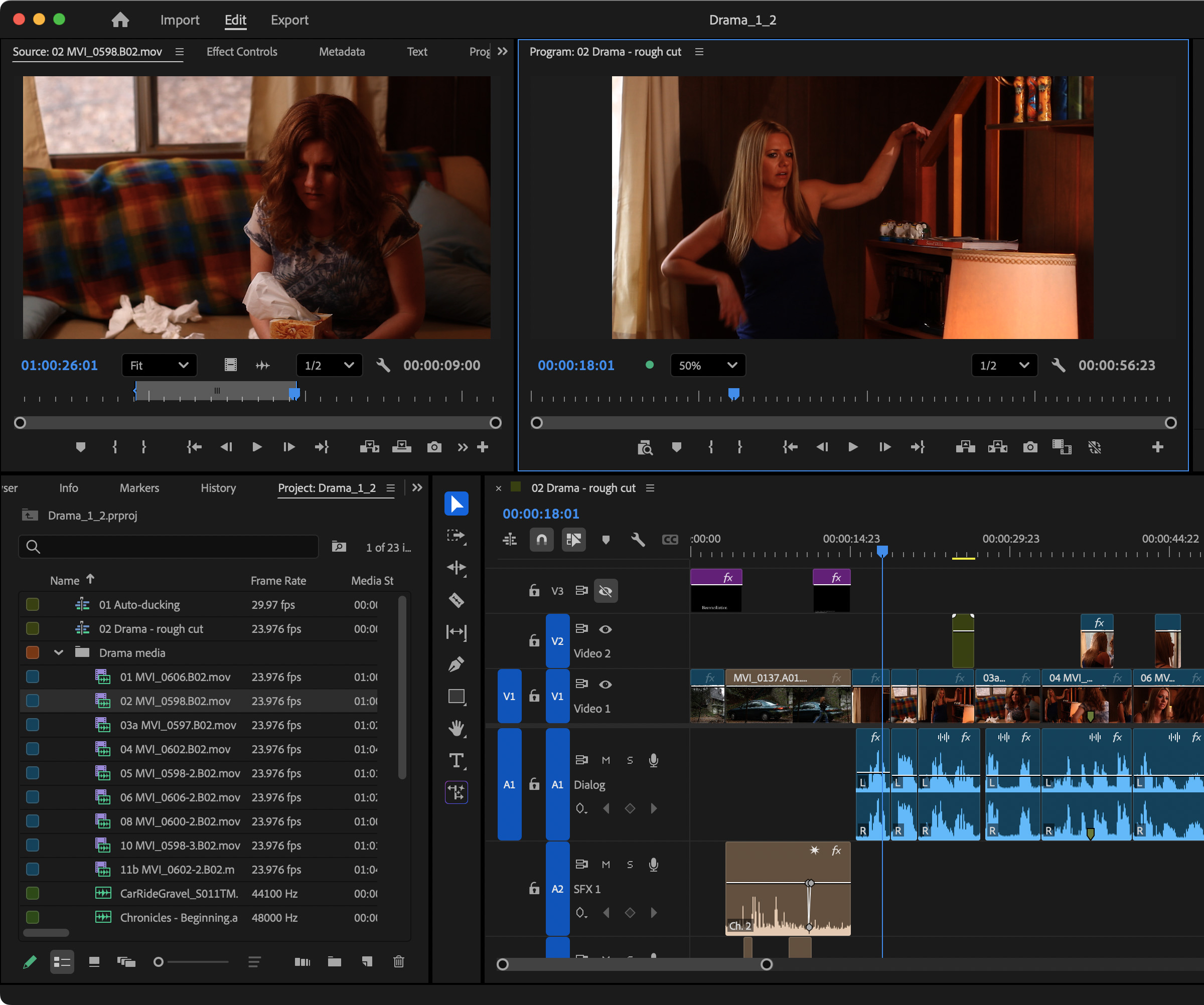
Footage courtesy: John Putch, “Route 30, Too!” (PutchFilms.com)
Here’s a project that contains actors, dialog, B-roll, sound effects, music… all the elements of a short drama.
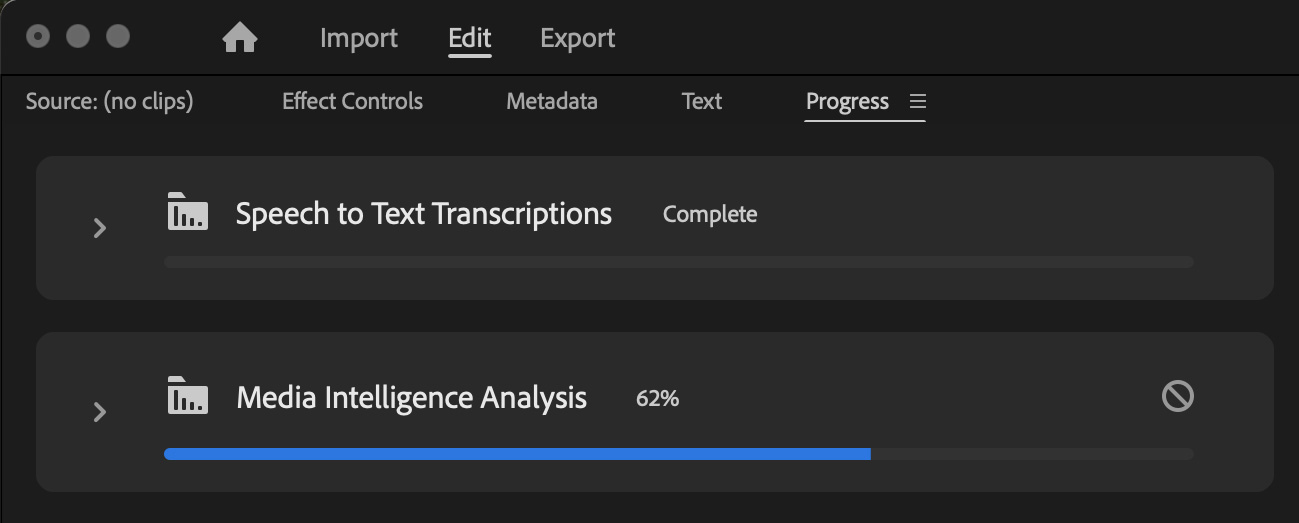
When an existing project is opened, when you import footage, or when you open the Search panel, Premiere analyzes it for content.
Normally, when we search, Premiere looks at file names and, if it exists, metadata. Now, using Media Intelligence, Premiere can search on content. This makes search enormously more powerful.

To begin, click the magnifying glass in the top right corner of the interface.
NOTE: This is not the same as using Find (Cmd + F). You need to use the magnifying glass.
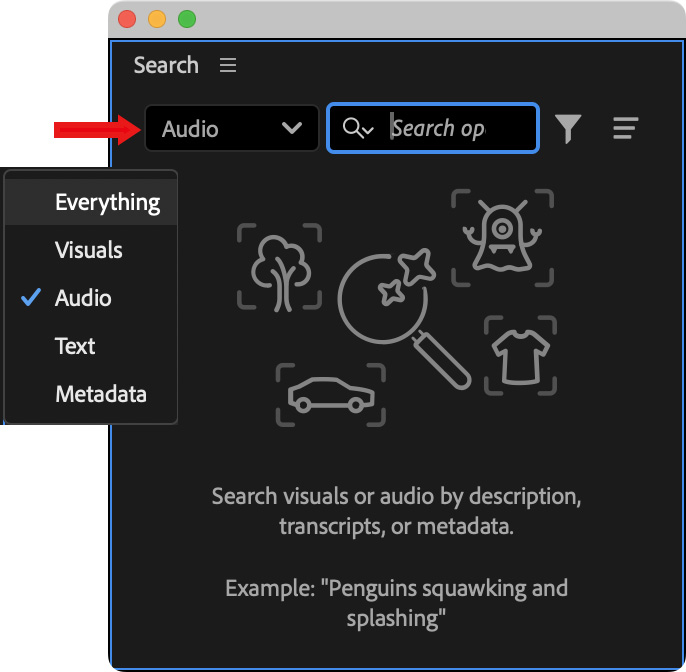
This opens the new search panel. Here, you can search on “Everything” – visuals, audio, text, or metadata – or restrict the search to a specific element.
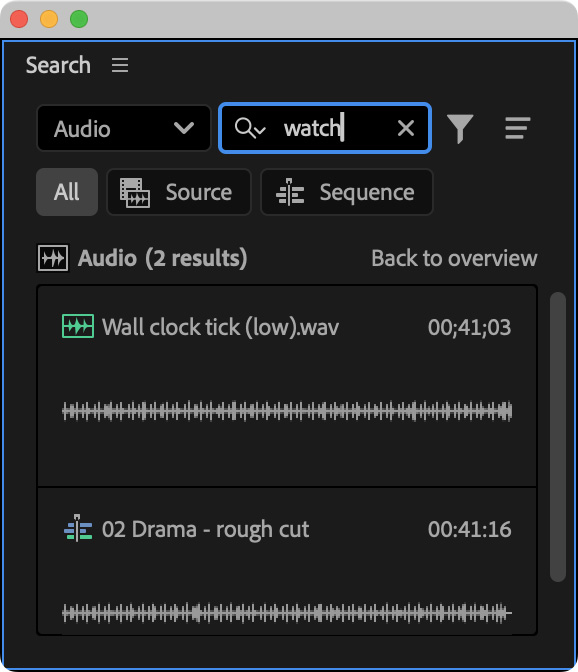
Here, I’m searching for audio that sounds like a “watch.” And it found a clip labeled “Wall Clock ticking.” Notice that the word “watch” did not appear in the file name. Instead it found the sound.
NOTE: You can search on all imported clips (Source), only clips in the timeline (Sequence), or both. This search was on both.
Click a clip to display it in the Source Monitor.
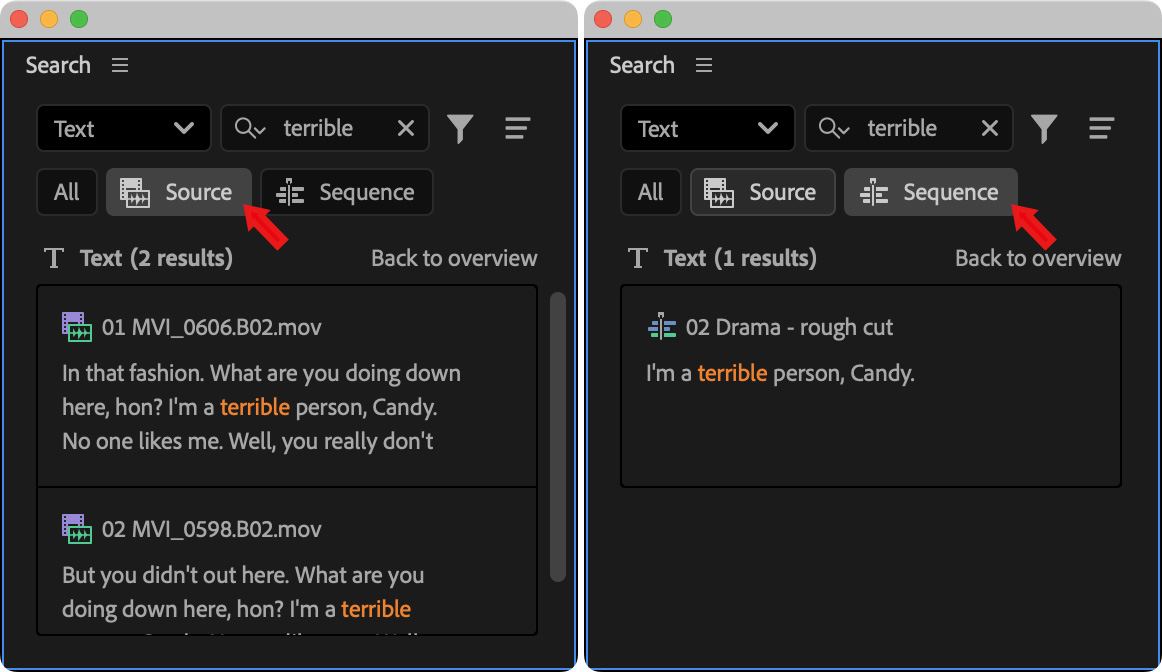
Here I’m searching on text for the word “terrible.” The left panel shows results from searching all clips. The right panel shows results from searching the timeline.
Not only did it find the specific text using speech to text…

But it displays the exact frame in the timeline. Even better, because this line is delivered off camera, the larger picture shows the timeline image, while the smaller image shows the clip that contains the text.
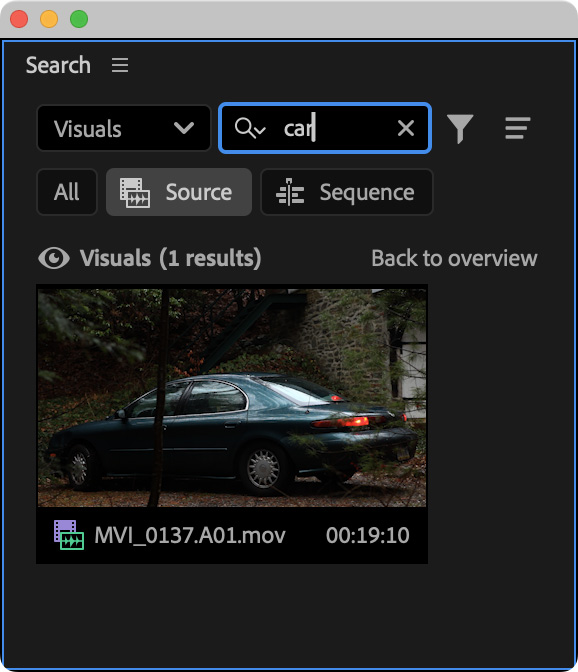
Here’s another example, I’m searching for all visuals of a car. And, it found the clip, even though car is not in the file name. In fact, the file name contains no content information at all.
These searches can be refined by adding more text, as the example Premiere provides the example of “Penguins squawking and splashing.”
What amazed me was the speed and accuracy of these searches. The more you play with this, the more ways you’ll find to use it.



6 Responses to New! Media Intelligence-Assisted Search in Adobe Premiere 25.6
Larry – I have that enormous library of Adobe foley, which is so awkward to filter through. Will this feature search it?
Can it be on an external drive?
As always – TY!
Al:
As I understand it, this only scans material that is stored in your project. But, once in your project, it does not matter where the source files are stored.
Larry
Great update and summary Larry. Thanks.
A question regarding privacy/security. How much data and information is sent to Adobe servers (or elsewhere) during these searches? Some clients have media that is proprietary and cannot leave their environment. Is this all done on the local machines?
Ed:
My understanding is that these searches are all local, but I will check. Remember, this only searches media that is imported into a project.
Larry
I’ve been using Jumper.io for some time now. It works in Final Cut Pro, Resolve, and Premiere. As an extension in FCP for the current library, but also stores all analyzed clips for any media on your storage devices.
Bruce:
Thanks for letting us know!
Larry