
 This began, as many articles do, with a question from a reader. He asked: “How do I zoom the Viewer in DaVinci Resolve 20 full-screen and, equally important, how do I get it back to normal?”
There are several ways to do this.
IF YOU HAVE ONE MONITOR
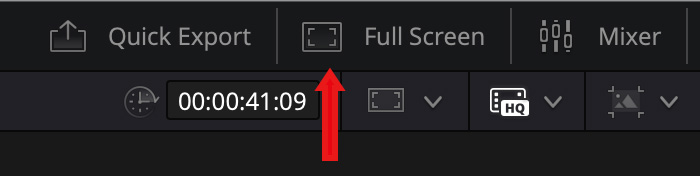
If you are on the Cut page, click the Full Screen video button. (This button does not appear on other pages.)
Click ESC to go back to the main interface.
If you are on the Cut, Edit or Color page, the fastest way to display video full screen is to type Cmd + F or P.
Either of these shortcuts displays the timeline video full-screen, but doesn’t play it. Use all the standard keyboard shortcuts – spacebar, J – K – L, up/down arrow keys – to navigate within this window.
Type ESC, Cmd + F or P, again, to reset back to the normal interface.
If you are the Color page, you can also use Shift + F. This provides a larger Viewer display, while still retaining a portion of the Resolve Color page interface.
Type ESC or Shift + F to reset.
IF YOU HAVE TWO MONITORS
With two or more monitors:
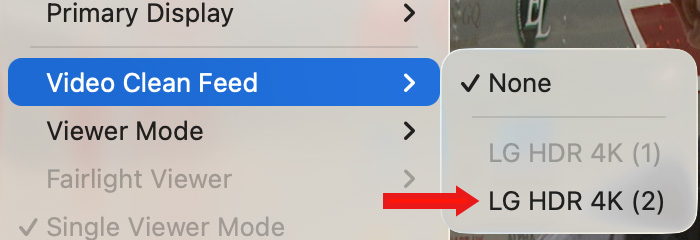
Choose Workspace > Video Clean Feed then select which monitor to display timeline video full-screen.
Turn the second monitor display off by setting this same menu to None.
IF YOU HAVE AN EXTERNAL VIDEO MONITOR
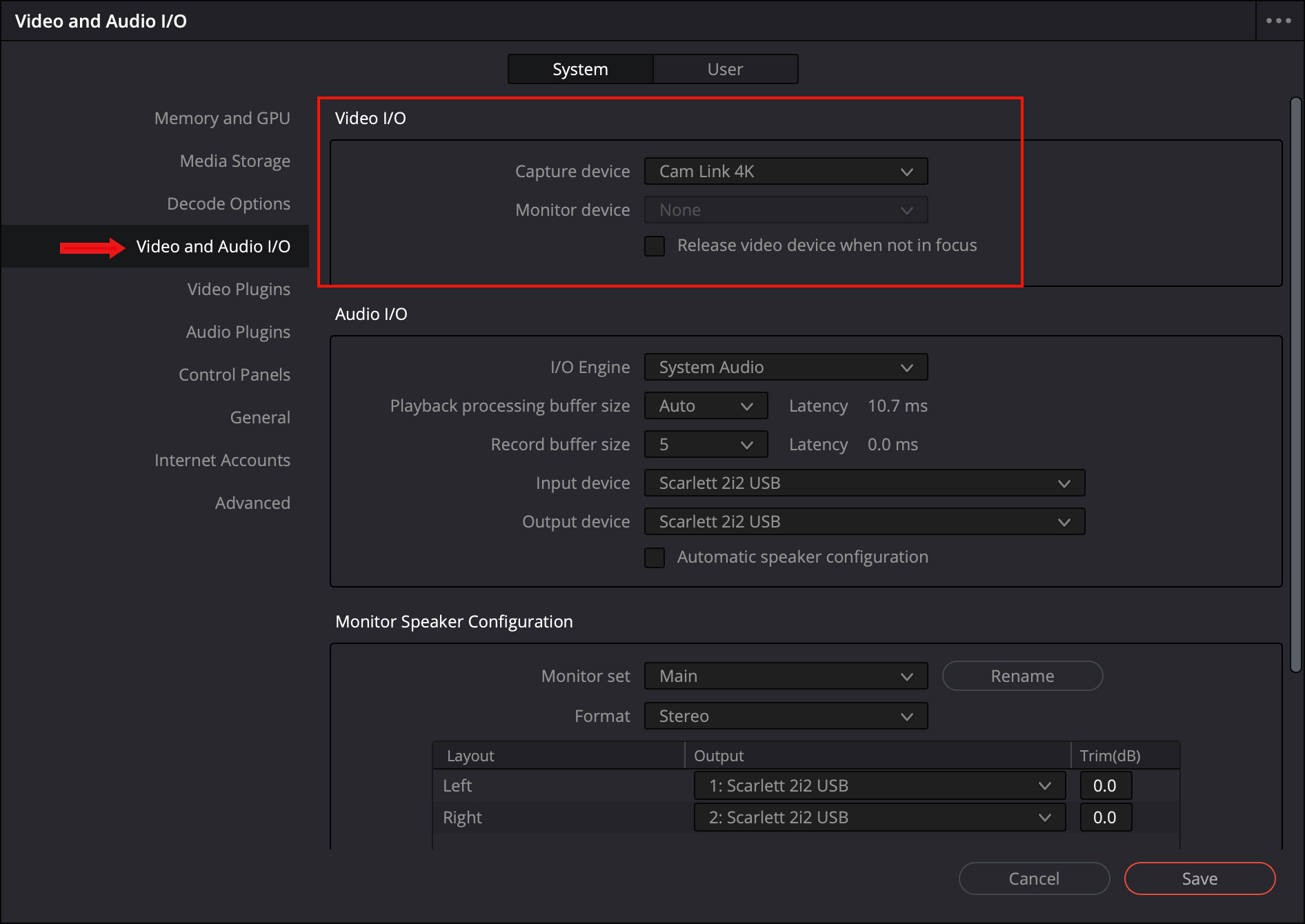
Click to see larger image.
A third monitor, generally a color reference monitor, also requires setup; this time from DaVinci Resolve > Settings > System > Video and Audio I/O. For specific monitor settings, please refer to the Resolve User Guide.
SUMMARY
For best color results, your computer monitor should support 100% of the Rec. 709 color space for SDR video. (sRGB is used for stills, while P3 is brighter and more saturated than Rec. 709.)
This article describes how to properly configure a computer monitor for Rec. 709 color space using the Display settings on your computer and monitor.


