
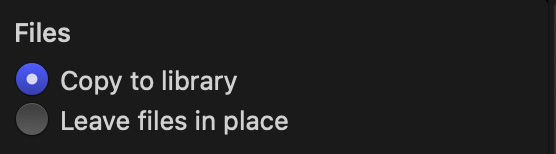
 Unlike any other NLE, there are two ways that media can be stored and referenced by Apple Final Cut Pro. Both of these options are selected during media import:
ADVANTAGES AND DISADVANTAGES
There’s no perfect answer. I find storing media file outside the library makes sense for most of my projects because I reuse almost all my media; but for new editors or smaller projects, storing media inside the library makes life a lot easier and less stressful.
Final Cut can easily handle some files stored in the library, with other files stored externally. There is no performance difference between storing media inside the library, outside, or mixing where media is stored.
OPTIONS TO MOVE MEDIA
AN EMERGENCY OPTION
However, there’s a third option which I have used in emergencies to access media stored in a library file.
BIG CAUTION. Please read these instructions carefully. If you miss a step, you can totally destroy a library. We generally want to avoid that.
SECONG BIG CAUTION: While you can move files out, you cannot move files into a library this way. They won’t link. They will simply disappear.
A Final Cut Library is actually a “super-folder,” called a “bundle.” This is a folder that acts like a single file. Normally, when you click it, Final Cut starts.
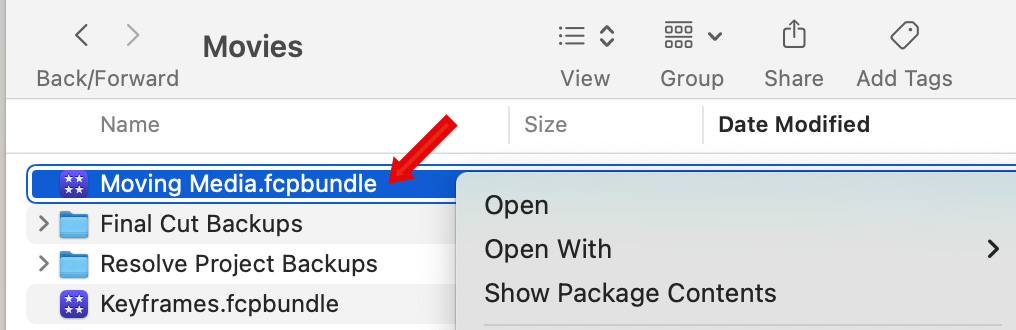
However, if you right-click it and select Show Package Contents, that bundle opens to show all the files inside.
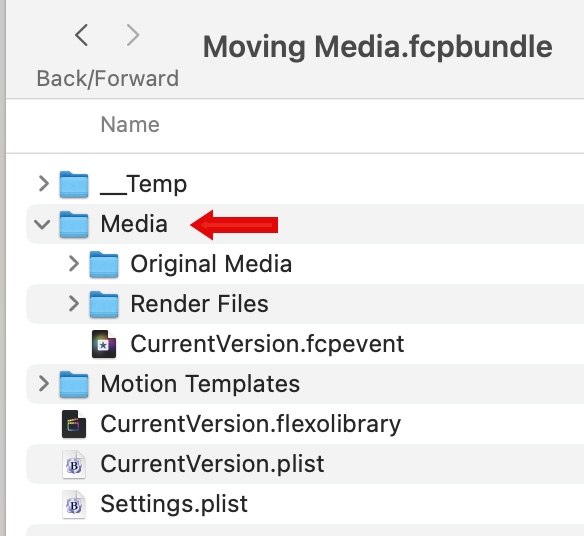
A Final Cut library is actually a database that tracks everything in this folder and everything you are doing with it.
CAUTION #3: Don’t change these files. At all. Not once. Because any changes you make to any file in this bundle is likely to permanently break your Final Cut Project.
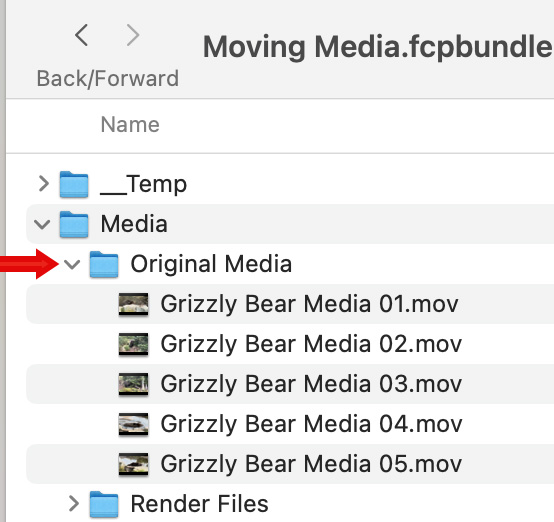
That being said, if you twirl down [ bundle ] > Media > Original Media you’ll see all the original imported media clips used by your project.
If you want to store these somewhere else, press the Option key and drag the original media files you want to move into their new storage location.
CAUTION #4: Pressing Option duplicates these files as you drag them. By leaving a source copy of these files in the Original Media folder, you retain all links and database entries in your library. If you don’t press Option, the media files are moved, all project links break, and the library becomes non-functional. Don’t do that unless you no longer need that project.
CAUTION #5: Don’t rename, move or delete anything in this folder. Copying is OK.
There is no need to copy any other files out of the Library, including optimized or proxy files; because they are easy to regenerate in any new project.
SUMMARY
I’ve used this technique to access media that I need for other applications that I accidentally imported into the Library or when I have a project that I no longer need but do need the media stored inside it.
Most of the time, though, I leave the Final Cut bundle folder strictly alone.


