

While we can easily display captions inside our NLEs, often we don’t want to fire up that big an application just to watch a movie.
The problem is that QuickTime Player only supports CEA-608 captions, that is, captions that are embedded into the video file itself. Most captions today use the SRT format, which is a text file specifically formatted for subtitles.
While QuickTime Player does not support captions, VLC Media Player does. VLC Media Player is a free and open source media player, encoder, and streamer made by the volunteers of the VideoLAN community (Download link). There are other media players that also support captions.
OPEN A MEDIA FILE
To open a video file, start VLC, choose File > Open and pick your movie.
NOTE: If, instead of opening the movie, it displays a list of movie files, select the movie you want to watch, then click the Play button.
ADD SUBTITLES
To add an SRT-formatted subtitle file, choose Subtitles > Add Subtitle File, then choose the caption file from wherever it is stored.
VLC Media Player does not require the caption file to be stored in the same location as the movie file.
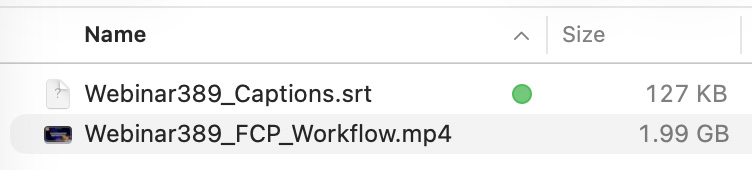
NOTE: All my webinars are numbered, for example: Webinar389_FCP_Workflow.mp4. Caption files are labeled similarly: Webinar389_Captions.srt. Match the numbers to connect the appropriate caption file with its source movie.
ADJUST SUBTITLES
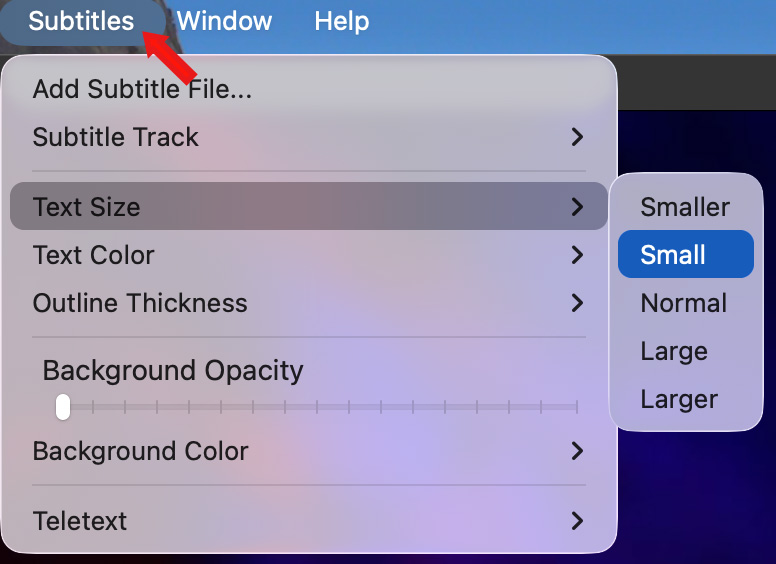
In the case of my subtitles, the text display is very large. To change this, choose Subtitles > Text Size and pick the Small size, or, whatever size looks best to you.
This menu also allows you to adjust other caption settings.
ADJUST AUDIO
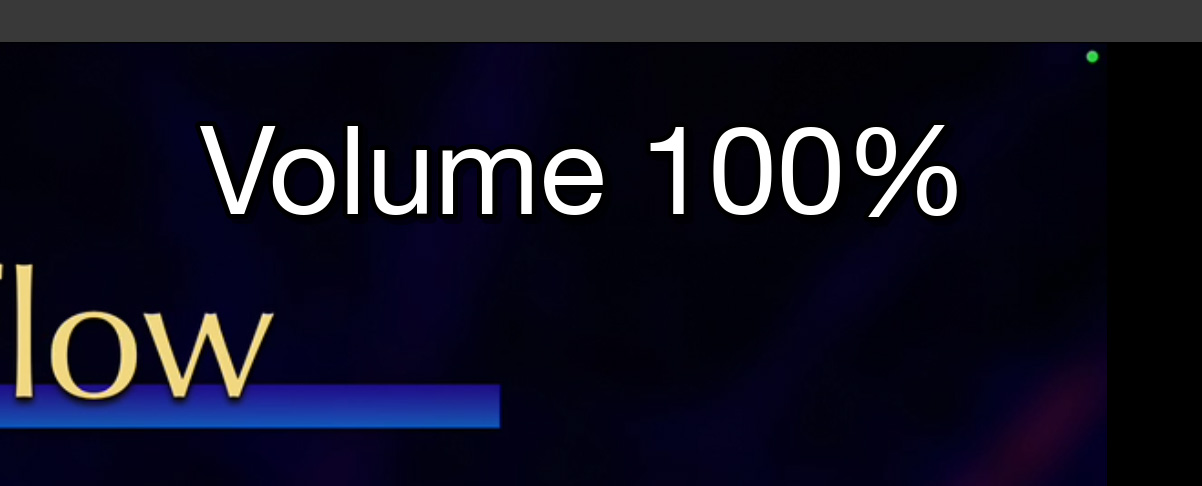
When I first played my webinar, the audio was seriously distorted. Why? Because, for some reason, the default audio level setting is 169% of normal. (Anything above 100% distorts.)
To adjust audio levels, type Cmd + Down arrow, until the levels are below 100%. Volume levels are displayed in the upper right corner of the video frame.
NOTE: None of the other audio settings or preferences seem to actually affect volume, only this keyboard shortcut.
SUMMARY
While other media players also allow connecting subtitle files. VLC is both popular, fully supported, and easy to use.


