
 I’ve spent a lot of time working with subtitles recently as we add them to videos in our Video Training Library.
As we were testing this new feature, I grew increasingly puzzled because all the subtitles created by DaVinci Resolve 20 were in a bold font. Because we had just installed a new video playback engine, my first thought was a bad setting on the server.
But, as our programmers looked, they couldn’t find anything.
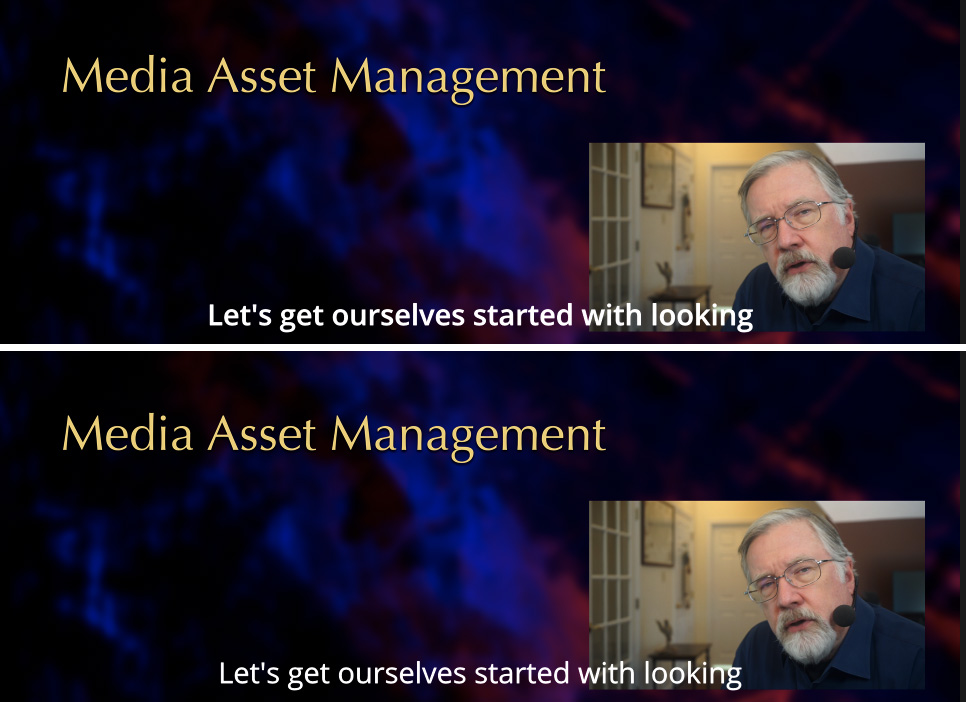
Here’s an example of the problem. The top subtitle is in bold, the bottom in roman (or “regular”). In and of itself, bold is not “bad” – except the SRT format does not specify which font should be displayed as a subtitle. Instead, the software used to play the video determines the font and many fonts are hard to read in bold.
Roman (regular) is always the safest choice.
THE PROBLEM WAS THE SRT FILE ITSELF
After researching the issue, we realized the problem was not with the video playback engine, but with the SRT file created by Resolve.
Resolve was adding HTML coding to change every subtitle font to bold. This is NOT a good thing. In almost all cases, the SRT file should contain zero formatting because that is up to the viewer, not the creator, to determine.
For example, users may need to control font size, change font color, or change placement based upon their personal accommodation needs. Subtitles should be neutral, allowing the viewer the greatest amount of formatting control.
NOTE: If you NEED to make a subtitle look a certain way, then format it as you want and burn it into the video. Subtitles, by design, should be free of formatting.
HOW TO FIX THIS IN RESOLVE
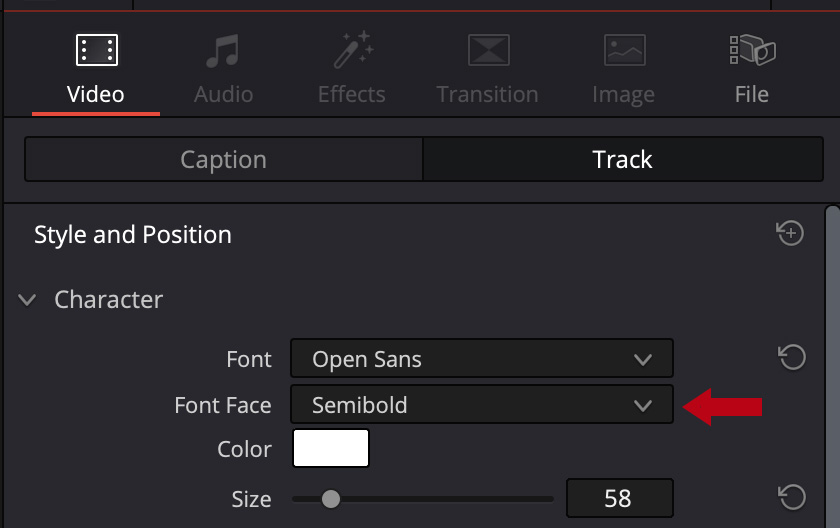
Resolve uses an incorrect font setting that is easy to change.
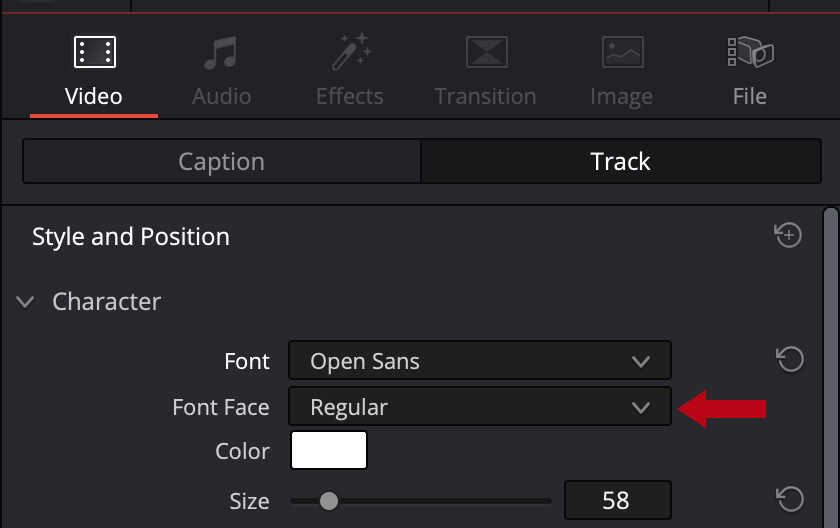
Your SRT files will now output correctly.
HOW TO FIX THIS IN THE SRT FILE
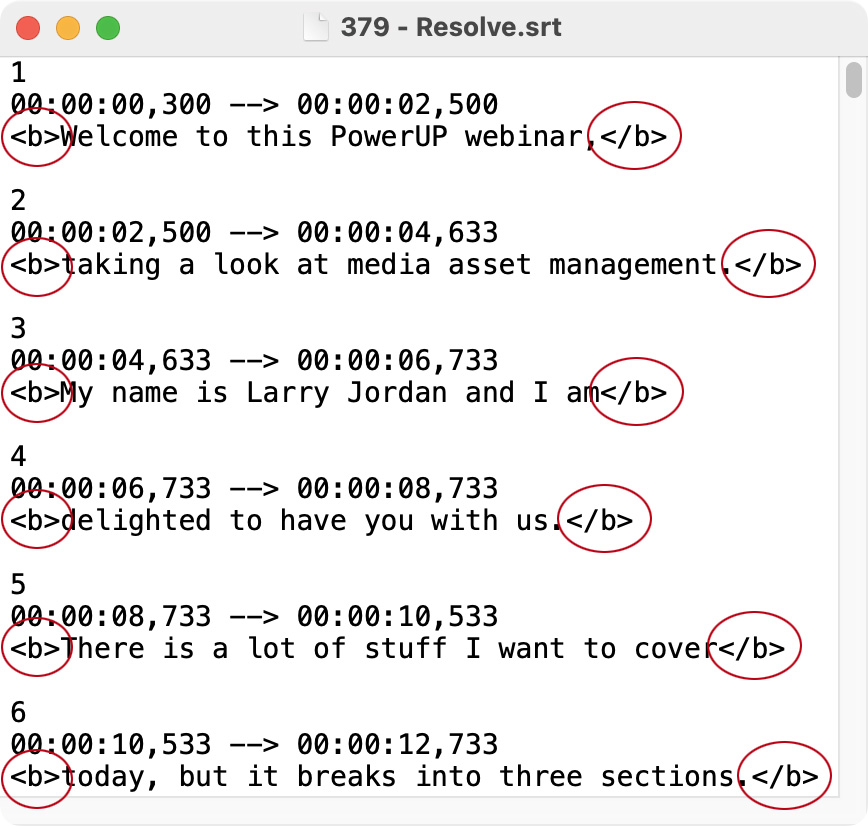
An SRT file is plain text with an .SRT file extension. You can open it in Text Edit, BBEdit, or any other text editor.
NOTE: If the SRT file doesn’t open when you double-click the file in the Finder, open Utilities > Text Edit and open the SRT file from inside the app.
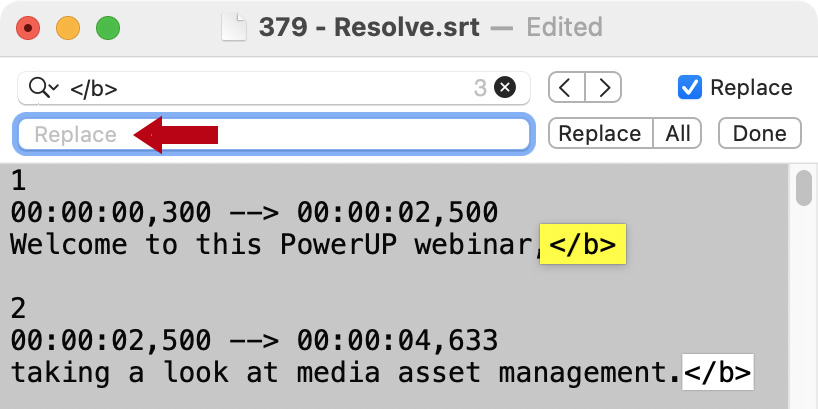
The problem is all those bracketed “b’s” (red circles). They tell the video playback engine to bold the font. Fortunately, these are very easy to remove.

Poof. Gone.
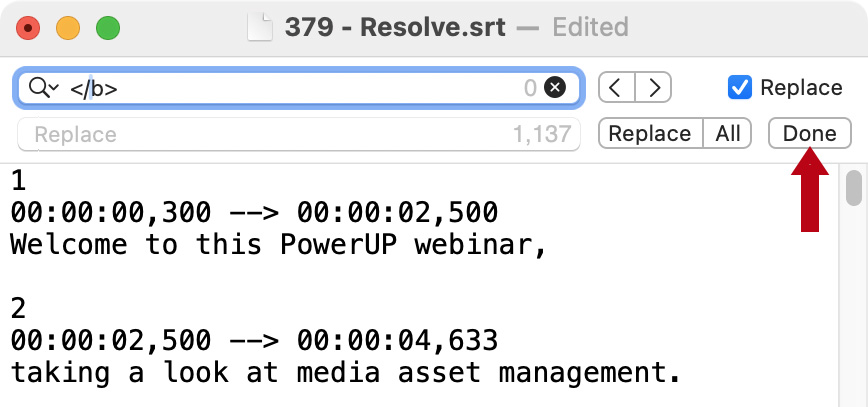
Poof. All gooder.
SUMMARY
Subtitles should be left unformatted and unpositioned. The viewer will want and need to control both.
Once you change the font setting in Resolve – which you will need to do for every caption track you create – your SRT files will be fine.



2 Responses to DaVinci Resolve 20 Creates Non-Standard SRT Files and How to Fix Them
This is absolutely pure gold and has been buggy me for ages. Thanks Larry and team.
My main use case for subtitles is for burning them into videos of other languages. But no matter what font I changed them to, they always displayed as bold in the viewer.
But using your workflow of exporting the SRT, stripping out the bold tag and importing that new SRT back into the timeline has fixed that. I’ve got control over the font face.
And this also means that when I need to export an SRT for user controlled captions, I know to remove the bold tag for that purpose too.
It’s just great! Thank you!
Mal:
Happy to help. I’m glad you like it.
Larry