
 NOTE: After writing this I discovered that if you create a favorite that includes linked video, then apply that favorite to a new project, Resolve 20 applies the favorite, but unlinks the video. I’m not sure why. Your mileage may vary.
Unlike most feature films, my projects require lots of text titles. Titles with the same format, but different text. Fortunately, DaVinci Resolve 20 provides lots of pre-built, animated, titles. Unfortunately, these generally require a lot of customization to look the way I want for each project.
Within limitations, Resolve provides a variety of useful controls to improve the look of text. And, once formatted, it is easy to copy and paste a title for reuse throughout a project.
But, when I start a new project, I have to go through all this customization again. What would be great is if I could create a Favorites folder for customized titles that can be shared between projects.
Ta-DAH! We can. But, as usual, Resolve hides this by default. Still, the process is fast and easy. Here’s how.
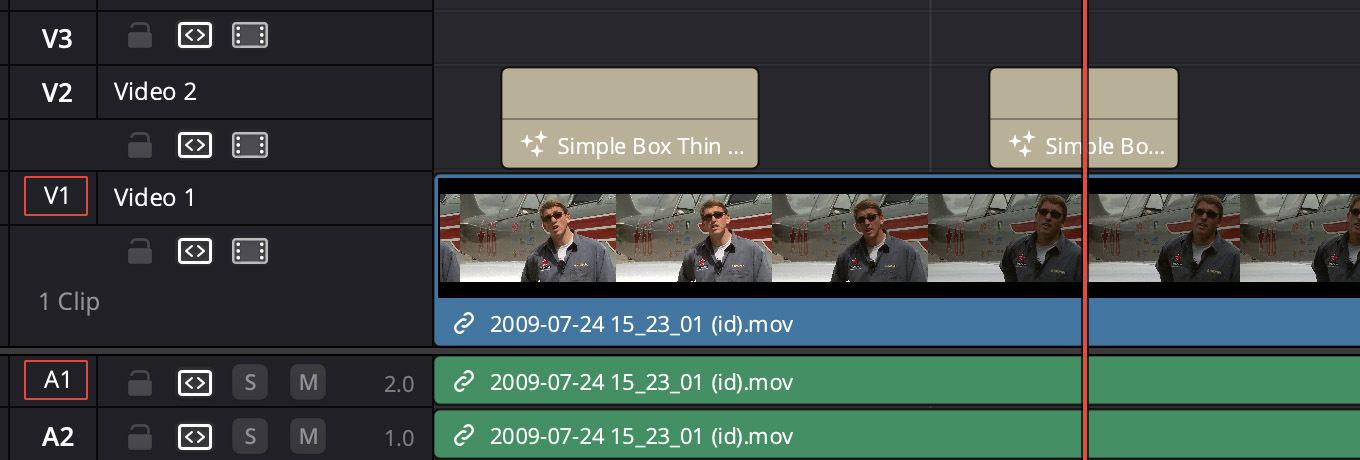
Open a project into either the Cut or Edit page that contains the title(s) you want to favorite
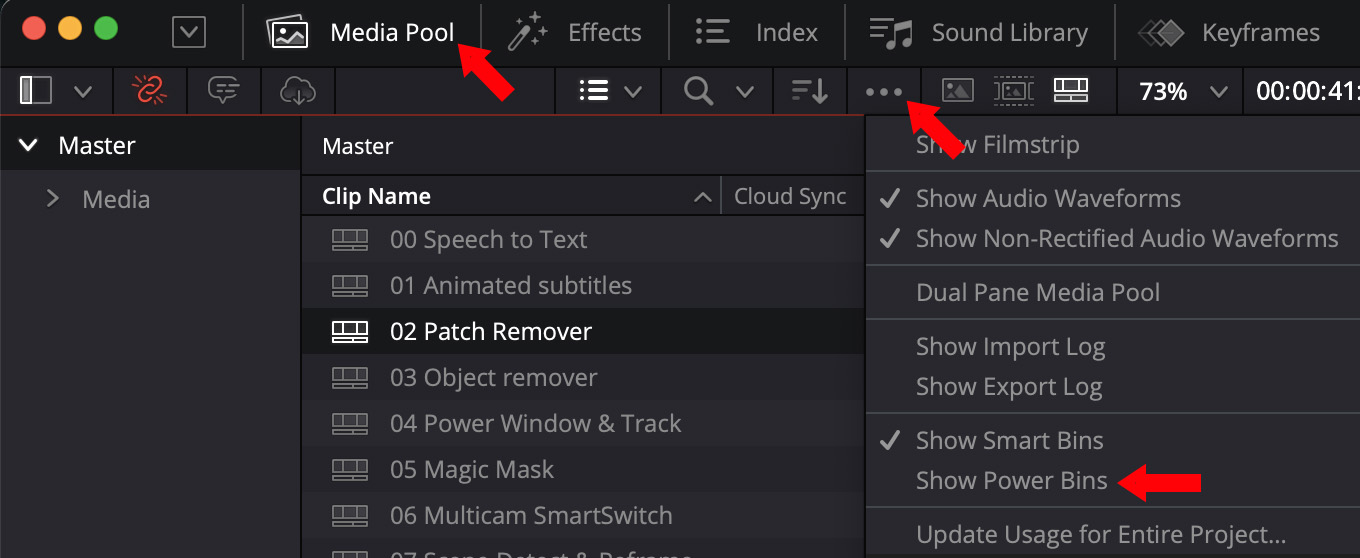
Open the Media Pool (top left red arrow), click the 3 dots icon (top right red arrow) and choose Show Power Bins (lower red arrow). It is off by default.
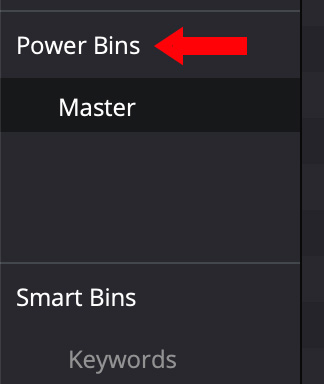
Drag the title(s) you want to favorite from the timeline into the Power Bin section. There is no limit to the number of favorites you store here. Also, as with the Media Pool itself, you can create bins for different elements inside Power Bins to organize as you see fit.
NOTE: You can store other things here, such as graphics or clips. The key benefit is that these are available between projects.
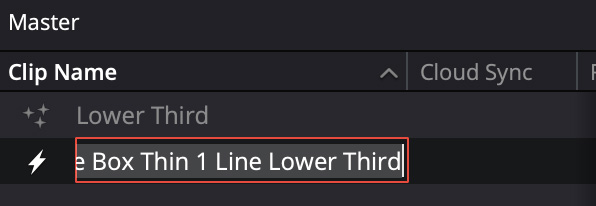
Click once on a title to open it for renaming. (The same as renaming a timeline.)
To put this new favorite into use, create a new project or open an existing one.
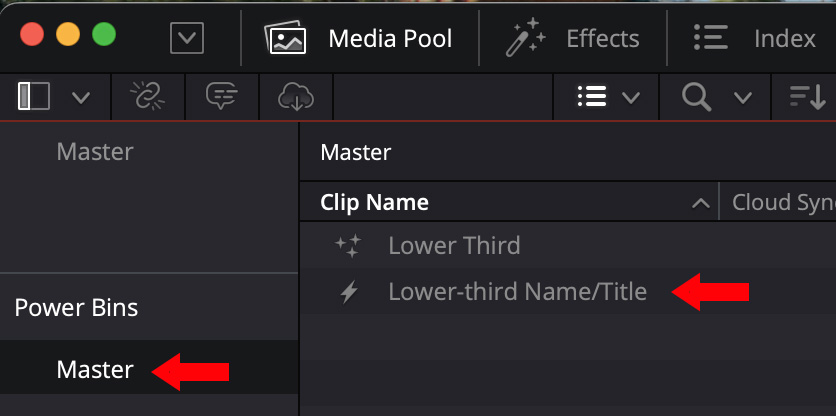
Power Bins should open automatically, now that you’ve turned them on. (If not, go back to the 3 Dots menu and reopen them.) Your favorited titles will be stored inside, ready to add wherever you need them.
As with any element in the Media Pool, drag a favorite wherever you need it in your project.
Done.


