
 One of the long-time features in Apple Compressor is the ability to harness multiple computers to speed video compression tasks by creating a compression network.
What network compression does is share multiple files to be compressed between multiple computers. If you are only compressing one file at a time, this system won’t engage; meaning the file will be compressed on your local computer.
WHAT YOU NEED TO GET STARTED
LIMITATIONS
This compression group cannot be accessed from Final Cut Pro or any other NLE. It can only be accessed through Compressor.
If you only need to compress one file, a compression network won’t help. Each compression node compresses complete files, not pieces of a single file.
If you are only compressing two files at the same time, a compression network won’t help. The host computer doesn’t start parceling files onto the network until there are three or more.
Because all media is accessed via a network, if you are running a 1G Ethernet network or slower, the performance will be very slow – roughly 20-30% of the speed of compressing on your local Mac.
The maximum compression speed of the M2 Max Mac Studio:
MY HARDWARE
For this article, I used a 10G network connected using a NetGear switch, served by a six-drive Synology server, connecting to an M2 Max Mac Studio (host) and an M4 Pro Mac mini (node) via the SMB file protocol.
I was compressing a series of ProRes 4444 video files that were from 4 – 10 minutes in length and all stored on the Synology, which both computers could access.
NETWORK SETUP
Truthfully, setup is REALLY finicky. It took me about an hour and a half to get this to run.
This Apple support page explains in detail what you need to do. I could not have gotten this to run without it.
Two big notes:
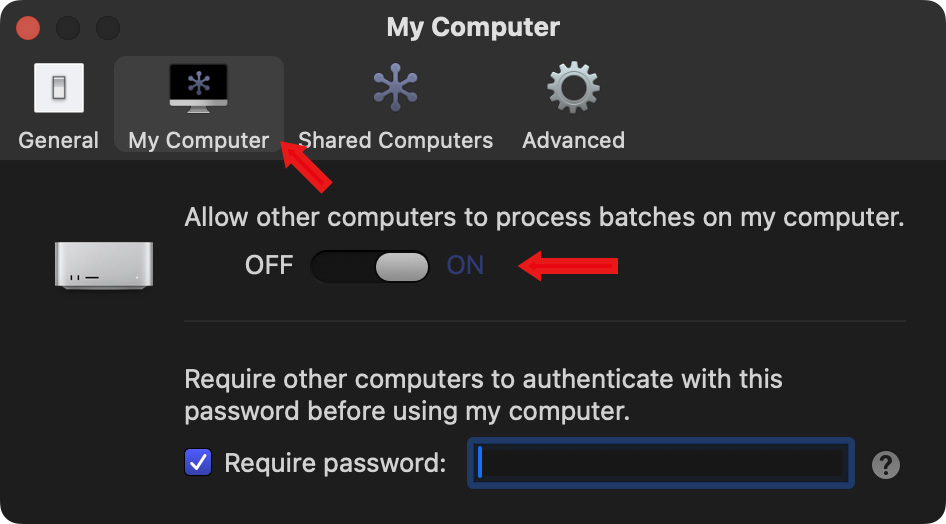
To enable sharing computer resources, start Compressor and go to Compressor > Settings > My Computer. As shown in the screen shot above, switch network compression On. Don’t enter a password, I found passwords are not always accepted by the host computer.
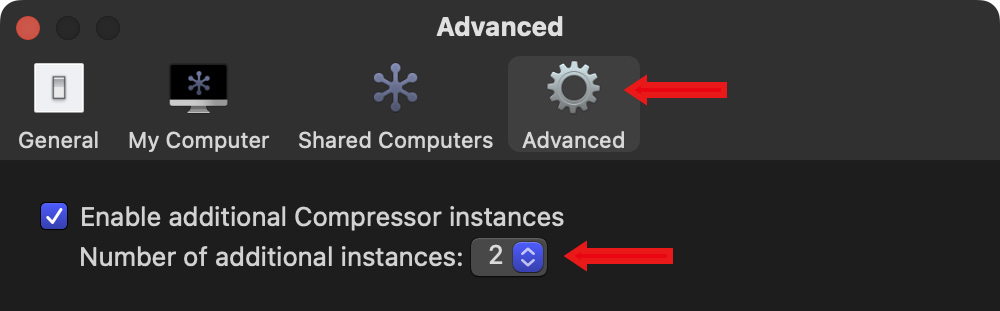
By default, Compressor does not use all the compression resources on your computer. So, to enable all the power your node system provides, go to Advanced (upper red arrow), check Enable additional Compressor instances and select the maximum number in the menu (lower red arrow).
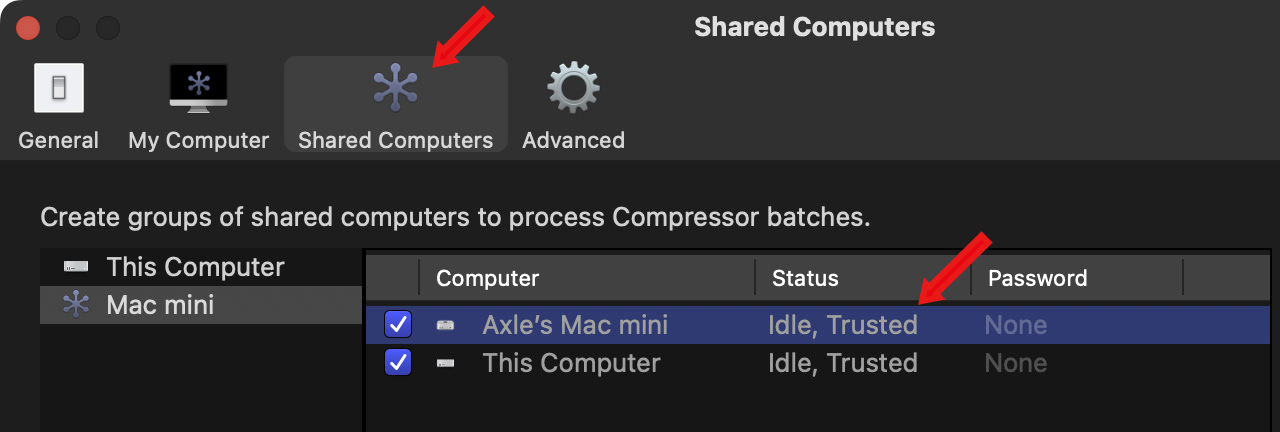
Finally, build the compression network on this page. (Again, the help page above walks you through this.) As the screen shot shows, I called the compression group “Mac Mini”.
NOTE: As I experimented with this further, I think you only need to turn on the node computer in My Computer and optimize settings in Advanced. You then build the group (Shared Computers) on the host computer. Experiment with this yourself to see what works.
KEY POINT: If any of these computers is listed as “Untrusted,” they will not join the network.
OPERATION
Setup is tricky, operation is simple.
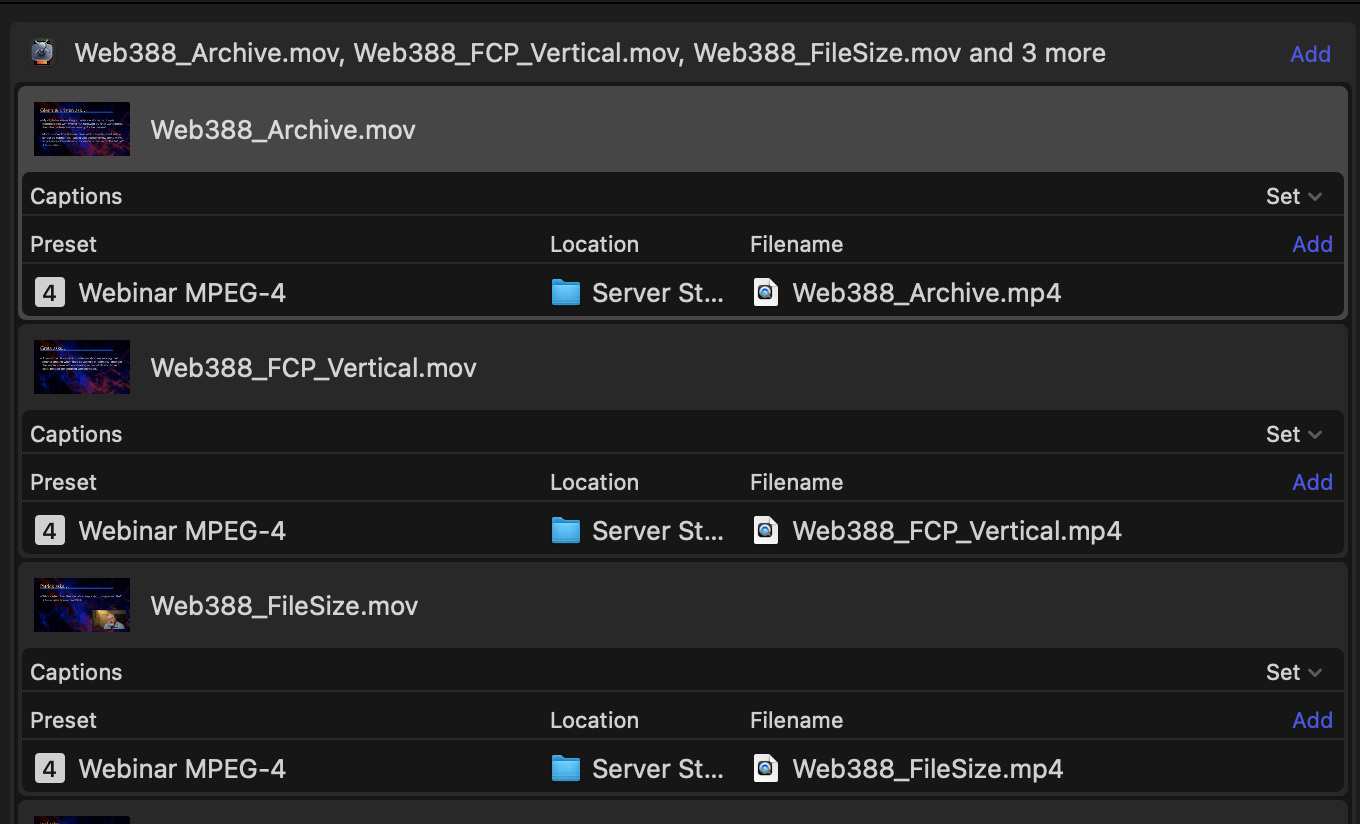
In Compressor’s Batch panel, I’ve loaded six ProRes 4444 movies for compression. The compression destination (Location) is set to a folder on the server (“Server Storage”).
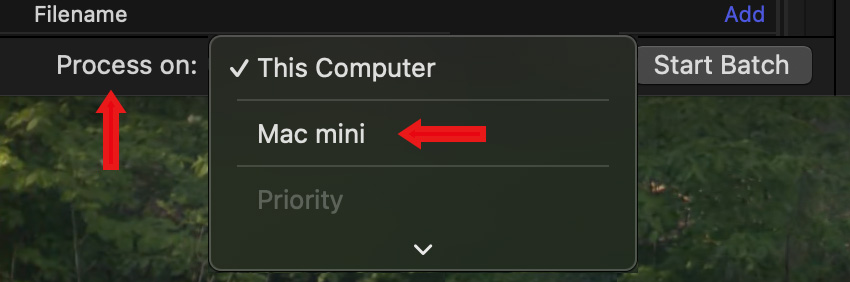
At the bottom, in the Process on menu, select the server group – in this case “Mac mini”.
When you are ready, click Start Batch.
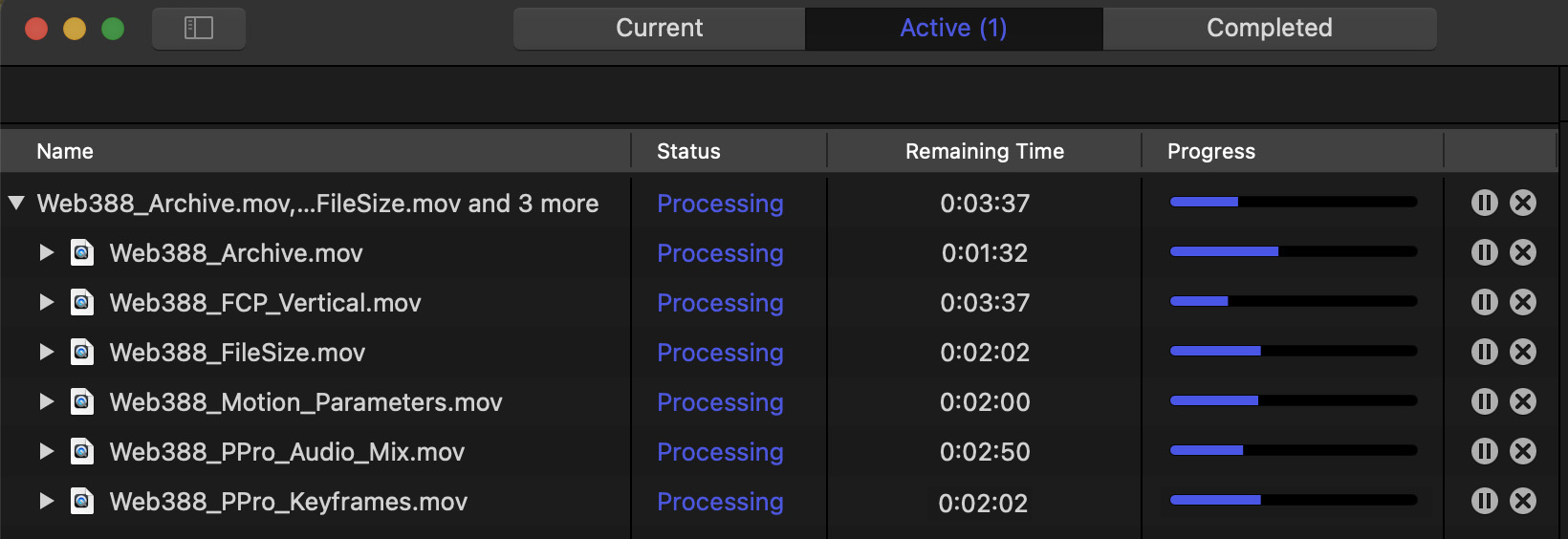
Instantly, Compressor switches to the Active panel and displays all active compression jobs. On a single computer, depending upon how many media engines it has, it will compress up to three files at the same time.
However, because there are two computers on the network, network compression can compress up to six files at once.
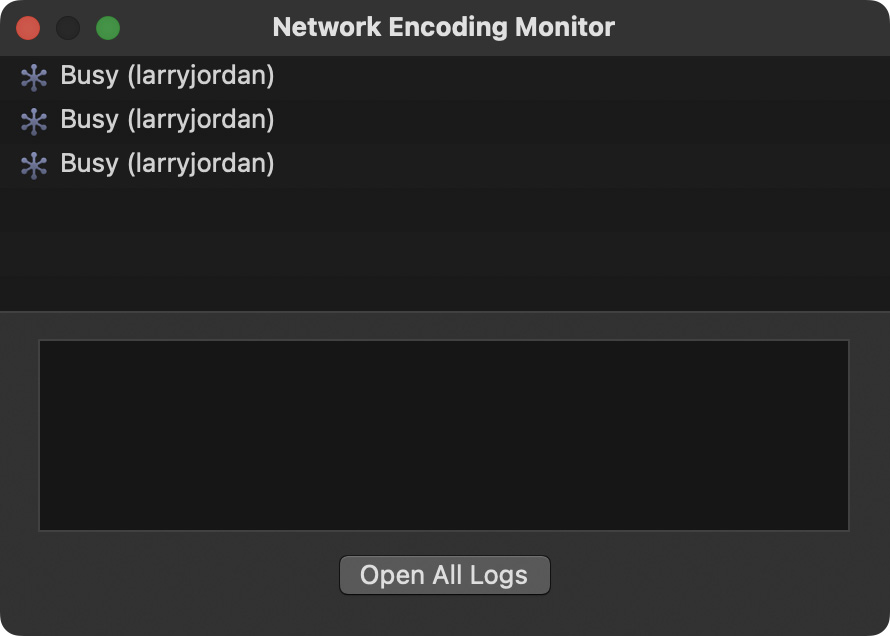
A really useful tool is the Network Encoding Monitor. It shows how many files – but not their names – are being compressed on that computer. Open this from Window > Network Encoding Monitor. This is what it looks like when compression is running on the host computer. Notice that the host is only compressing three of the six files.
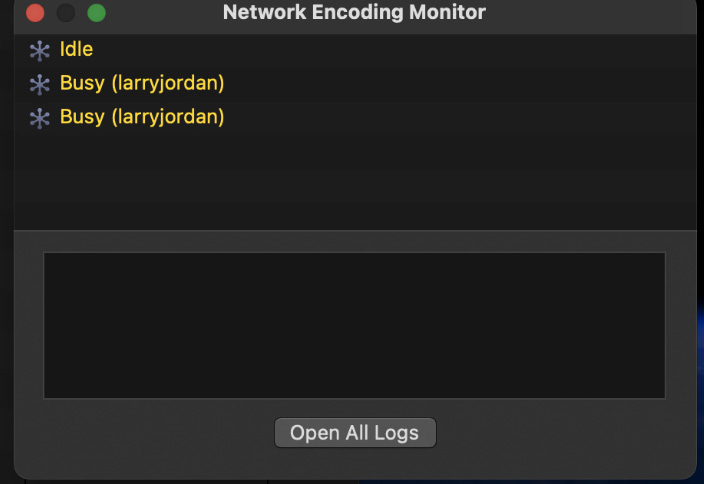
Here’s the same monitor running on a compression node. The top slot shows Idle because it has already finished compressing its file and there are no others in the queue.
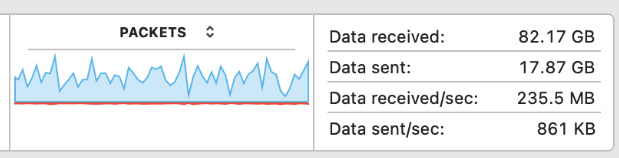
Compression speeds on the main computer range from 160 – 240 MB/sec.
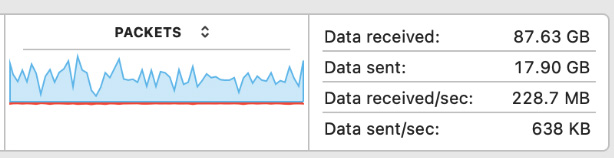
Compression speeds on the remote node range from 105 – 235 MB/sec.
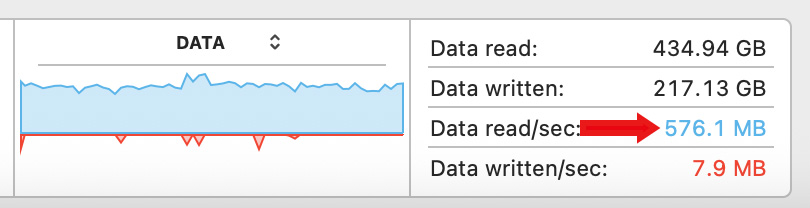
However, compression speeds when compressing locally ranged from 450 – 600 MB/sec.
IS A COMPRESSION NETWORK FASTER?
Well, in most instances, no.
It took 4:12 to compress these six files using a two-computer compression network. Both computers were very speedy Apple silicon systems. Remember, each node on a compression network compresses whole files, not pieces of a file.
When compressing the same six files using an M2 Max Mac connected to an SSD drive which also contained the source media, compression took 2:13. (Almost twice as fast.)
The limiting factor, I think, is not computer speed, but network and server speed. And I ran these tests on a 10G network with a maximum throughput of 750 MB/second.
SUMMARY
A compression network might make sense if you are compressing lots of files at the same time. But, because the compression network is limited by the speed of your network and server, it may make more sense to compress locally. It will generally be faster. Especially if you are only compressing one file at a time.
However, when you have multiple editors contributing files on a constant basis, such as I used when recording and streaming my interviews from NAB, I needed a dedicated compression system so that my editors could continue editing without waiting for export.
Here, it made more sense to dedicate a single Mac, an Apple silicon Mac mini is perfect, to handle the compression. Files were sent to a Watch Folder on the server which Compressor, on the Mac mini, monitored. Files began compression within seconds of entering the folder. I also configured an action at the end of the compression process to automatically transfer the files to our web server so that the entire compression and posting process was automated.
A server-based Watch folder combined with a fast compression computer provides speed without the complexity or slow-downs of a compression network.
EXTRA CREDIT
DaVinci Resolve also supports a compressor network. But the complexity of setting THAT up makes configuring a Compressor compression network look like child’s play. Watch folders and a dedicated compression computer are MUCH easer, faster and efficient to set up and use.


