
 NOTE: This is true for all versions of Final Cut Pro.
Sometimes, you just can’t do what you want to do. Here’s the problem.
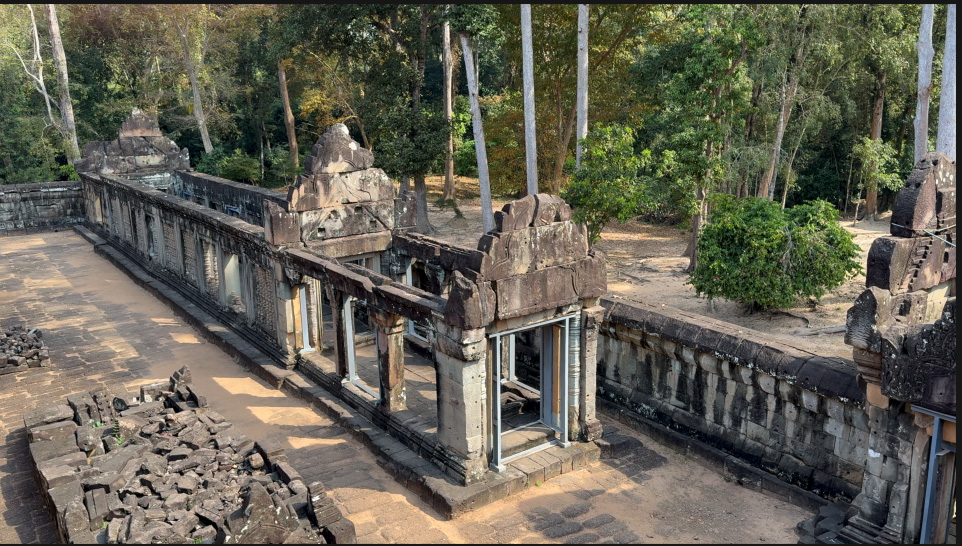
This is a lovely image of a Cambodian temple. I want to reduce it in the frame to, say, add some text about what and where it is. Easy.
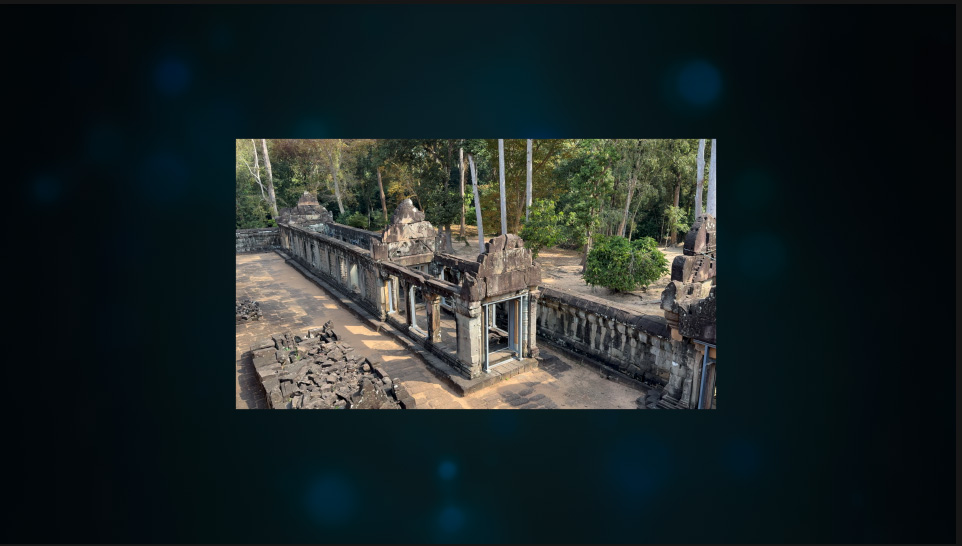
Select the timeline clip, then change the Transform > Scale setting to, say, 50%. Done.
NOTE: I added a faint Glimmer background just to define the edges of the frame.
Except….
What if I want to blur the clip and have that blur create soft edges?

Hmm… not so easy. Why?
Because FCP calculates all applied effects at the top of the Video Inspector before calculating any Transform, Crop or Distort settings. In other words, the blur is applied before scaling so that FCP blurs the clip to the edges of the frame. Then, it reduces the frame size, leaving the edges of the frame sharp and hard.
NOTE: You could trim the clip and add soft edges in the trim, but that removes part of the image. I want to keep all of the image.
How is this fixed? By using a compound clip.
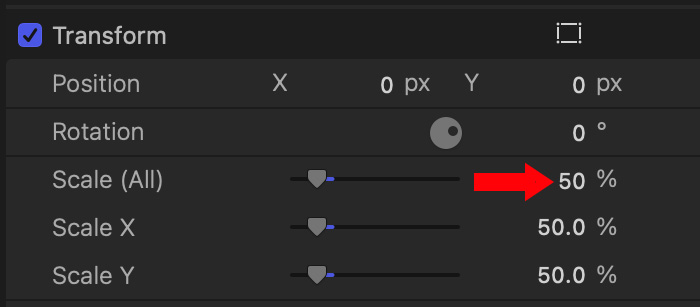
Before applying any effects, select and scale the timeline clip you want to soften to 50%, using Video Inspector > Transform > Scale (red arrow).
With the timeline clip still selected, choose File > New > Compound clip (shortcut: Option + G).
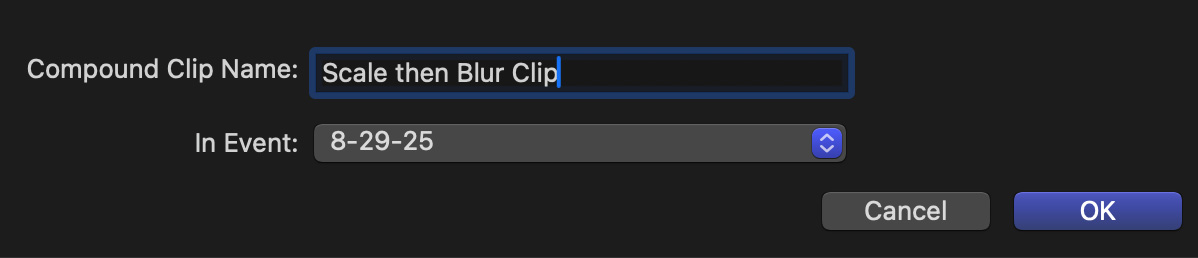
Give the compound clip a name that makes sense to you, then click OK.
The new compound clip appears in the timeline with the name you just gave it.
Select the compound clip and apply Effects > Blurs > Gaussian blur (or any other effects) to the compound clip.
Adjust Blur settings to suit.

Voilá!
A scaled clip with blurred edges.
EXTRA CREDIT
Because the clip is scaled in the compound clip before the blur is applied (i.e. Transform settings are calculated first), when you add the blur, the entire clip AND its edges are blurred. In other words, we changed the normal processing order of effects in the Video Inspector by forcing the scaling to be done before blurring.


