
 This article came from a question emailed by Jim Williams who asked: “I’m wondering how to mark the clips for a dissolve in Premiere, using 2 tracks, one fading out, the other coming in?”
Great question!
Here’s the key thing you need to know: A clip on an upper layer, when displayed at 100% opacity and without any blend modes, always blocks all clips on all layers below it. This includes any clips between them.
NOTE: 100% opacity with a normal blend mode is the default setting for every clip edited into the timeline. So, unless you changed something, this rule can be shortened to: A clip on a higher layer ALWAYS blocks all clips below it.
So, what does that mean? It means that you only need to add a transition to the upper clip.
LET ME ILLUSTRATE
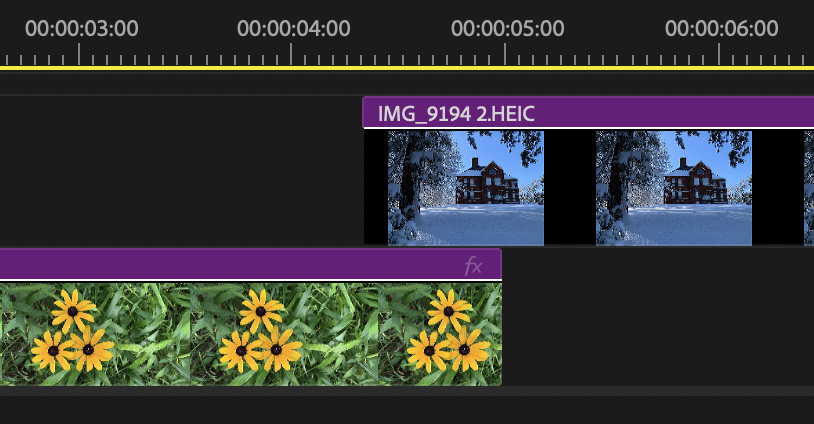
Here’s a timeline where two clips overlap.
NOTE: Clips MUST overlap in order to add a transition between them and the overlap must at least equal the duration of the transition. The lower clip can extend longer, but you won’t see any portion of the lower clip after the transition is complete.
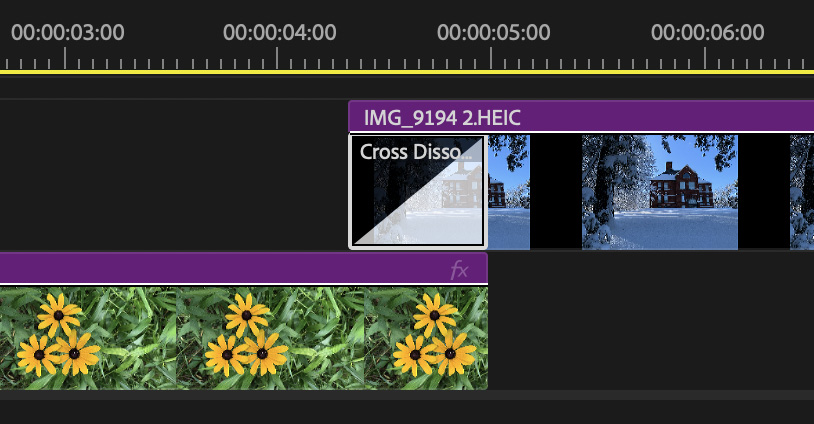
Because the top clip totally blocks the lower clip for the portion over which it overlaps, you only need to add the transition to the top clip.
NOTE: The keyboard shortcut to apply the default transition is Cmd + D.
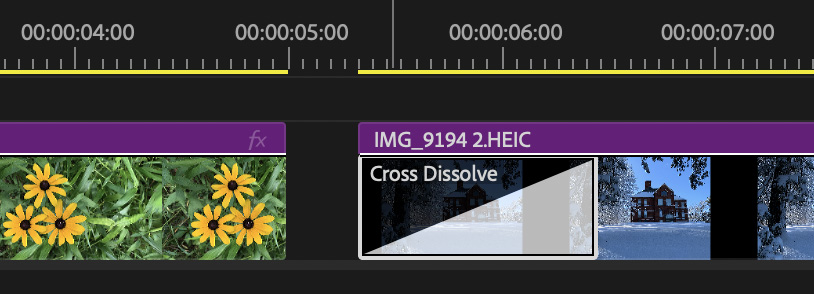
If you want a clip on any track to fade up from, or fade down to, black, apply a dissolve (or any other transition you fancy) to the appropriate end of the clip making sure there’s at least one frame of black ahead of, or behind it.
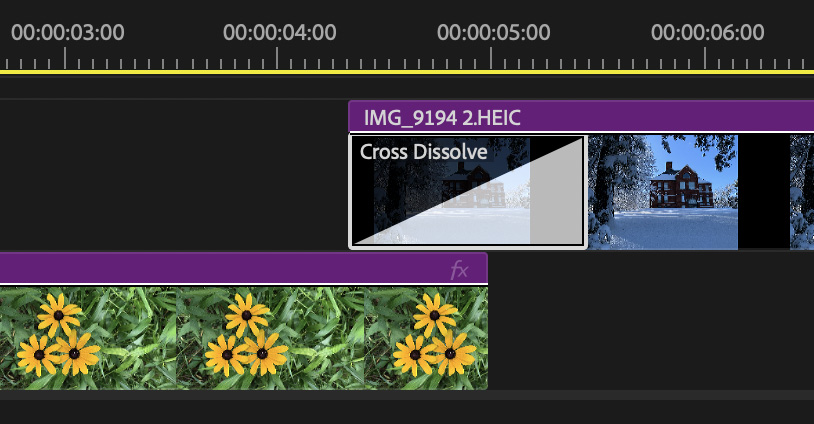
To adjust the duration of a transition, drag it’s edge. HOWEVER, to avoid the lower clip cutting out, make sure the lower clip extends for the entire duration of the transition.
SUMMARY
It is easy to think you need to do something about that lower clip. You don’t. Only apply transitions to the upper clip.
However, layer stacking does not apply to audio clips. With audio, there is no foreground or background. If you want to add an audio transition between two clips on different layers, you need to add the same transition, for the same duration, to both.
This suggestion applies to all version of Premiere going back to the very beginning.


