
 This began, as many articles do, with a question from a reader. He asked: “How do I zoom the Program Monitor in Premiere full-screen and, equally important, how do I get it back to normal?”
There are several ways to do this.
IF YOU HAVE ONE MONITOR
A fast option is to put the cursor in the Program Monitor, then press the tilde ( ~ ) key; on US keyboards, this key is just below the ESC key.
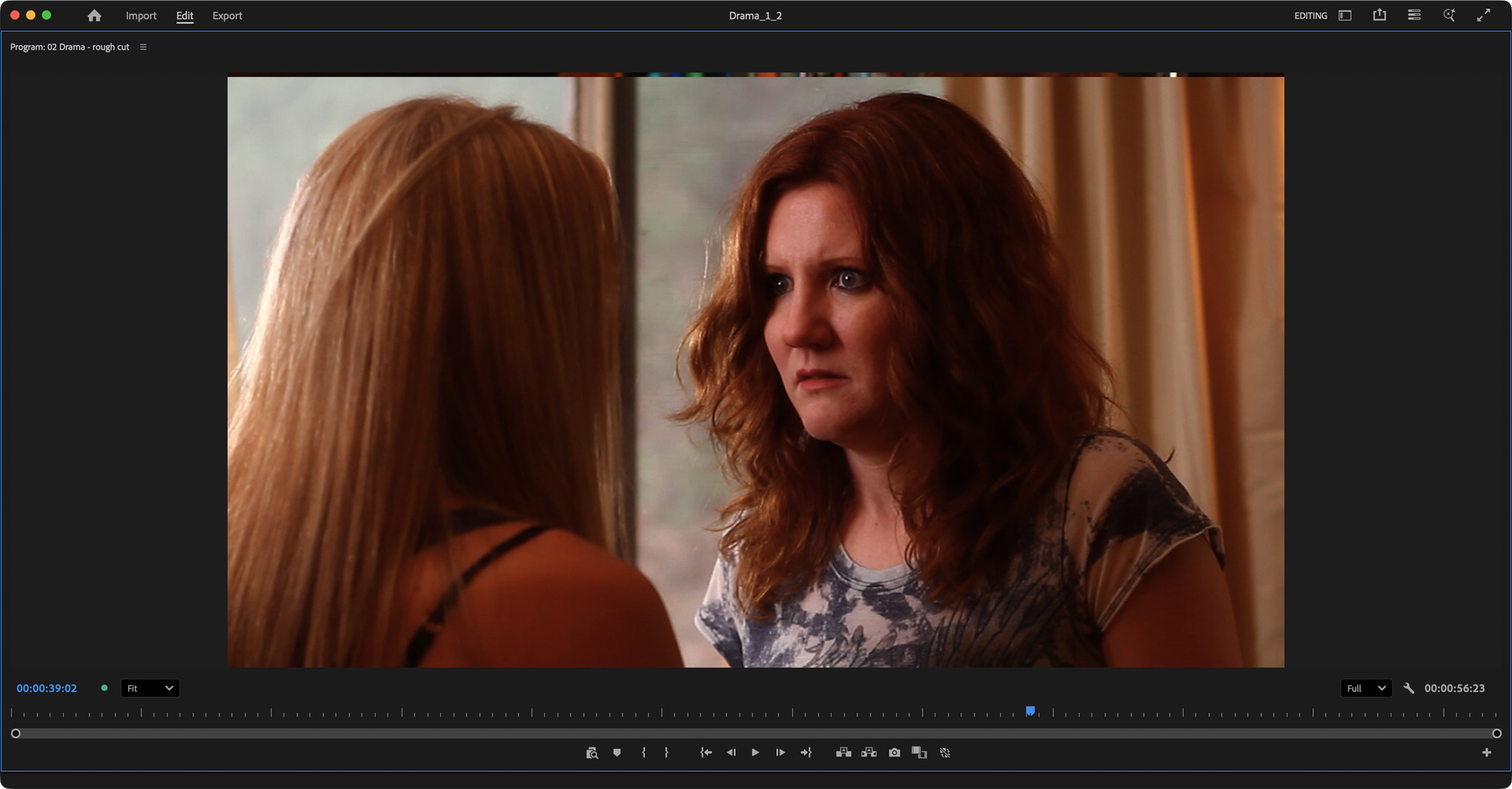
Image courtesy of John Putch, “Route 30, Too!” (PutchFilms.com). Click to see larger image.
This fills the frame with the entire Program monitor interface.
To reset, put the cursor in the Program Monitor, then press tilde ( ~ ) again.
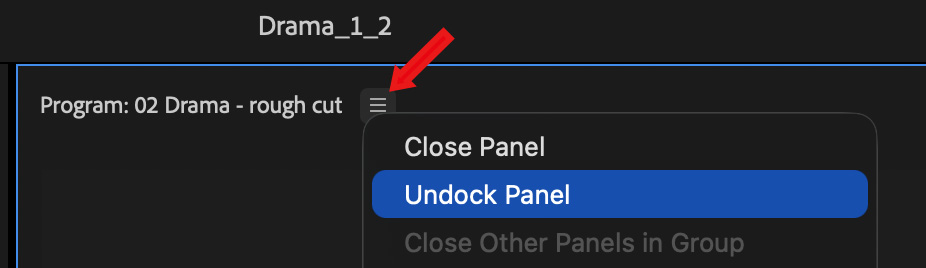
Another option is to create a floating panel containing the Program Monitor which you can position wherever you want. Click the “3 hamburgers” next to the Program monitor name (red arrow) and choose Undock Panel.
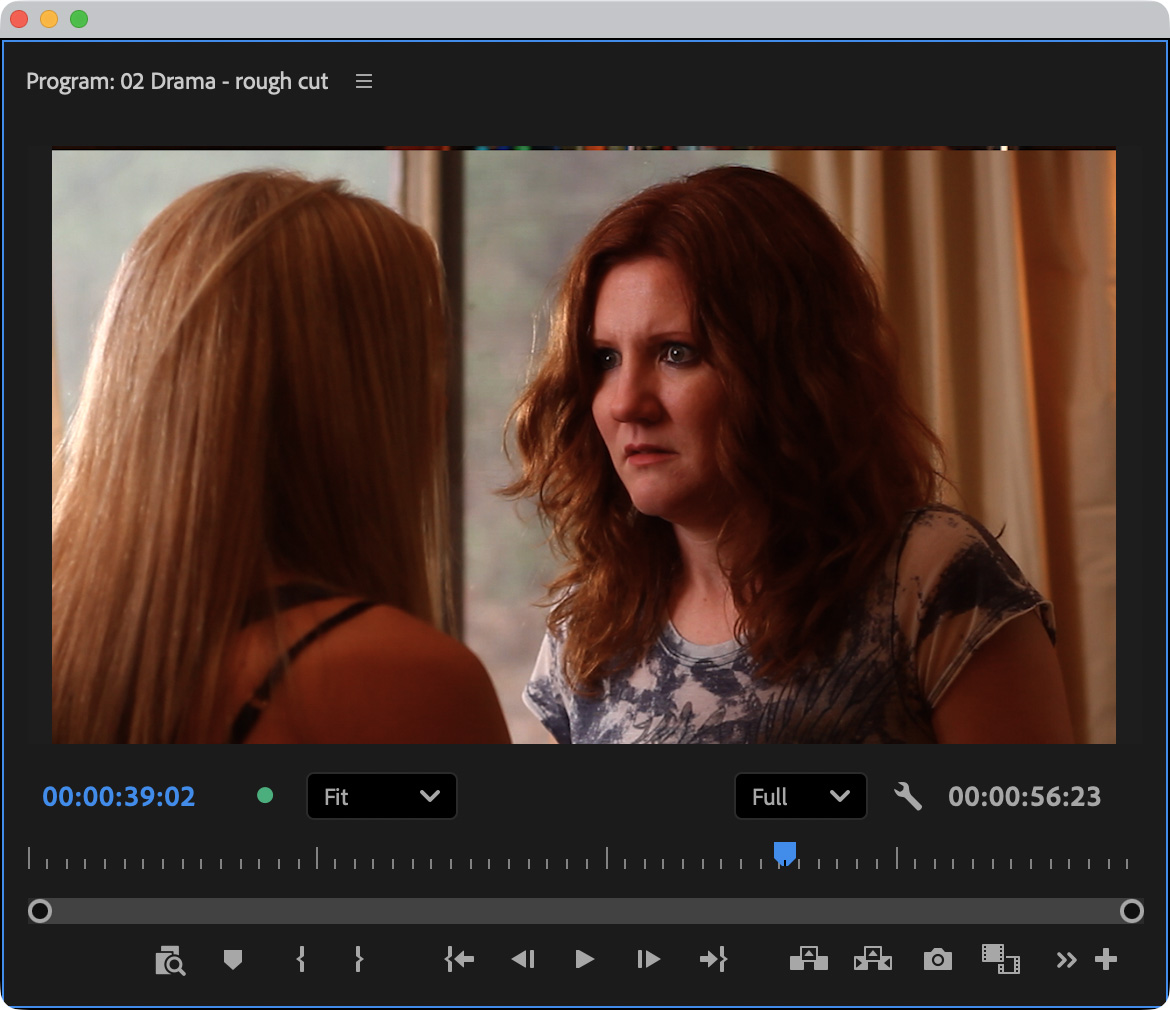
Screenshot
This creates a free-floating panel containing the Program Monitor and its interface that you can resize and reposition.
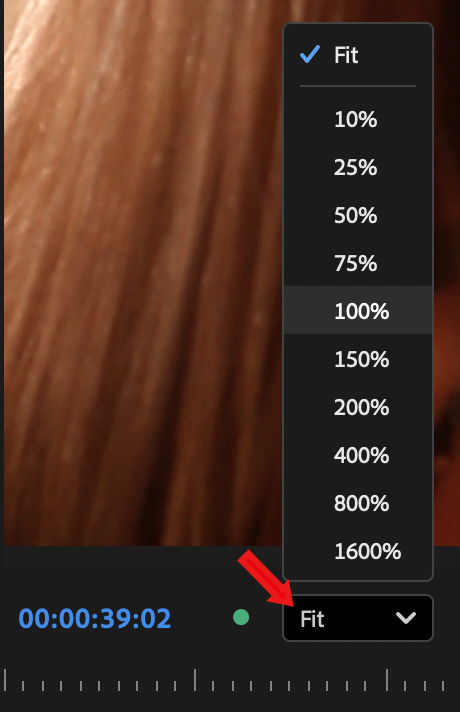
Make sure you are seeing an accurate image by selecting 100% from the Resolution menu. Anything larger is likely to display artifacts.
NOTE: Adobe mentions in its User Guide that displaying HEVC or H.264 at sizes smaller than 100% turns off error correction, which means that video artifacts may appear which won’t be in the final 100% output.
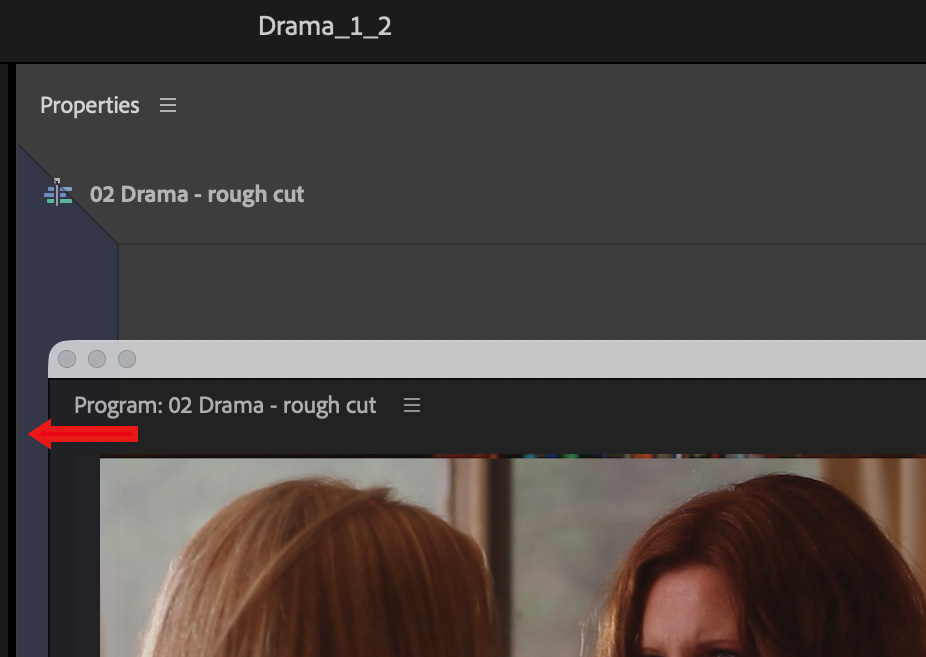
To reset a floating Program Monitor back into the main interface drag the name of the Program monitor into a panel below it such that a purple bar appears on the left side of the lower panel (red arrow).
– or –
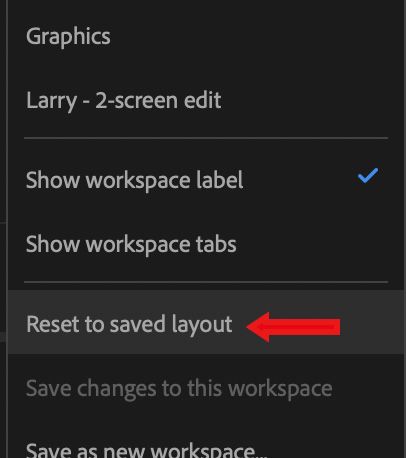
In Window > Workspaces, choose Reset to saved layout (red arrow). This resets the current interface back to when it was first saved.
IF YOU HAVE TWO MONITORS
Setting a second monitor to display video in Premiere is often easier than dealing with a floating Program monitor.

Click to see larger image.
In Premiere Pro > Settings > Playback (left arrow), enable Mercury Transmit (top red arrow), then select the monitor you want to use to display video (lower red arrow).
When selections are complete, click OK.
NOTE: I’ve found this to be unreliable in Premiere 25.6.3 running under macOS 26.1. This was highly reliable in the past, but may not be so currently.
SIDEBAR: IF YOU HAVE AN EXTERNALLY-CONNECTED VIDEO MONITOR
Mercury Transmit is designed for any second computer or video monitor connected to your Mac, regardless of interface.
SUMMARY
For best color results, your computer monitor should support 100% of the Rec. 709 color space for SDR video. (sRGB is used for stills, while P3 is brighter and more saturated than Rec. 709.)
This article describes how to properly configure a computer monitor for Rec. 709 color space using the Display settings on your computer and monitor.


