
 Yesterday, Bill asked me how to zoom the Viewer in Final Cut full-screen; and, equally important, how to get it back to normal size. There are several ways to do this.
IF YOU HAVE ONE MONITOR
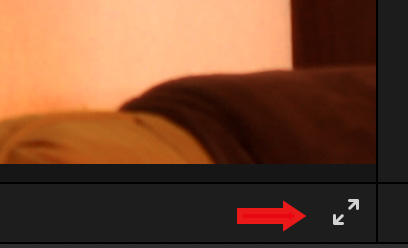
To have the Viewer fill the frame and begin playback of the timeline starting at the current position of the cursor, either:
– or –
Type ESC to return to the main interface.
IF YOU HAVE TWO MONITORS
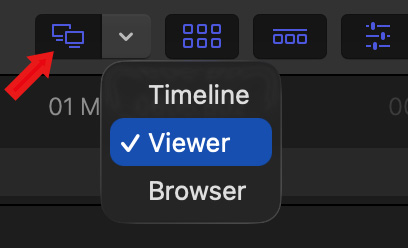
Click the downward-pointing chevron to choose what section of the interface to display on a second computer monitor. In this case, we want the Viewer on a second monitor.
Then, click the two speech bubbles icon (red arrow) in the top right corner of the FCP interface to enable a second computer monitor.
NOTE: Once you make a selection, you only need to click the speech bubbles to switch the display.
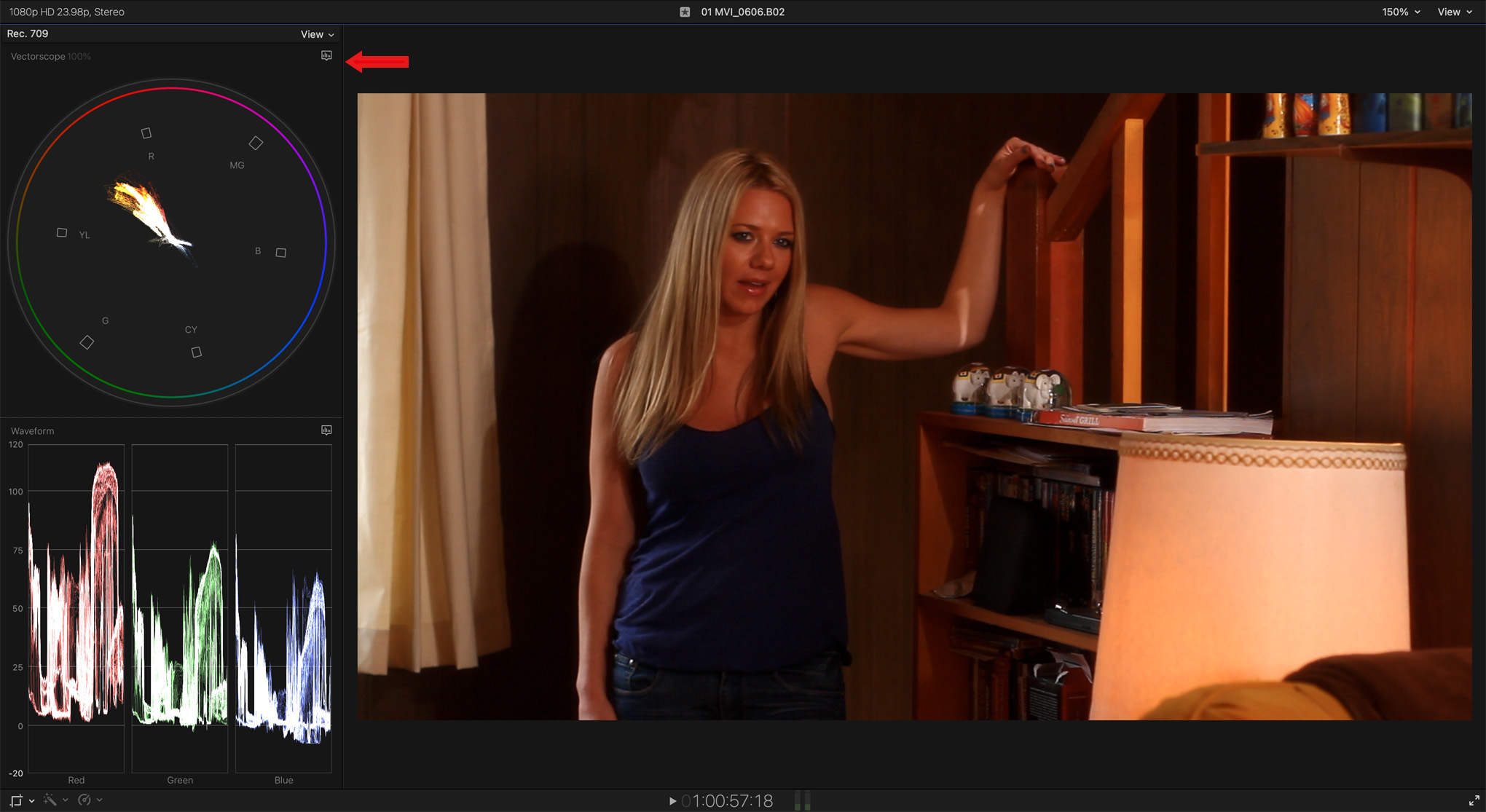
Image courtesy: John Putch, “Route 30, Too!” (PutchFilms.com). Click for larger image.
When you display video to a second computer monitor, the video scopes, when enabled, will appear there as well (shortcut: Cmd + 7).
IF YOU HAVE AN EXTERNALLY-CONNECTED VIDEO MONITOR
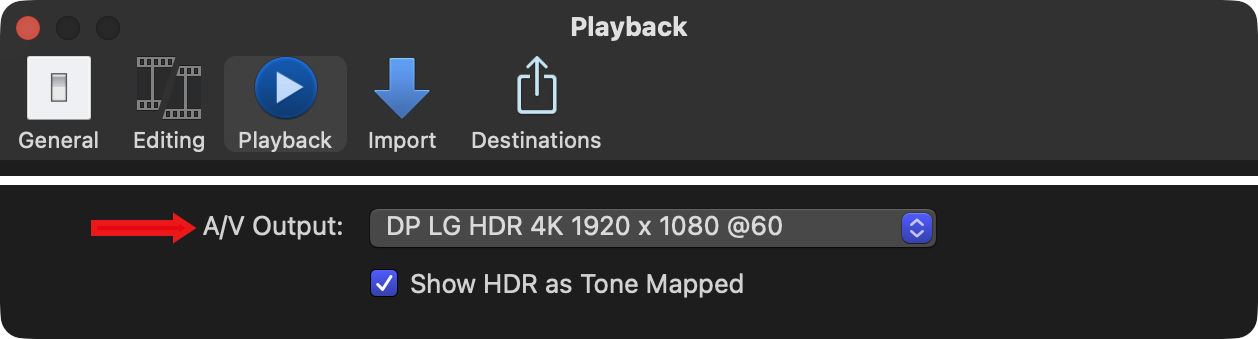
Enable a video feed to an external video monitor by selecting the monitor in Final Cut Pro > Settings > Playback > A/V Output. In almost all cases, connecting a video monitor will require an interface card for most accurate color playback.
SUMMARY
For best color results, your computer monitor should support 100% of the Rec. 709 color space for SDR video. (sRGB is used for stills, while P3 is brighter and more saturated than Rec. 709.)
This article describes how to properly configure a computer monitor for Rec. 709 color space using the Display settings on your computer and monitor.


