
 NOTE: There’s been a BIG change in how Resolve 20 handles modifying keyframes. This tutorial only applies to version 20 and later.
OTHER REFERENCES
This series of articles began with a request from Barton asking: “I would like to create an even, constant rate of speed where I am panning across an image but also zooming in. For example, after adding keyframes, as the pan/zoom travels leftwards and up becomes increasingly fast, starting out quite gradually.”
Larry replies: What you are seeing is an artifact of how digital media zooms. When starting with a wide shot, the zoom is moving across a large number of pixels, which makes the move feel “slow.” Then, as it gets closer, it is moving across a smaller and smaller number of pixels, making the move feel faster.
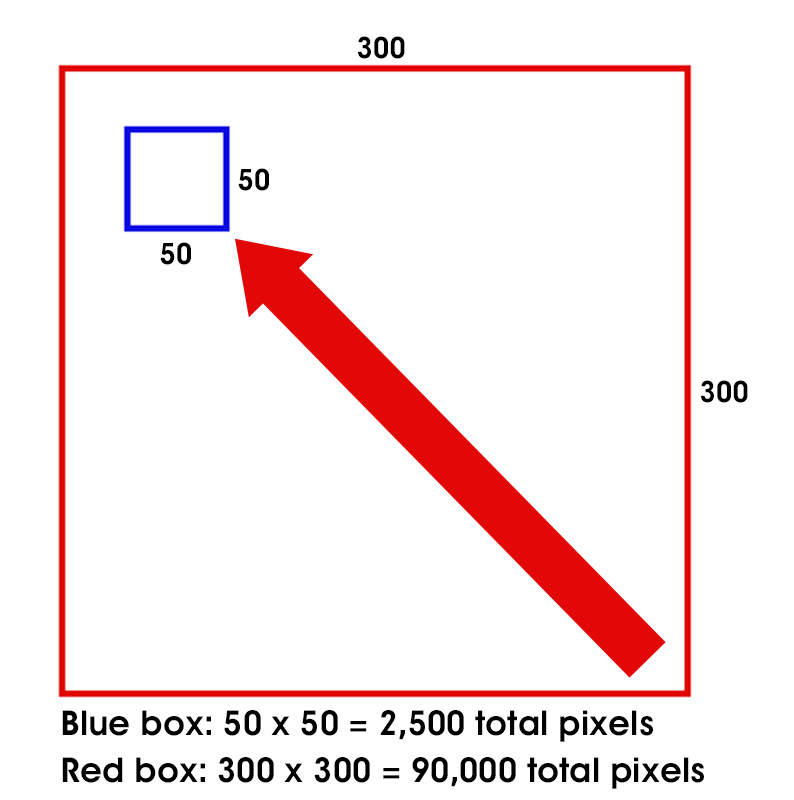
Speeds vary due to changing the number of pixels being manipulated.
Here’s an example. Starting with the red box, the image contains 90,000 original pixels. As Final Cut zooms in, the number of pixels rapidly reduces to 2,500 original pixels in the blue box.
In terms of actual magnification, the speed is constant. But, in terms of numbers of original pixels in the shot, the speed of the zoom changes as the number of original frames contained in the frame changes.
NOTE: What the zoom also does is increase the size of each original pixel so that the remaining image still fills the frame, even though there are fewer original pixels in the shot. (This is why zooming in makes images look blurry.)
CAN KEYFRAMES HELP?
Yes. We can manually add acceleration or deceleration to each keyframe to change the speed leaving (“ease out”) or arriving (“ease in”) at a keyframe.
NOTE: The amount of acceleration varies depending upon how far into the image you are zooming, the speed of the zoom, and the number of pixels in the original image.
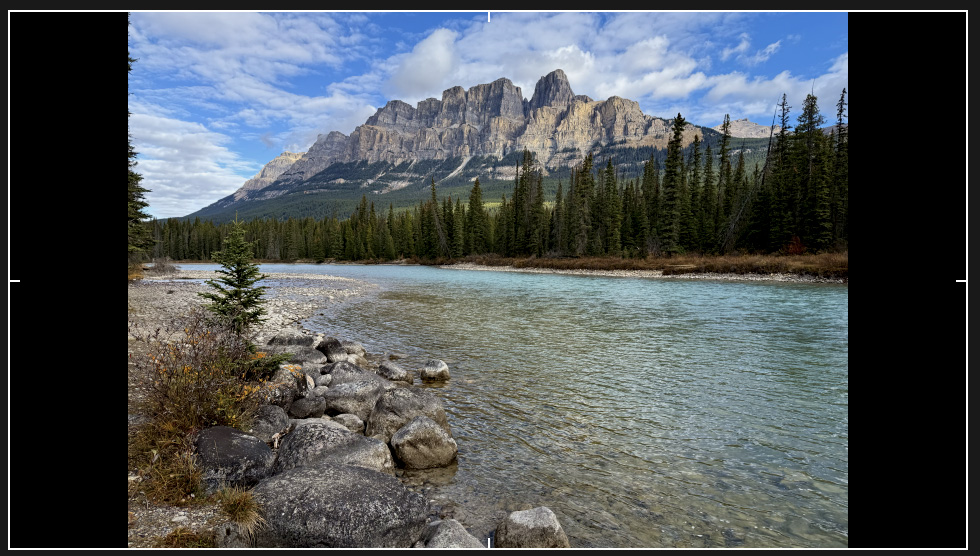
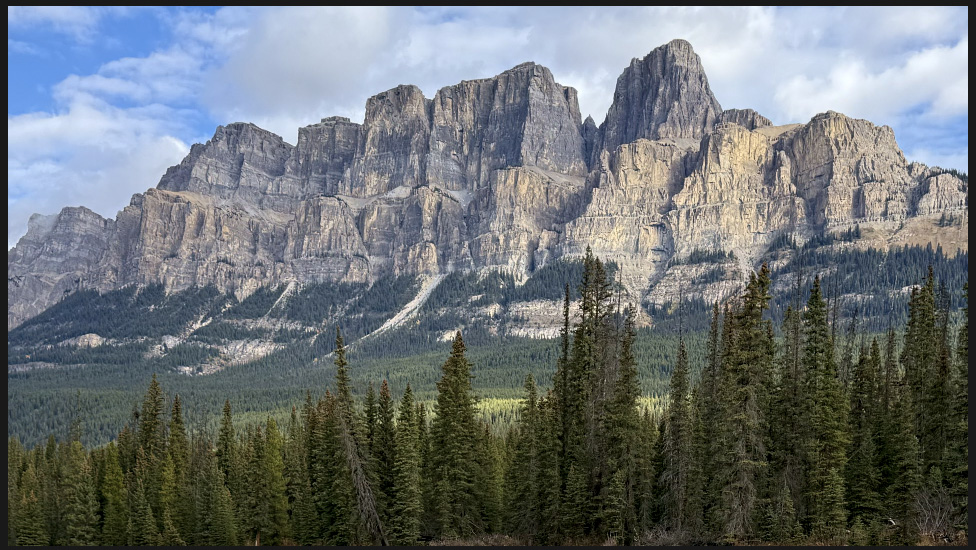
Here’s my source image – a 12 megapixel vertical photo of Castle Mountain, near Banff, Alberta, Canada.
NOTE: Why, yes! This is yet another photo from my recent Canadian vacation! Happy to share these with you.
I want to start at the bottom of the photo, then move up, over and zoom out.
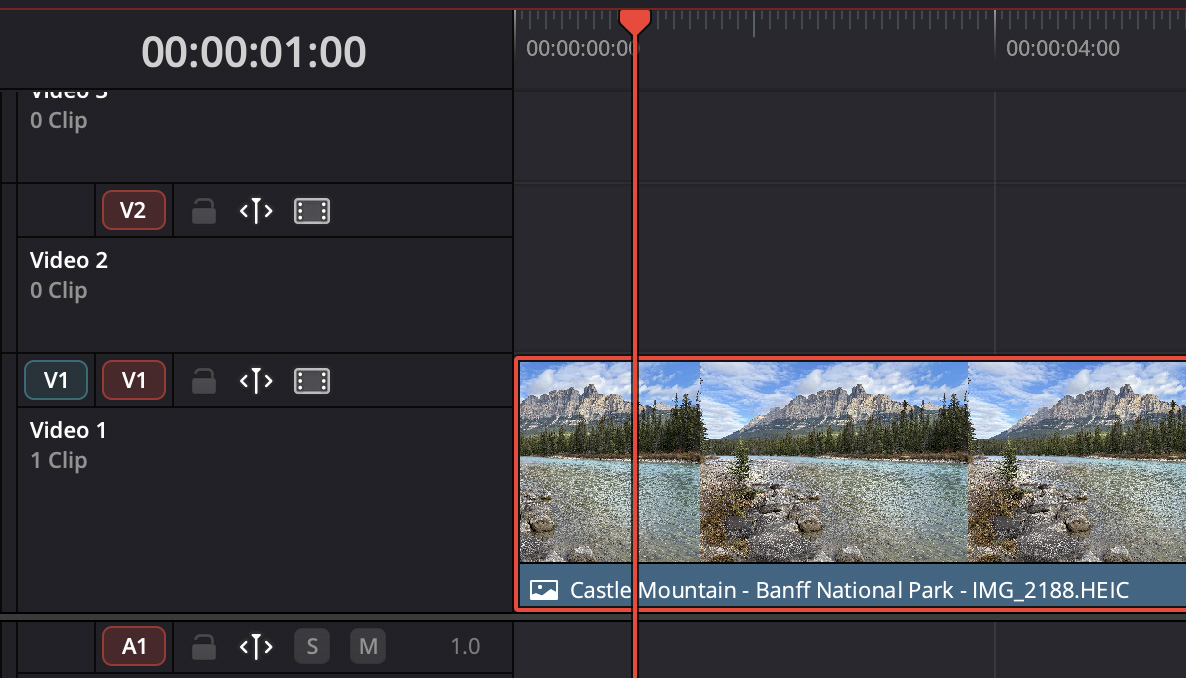
To start, load the clip into the timeline, put the playhead on the frame where you want movement to start and select the clip. You can start or end a move anywhere from the first frame of a clip onward.
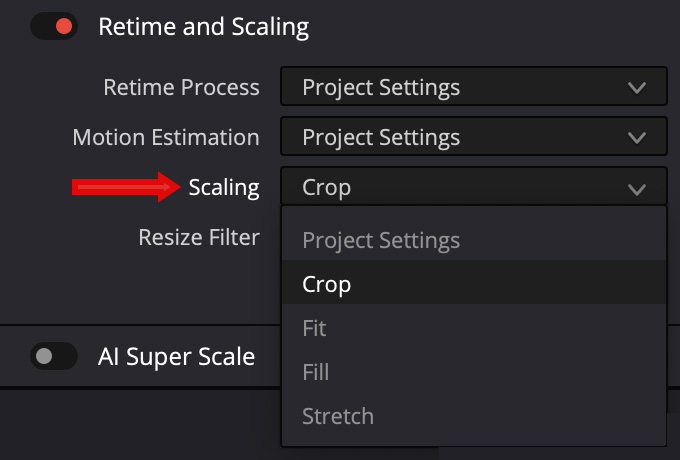
In the Video Inspector, change Retime and Scaling to Crop. This displays the image at full resolution, which makes it easy to create moves on the image.
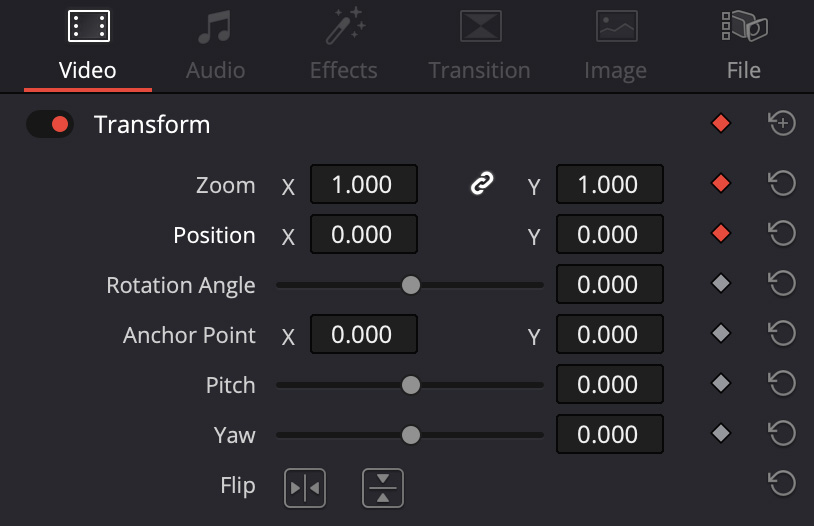
Higher in the Video Inspector, set keyframes for Zoom and Position. If you don’t know what type of move you will ultimately create, click the diamond for Transform (at the top) to set all of them at once.
DEFINITION: A keyframe is a specific setting of a specific parameter for a specific frame of video. A red diamond indicates a keyframe exists for that setting on that frame. A gray diamond indicates no keyframe exists.
There is no limit to the number of keyframes you can create in a clip. Almost all parameters in Resolve can be keyframed. Once you set a keyframe for a parameter, any changes you make to it automatically create new keyframes.
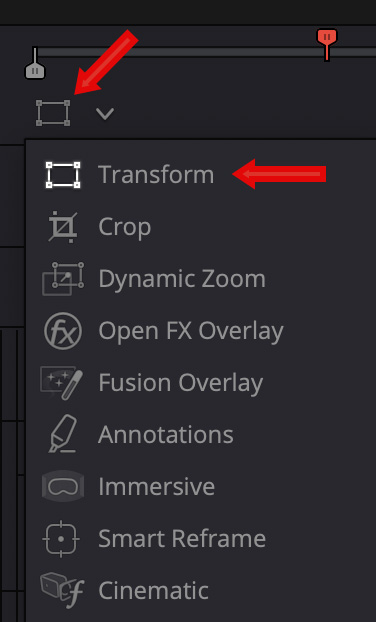
In the lower-left corner of the Viewer, click this icon (top red arrow), then click Transform. This enables the on-screen Viewer controls to change the position, rotation and scale of the image.
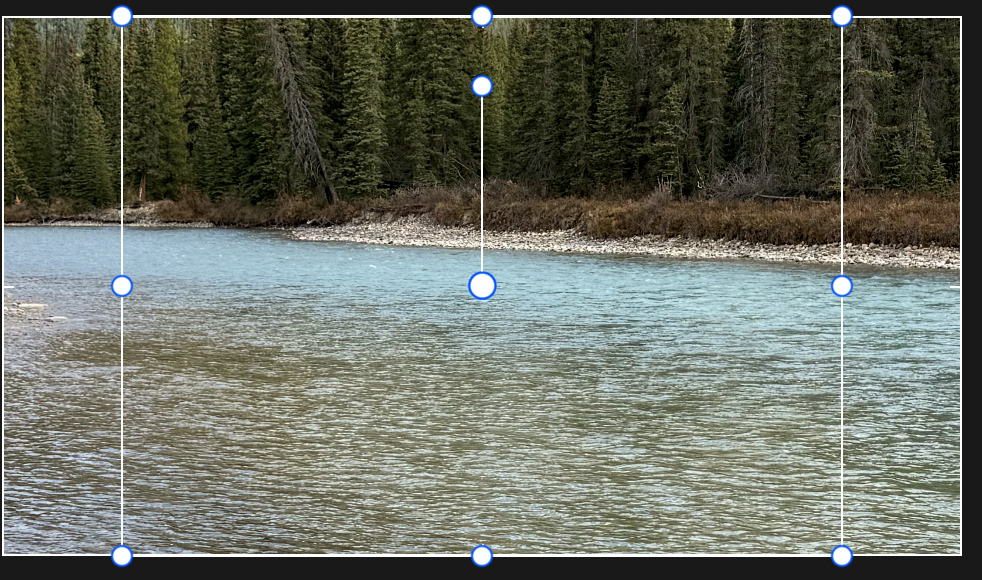
Here’s what the on-screen Viewer controls do when a clip is selected:
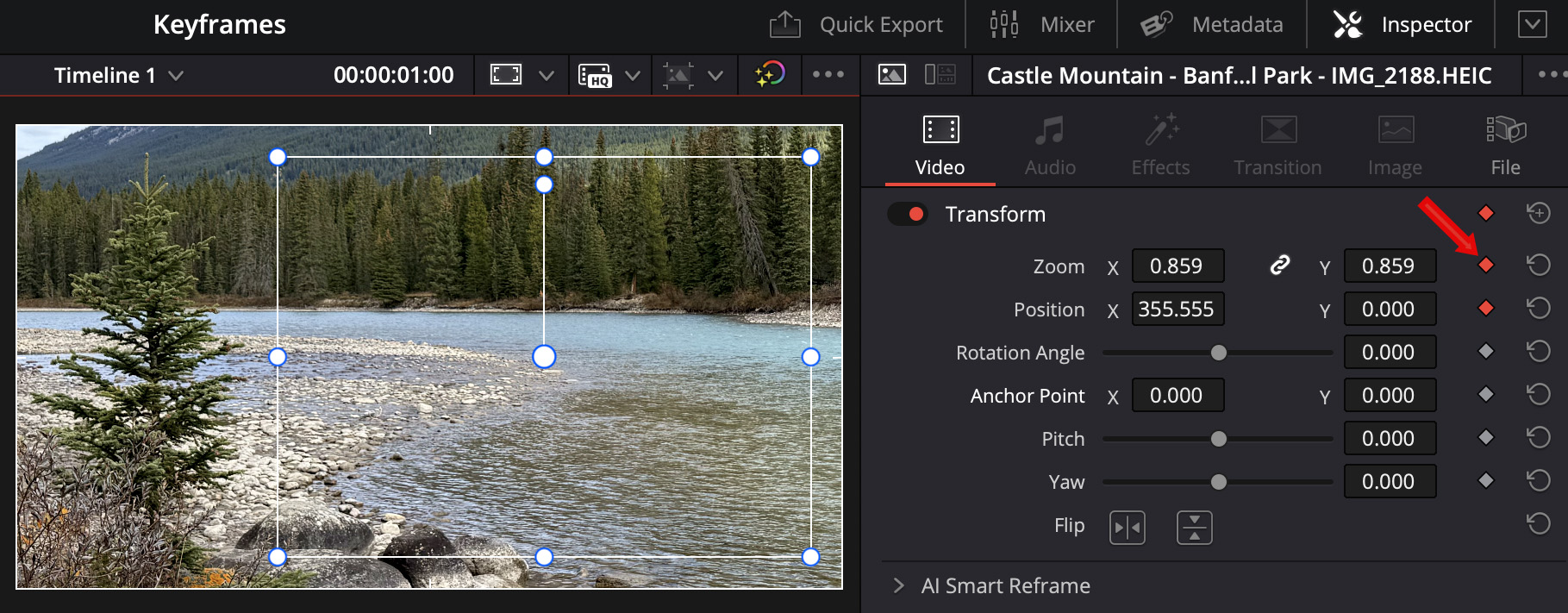
Click to see larger image.
Here’s our opening position. If you play the clip, you’ll see the entire clip remains frozen at that first position. Why? Because in order to create movement, you need to set at least one more set of keyframes. We always use keyframes in pairs (or more): Providing a starting position and an ending position.
SIDEBAR: POSITION SETTINGS
Position settings determine the placement of the center of the image within the frame. Position 0,0 places the center of the image at the center of the Viewer. For a 1080 image, positioning the center of the image in the upper left corner of the program monitor would create Position settings of -960,540. For the lower-right corner, the Position settings would be 960,-540.
Moving the image up or to the right increases Position settings. Moving down or to the left decreases them. Images larger than the project frame size will have correspondingly larger Position setting values.
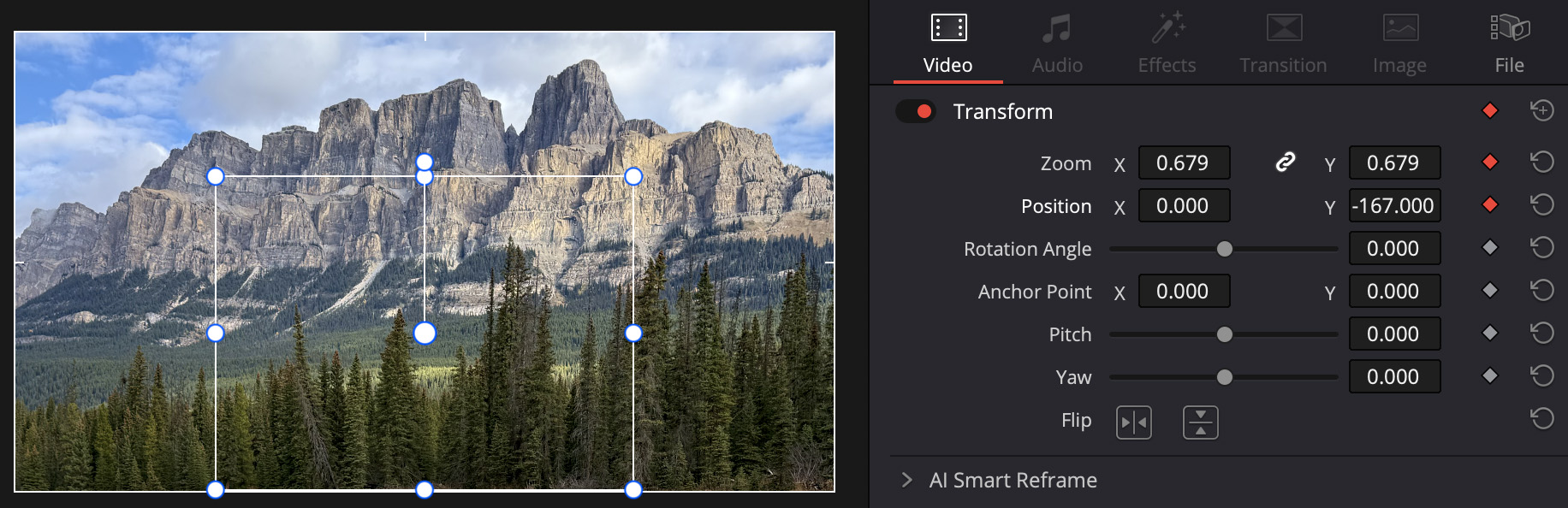
Click to see larger image.
Next, move the timeline playhead where you want the movement to end, then adjust the image until you like the shot. Notice, as you did so, that both Position and Zoom settings changed and new keyframes were created for that frame.
NOTE: If you want to change the movement in the middle of an existing move, set additional keyframes on the frame where you want something to change.
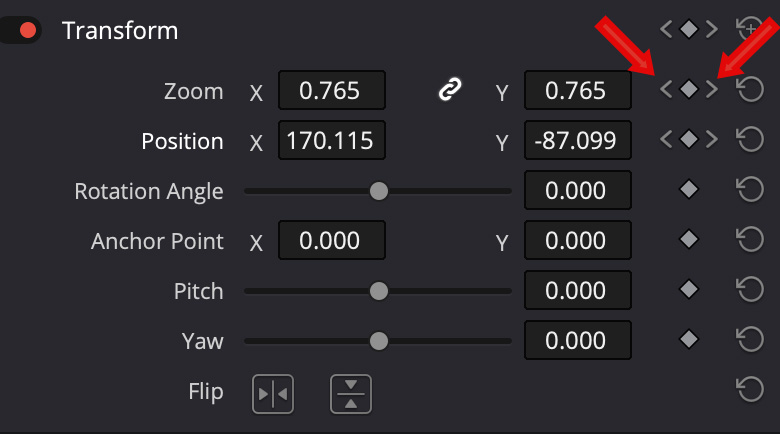
SIDEBAR: MODIFY KEYFRAMES
NOTE: You can also make most of these changes in the Keyframe Editor, which I’ll cover shortly.
CHANGE RENDER SETTINGS
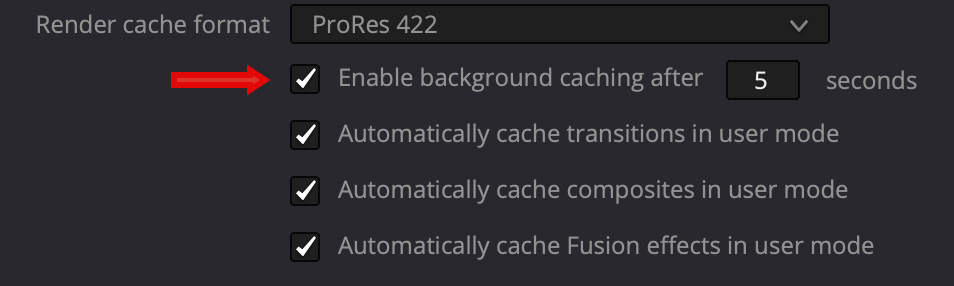
By default, Resolve does not automatically render animation. To help fix this, go to Project Settings (shortcut: Shift + 9) > Master Settings > Optimized Media… and change settings to match the screen shot above.

However, that may not be enough. Make sure, in the main Resolve interface, to set Clip > Render Cache > Render Cache Fusion Output to On. (Don’t ask me why. I don’t know. It just works.)
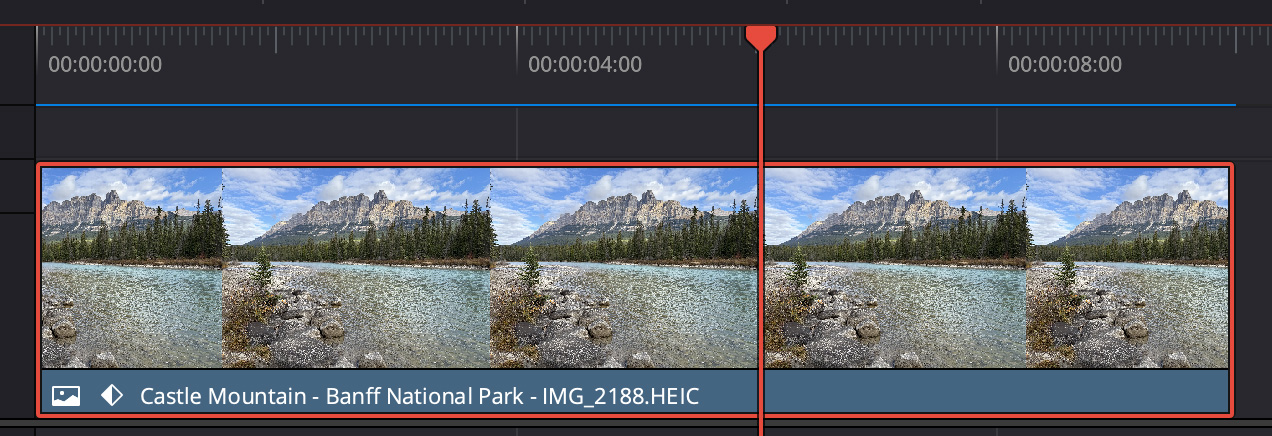
Once done, you’ll see a red line over the unrendered portion clip and a blue line over the rendered portion. All keyframe animation MUST be rendered to play smoothly.
NOTE: Resolve differs from Final Cut and Premiere in this. Without rendering, Resolve has no clue what it is doing and all moves are both very jerky and badly timed.
MODIFY KEYFRAMES
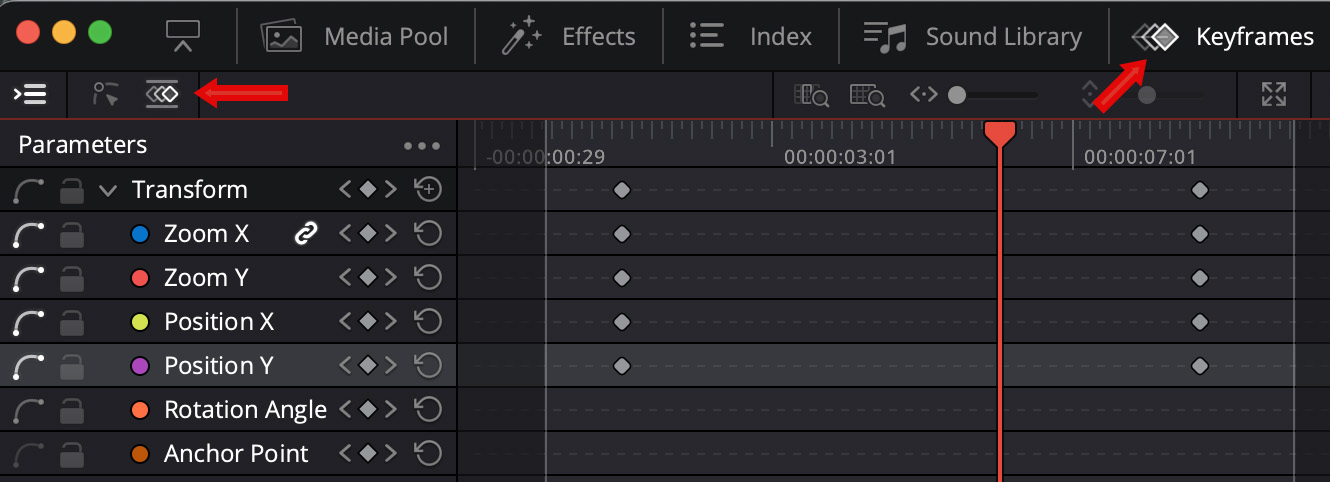
New with Resolve 20 is a totally revised Keyframe Editor. Click the Keyframes text button (right red arrow) at the top of the main interface.
This displays all the potential keyframes in the Video Inspector.
NOTE: If your display does not look like this, click the icon indicated by the left red arrow.
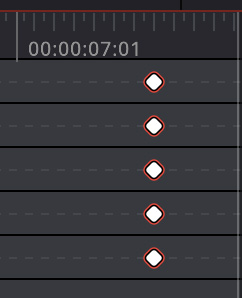
NOTE: A keyframe is selected when it displays a red border. To select multiple keyframes, use Shift-click, Cmd-click, or drag a selection rectangle around the ones you want. Only selected keyframes can be changed.
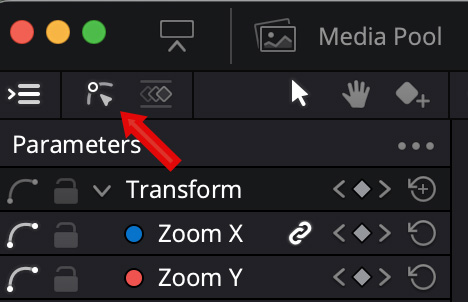
To display keyframe paths and acceleration, click the Keyframe Curves (red arrow) icon to display all active keyframes and paths.
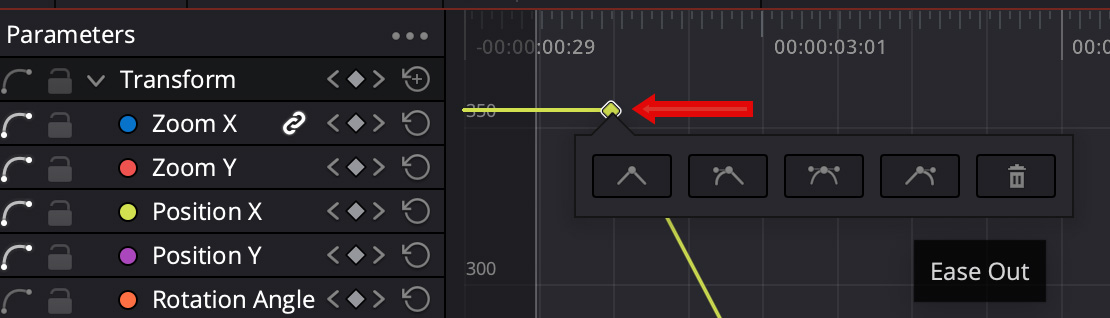
Linear: No acceleration
Ease In: Allows changes to deceleration going INTO a keyframe.
Both: Allows changes going INTO and OUT OF a keyframe
Ease Out: Allows changes to deceleration Coming OUT FROM a keyframe.
Trash can: Deletes a keyframe
NOTE: Changing these settings only affects the selected keyframe(s).
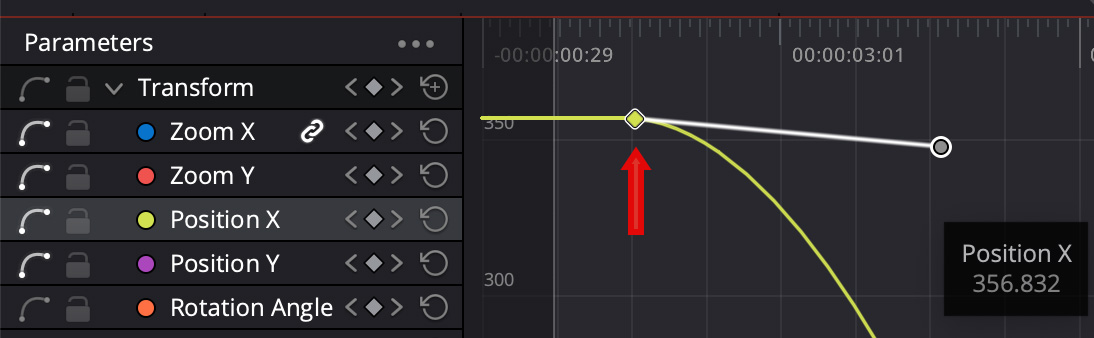
For example, to change the rate of acceleration at the start of a move, right-click the first keyframe for Position X and click the Ease Out icon.
Drag the white dot horizontally to change acceleration, or vertically to change the shape of the curve. Changing the shape of the curve will alter the movement of the image.
NOTE: Hold the Shift key while dragging to only change acceleration, without changing the setting.
You can make these curves as straight or twisty as you like. Remember, to remove all acceleration, set the keyframe to Linear.
Remember to allow time for rendering before playing the timeline. Unrendered animations are woefully inaccurate. The default, set in Project Settings, tells Resolve to wait 5 seconds before rendering starts. I’ve changed my wait time to 2 seconds.
SUMMARY
When doing moves on images it is important to have larger mages than the frame size of your video. Otherwise, as you zoom in, the image will start to look blurry.
While there is no exact suggested image size, I generally recommend 2-3X the frame size as a general guideline. Experiment to see what image sizes work best for your projects. The closer you zoom in, the larger your source image needs to be.


