


Transition: Impact > Animation > Glass
The headline feature in the latest release of Adobe Premiere 25.5 are “a new set of modern effects, transitions, and animations added to the existing list. These 90 brand-new effects are designed to help you enhance your work with cinematic transitions, polished effects, and dynamic text and graphic animations. With no need for a separate plug-in or subscriptions, these effects include redefined classic transitions, updated effects such as dissolves, blurs, and wipes, offering a much smoother, richer, and fresher take on familiar styles.
“The Transitions include a versatile set of categories designed to streamline editing, add visual depth, and easily create professional, engaging results.” (Adobe online help)
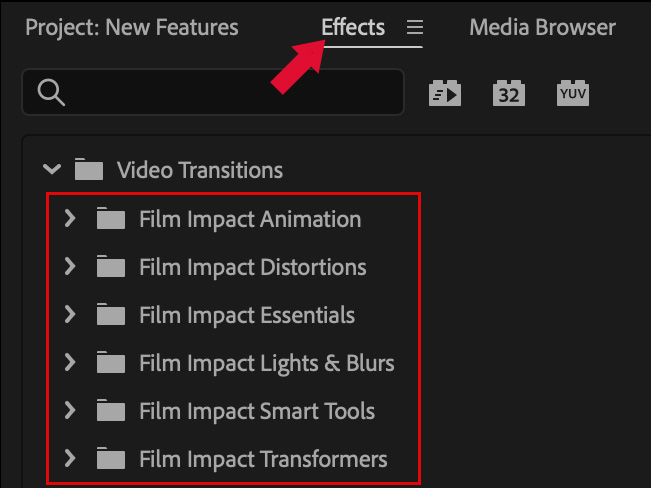
You’ll find these new transitions in the Effects > Video Transitions and grouped in folders labeled “Film Impact.”
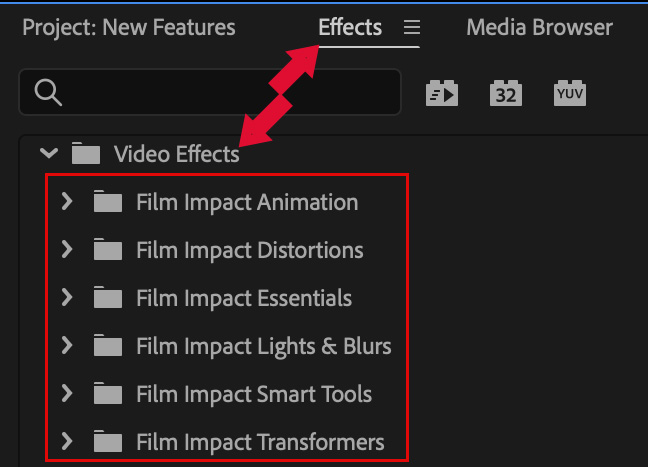
You’ll find these new effects in Effects > Video Effects and grouped in folders labeled “Film Impact.”

Transition: Impact > Liquid Distortion
The best way to see what these do is to play with them yourself. New transitions and effects are always welcome.
Other New Features
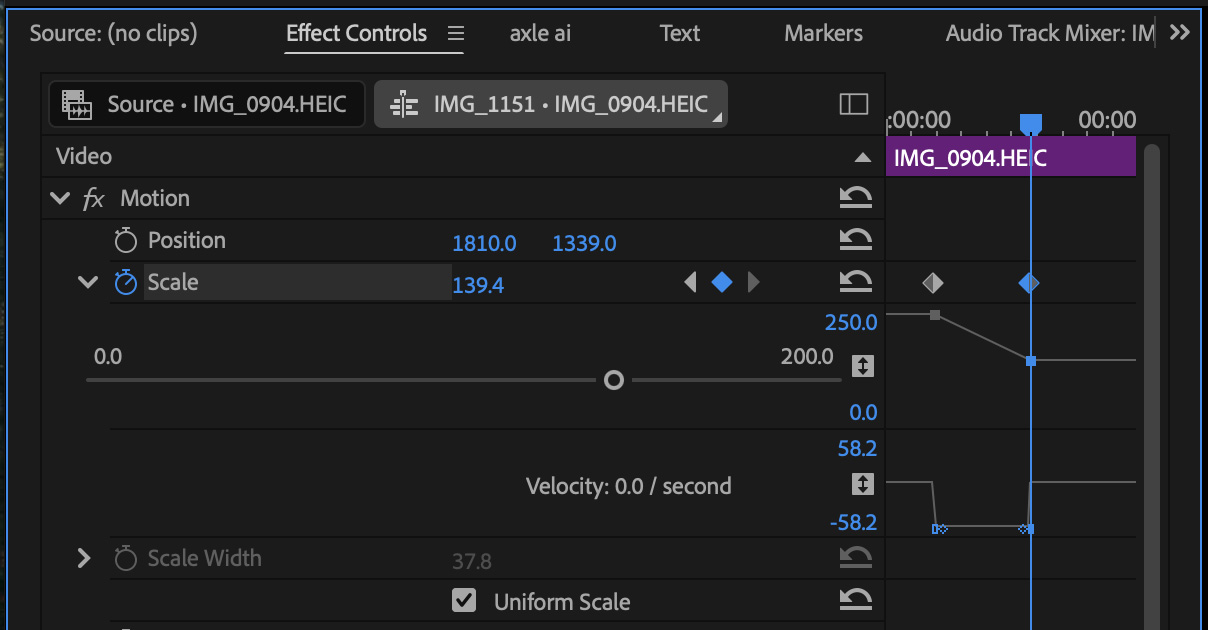
Keyframing in Effect Controls is cleaner and more predictable. If you’ve ever become frustrated when clicking and dragging a keyframe you’ll appreciate this. No new features, just greater ease of use and reliability.
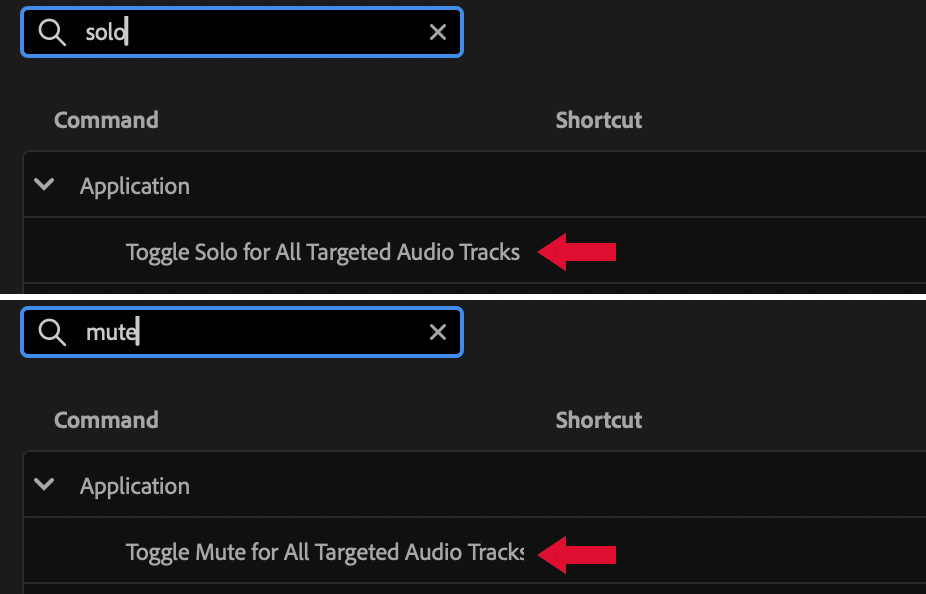
Adobe added two new keyboard shortcuts to mute or solo targeted tracks, BUT left them unassigned. (Search for “solo” or “mute” in File > Keyboard Shortcuts.)
Once you assign these the keyboard shortcut of your choice, you can instantly solo or mute all targeted tracks.
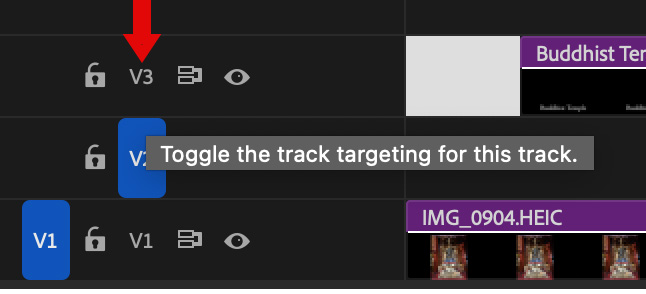
NOTE: To target a track, click a track number in the column indicated by the red arrow so that it creates a blue rectangle. To untarget a track, click a blue rectangle in the same column. (The outside left column is use for source patching, not targeting.)
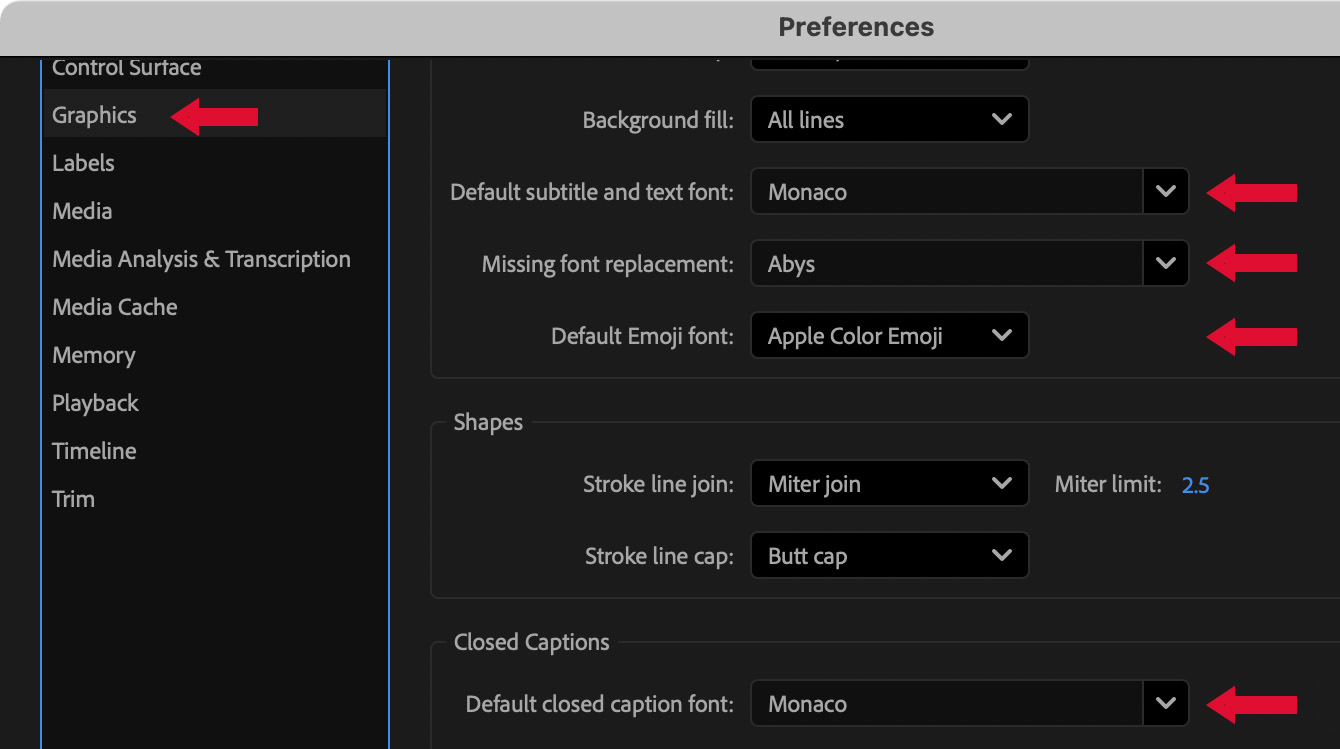
You can now assign a default font for text, captions and subtitles. However, for titles, using favorites will probably still be faster as you can favorite more than one font.
Adjust these settings in Preferences > Graphics.
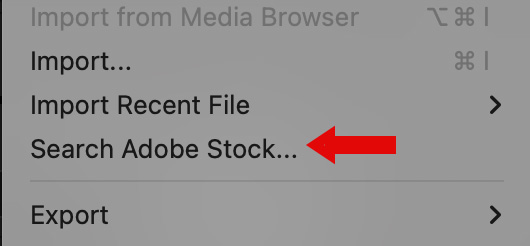
Searching Adobe Stock is now available in the File menu.
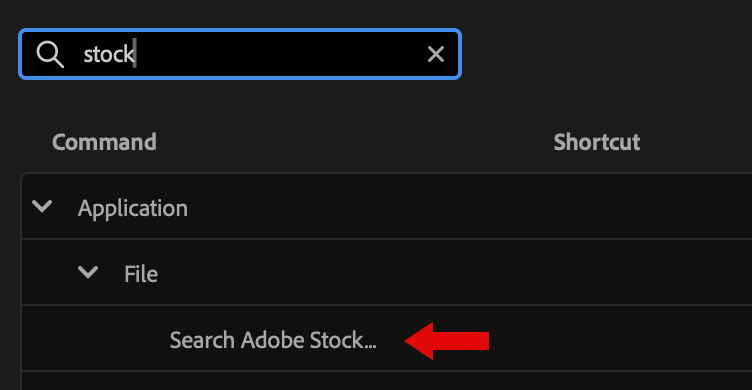
NOTE: If you do this a lot, you can assign a keyboard shortcut. Search for “stock” in File > Keyboard Shortcuts.
SUMMARY
There are lots of new features to explore in this version. Feel free to share your favorites in the comments.
NOTE: This article provides a list of all the new features, many of which can’t easily be illustrated.
This Adobe Help page provides more details on the latest features.


