
 OK, let me start with a warning. While this process should keep everything safe, protect yourself by exporting all projects that you care about. This exports the project data, but not the media. As you are not moving media when you change libraries, you don’t need to create a complete archive. Also, exporting projects is really fast. Archiving is not.
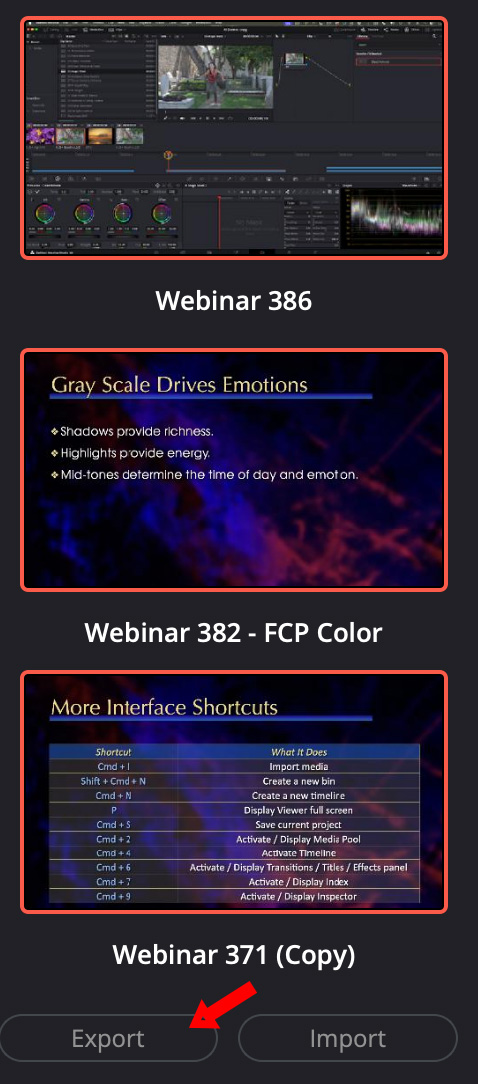
Start by selecting all the projects you want to backup. Then, click the Export button (red arrow). Almost instantly, each project is exported to its own file, with a .drp extension.
DUPLICATE EXISTING LIBRARY
Unlike FCP and Premiere, Resolve uses a database as its brain. Which means that if you want to make a new drive the focus for Resolve you need to change a variety of settings.
This assumes you are running Resolve locally and not from a shared server or the cloud.
Open Resolve
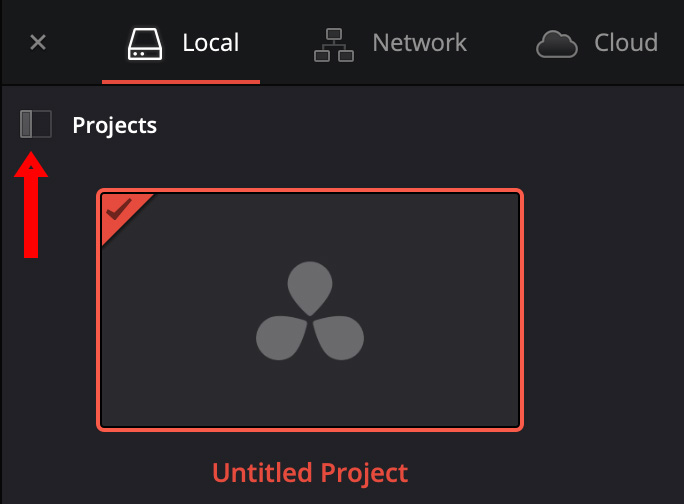
Go to the Projects panel (Shortcut: Shift + 1). Click the sidebar icon (red arrow) to display the list of libraries.
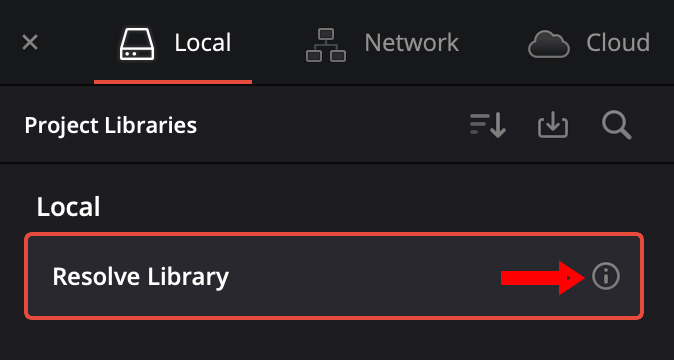
Click the (i) icon to display library controls (red arrow).
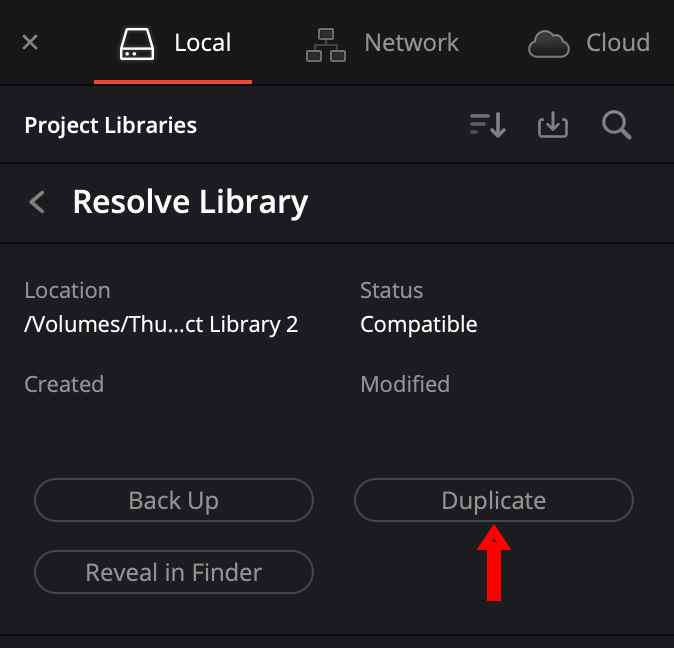
Click Duplicate – then pick a new location for your main library. This should, ideally, be a very fast drive.
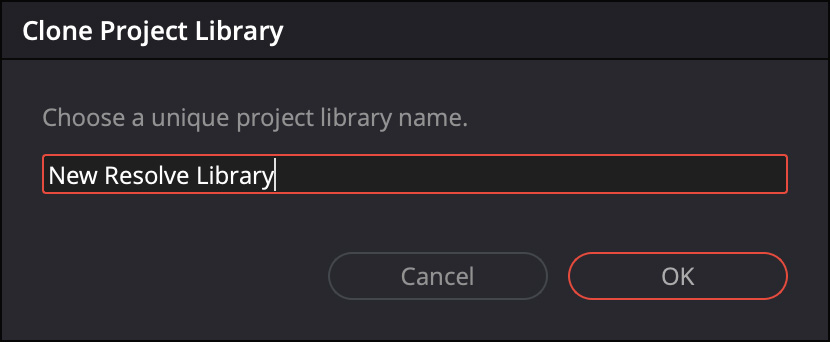
Give the new library a name.
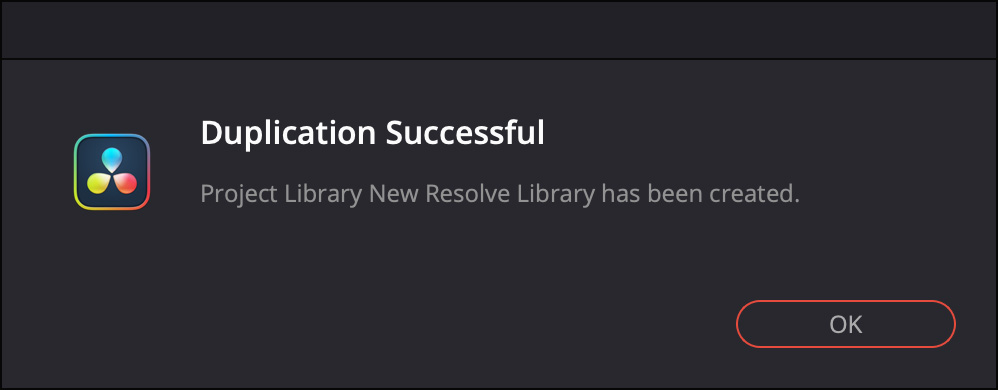
Resolve will let you know when it is done. Existing libraries do not hold media, but they can still be hundreds of megabytes in size.
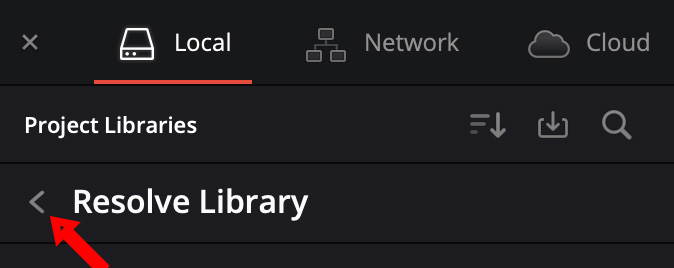
Click the Go Back chevron to return to the Project Libraries sidebar.
RESET PREFERENCES
Because Resolve stores work files all over your system, you also need to tell Resolve the new location.
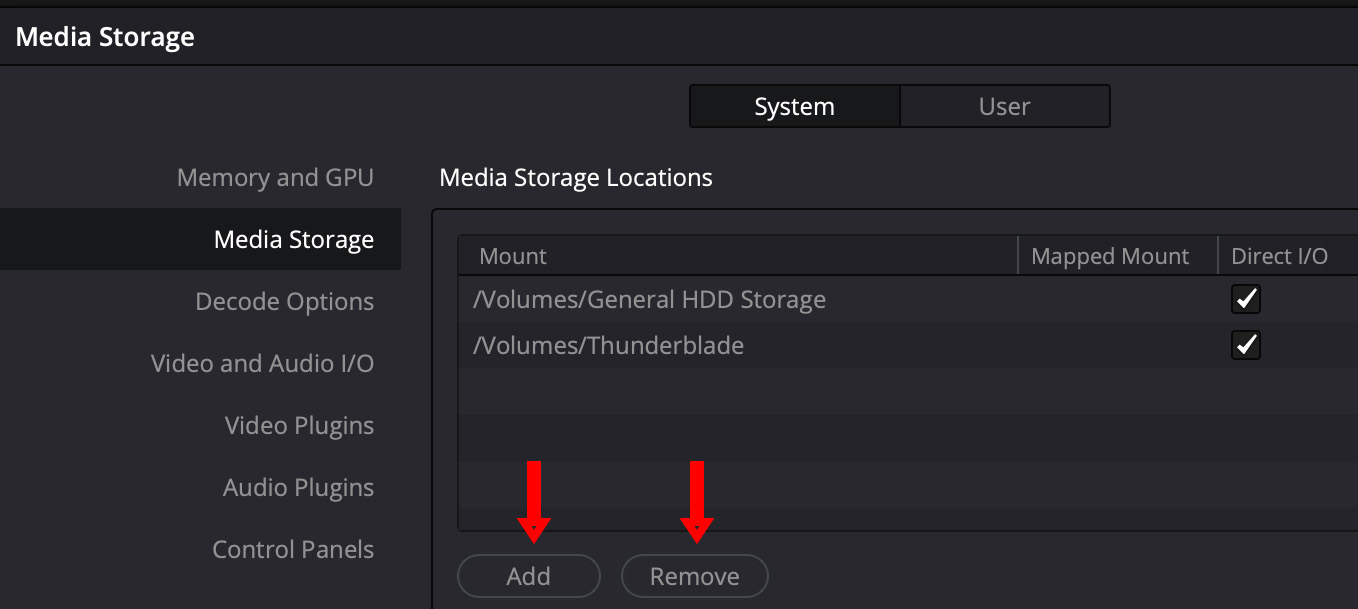
If your media location changed, open Resolve > Preferences > System > Media Storage, add the new volume, then remove the old one by clicking the appropriate buttons (red arrows above).
Scroll through Preferences. You may also need to set new locations for:
NOTE: Many of these files are stored on your computer. If you are not changing computers, you can leave these alone. But if you are moving the drive between computers, you’ll want these stored on the drive you are sharing.
It is easier to update the drive than to try to keep multiple versions of Resolve updated.
Changes will take effect the next time you restart the app.
RESET PROJECT SETTINGS
You’ll also need to reset the storage locations for your projects. (If you forget, Resolve will dramatically remind you the next time you open it.)
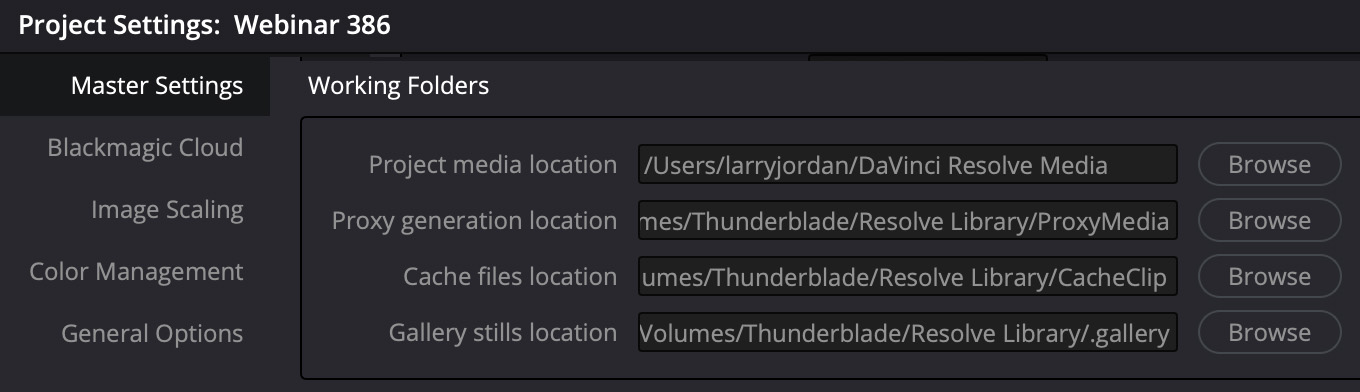
Open an existing project, then go to Project Settings (Shortcut: Shift + 9)
Select Master Settings, then scroll down to Working folders and point any necessary locations to the new drive.
DISCONNECT THE OLD LIBRARY
Once everything is reset, quit Resolve and restart. See if you can access all your existing projects and media.
Once everything looks good, disconnect from the old library.
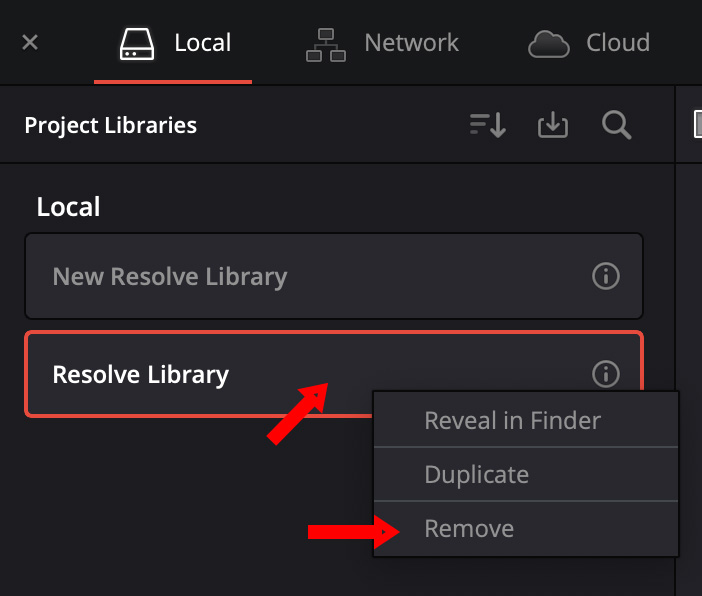
Right-click on the old Library (top red arrow) and select Remove (bottom red arrow).
NOTE: The Resolve help files state: “You cannot actually delete project libraries in DaVinci Resolve; you can only disconnect them so they don’t appear in the Project Library list. However, disconnected project libraries can still be reconnected if you remember their name.” In other words, disconnecting doesn’t remove anything. It just tells Resolve to ignore it.
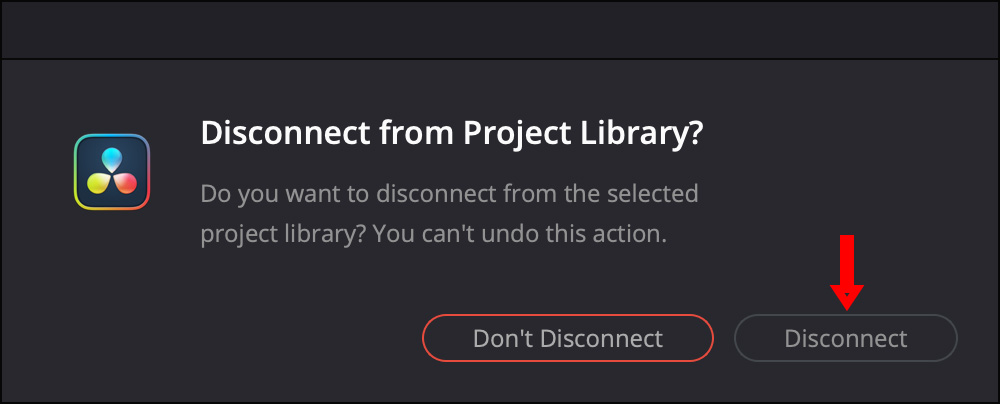
Confirm the warning that you want to disconnect from the old library.
Restart Resolve and make sure everything is connected and working properly. Keep all the old data in place for a week or two until you are absolutely, positively sure it’s all working great, then you can delete it.
SUMMARY
Depending upon where you stored media, you may need to relink, but that will vary by project.
The key point to remember is that Resolve does not delete any files. If something doesn’t work, you can still go back to your source files without losing anything.
Take this slowly and you should be fine. For more information, search for “Managing Project Libraries” in the Resolve Help Files.


