
 Sometimes, in spite of our best efforts during production, something gets into the shot that we just don’t notice until it is too late.
DaVinci Resolve (versions 19 & 20) has two tools that can remove elements in a shot:
PATCH REPLACER
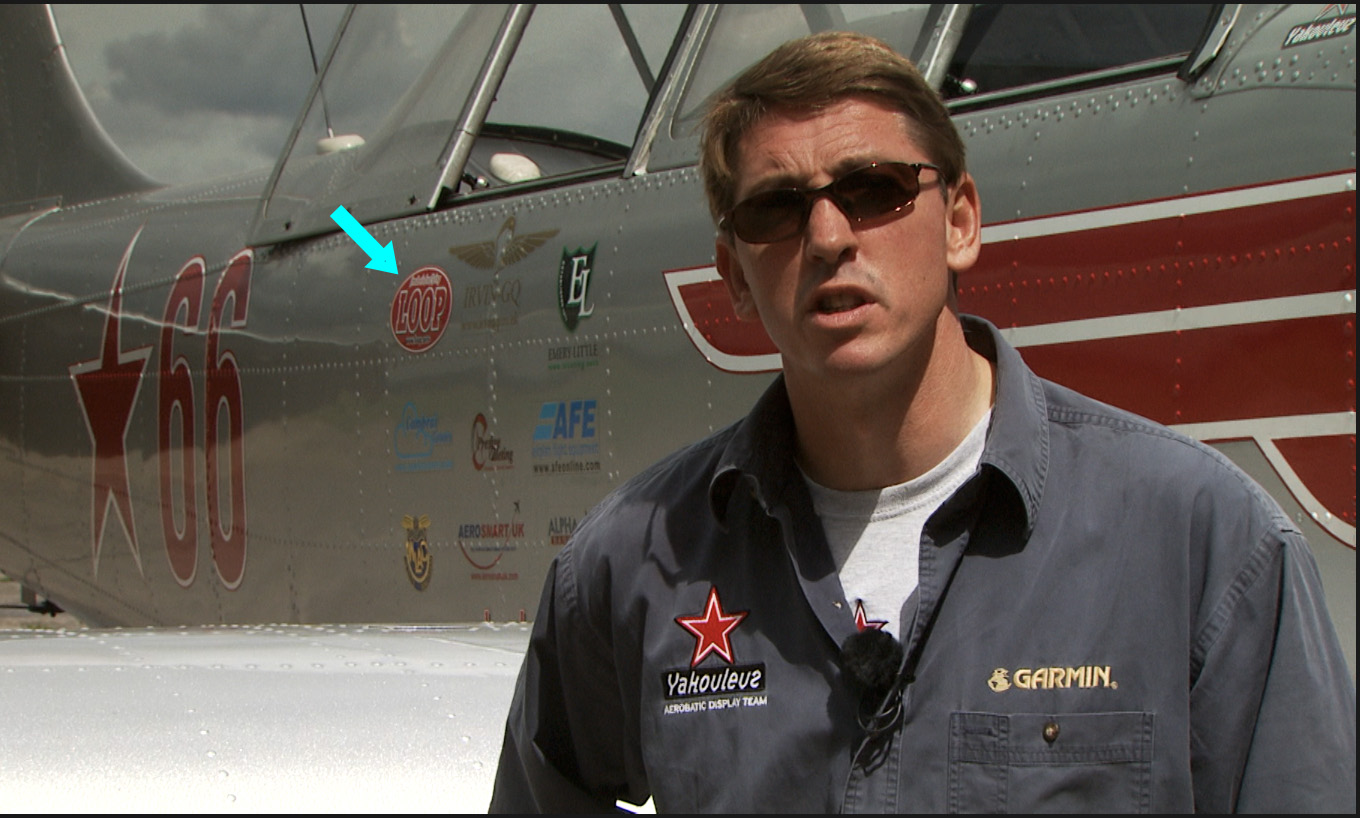
(Image courtesy: Hallmark Broadcast Ltd. – www.hallmarkbroadcast.tv)
Here’s our first problem shot – this red logo (cyan arrow) should not be stuck on this plane. (OK, well, yes. It really should be there, but, hey, we’re pretending.)
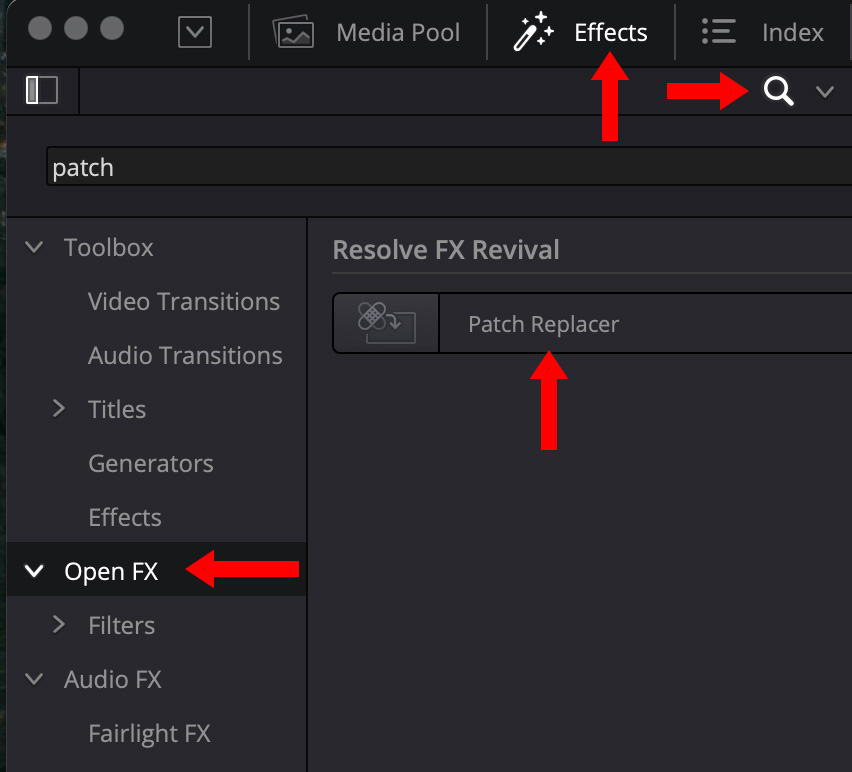
On the Edit page of Resolve, click the Effects text button (top arrow) to display the Effects list.
Click the magnifying glass (right arrow) to open a search and enter “Patch”
From the Open FX category (left arrow), drag Patch Replacer (um, whatever arrow is left) on top of the timeline clip containing the element you want to remove.
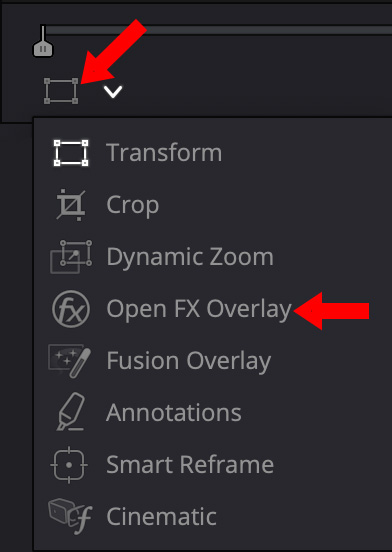
In the lower-left corner of the Viewer, click the menu icon and select Open FX Overlay.
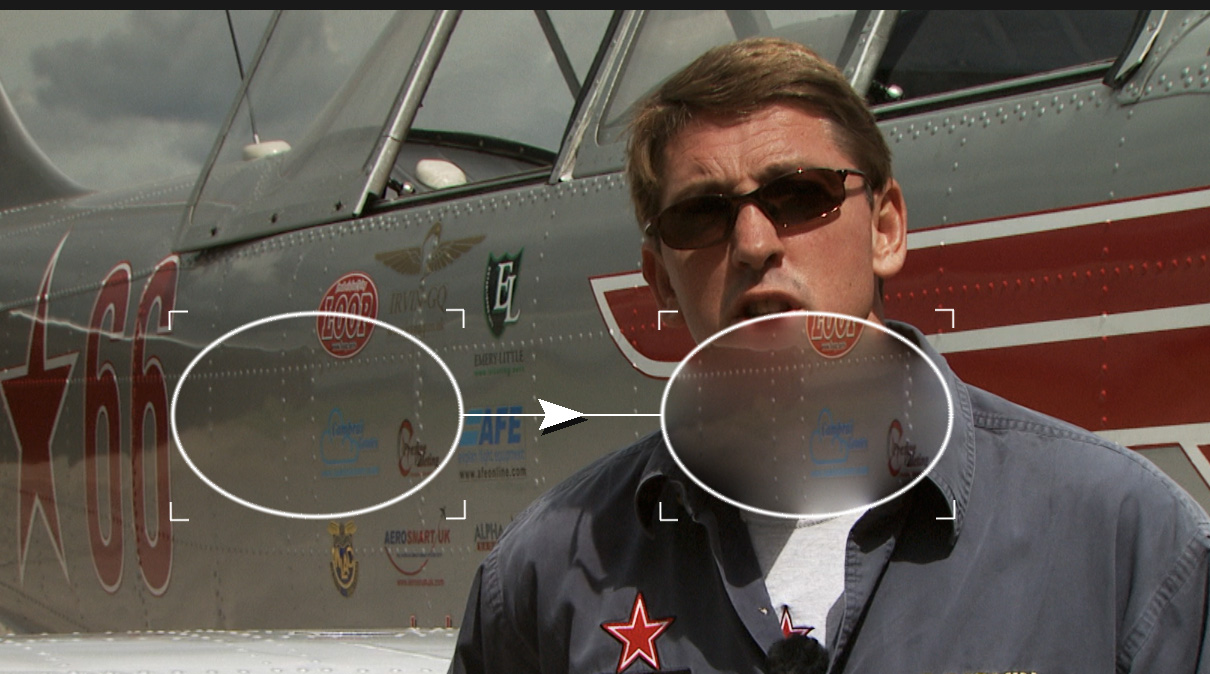
This displays the on-screen controls for this effect.
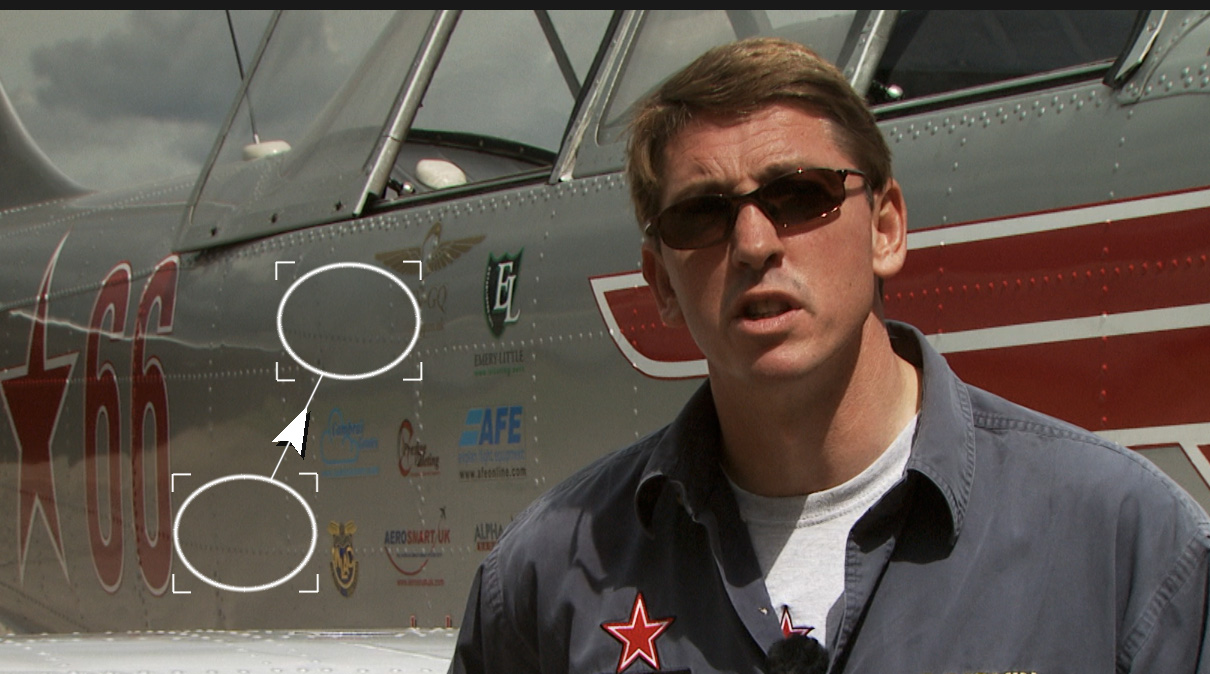
Drag the blurry (right) oval on top of what you want to hide. Drag the open circle on top of the area you will use to replace it.
Size the oval covering the area you want to hide. Make it as small as possible. The two circles are paired, you only need to resize one.
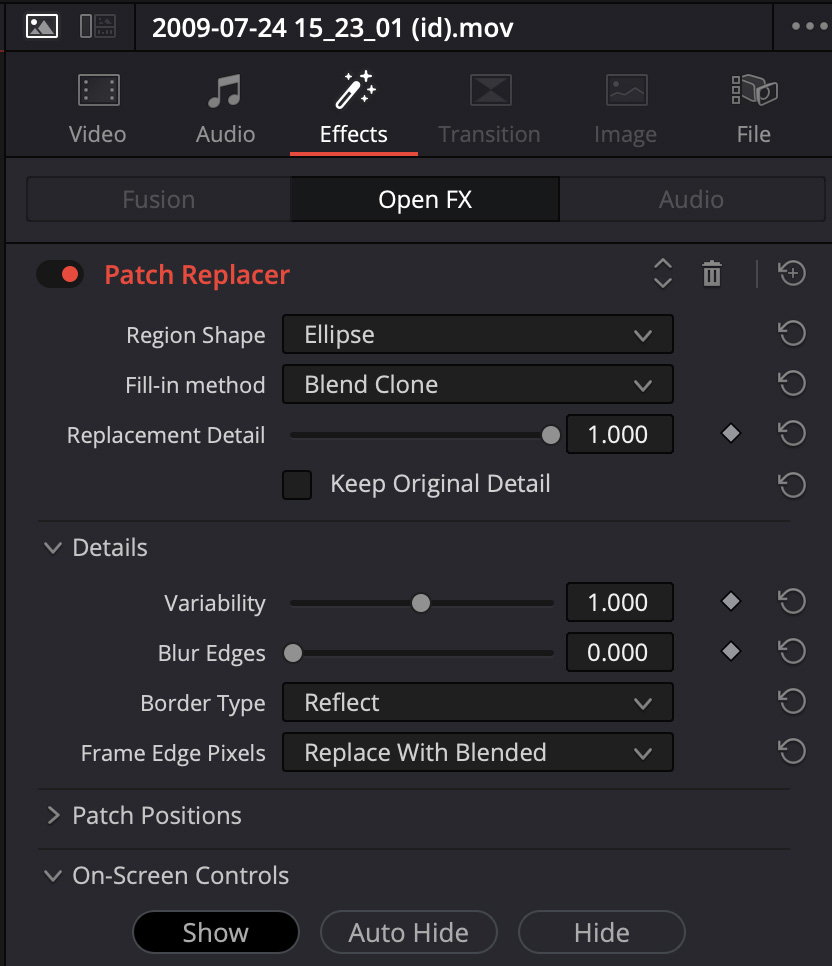
Most of the time, the defaults will be fine, but you have plenty of controls if you need to tweak in the Effects > Video Inspector.
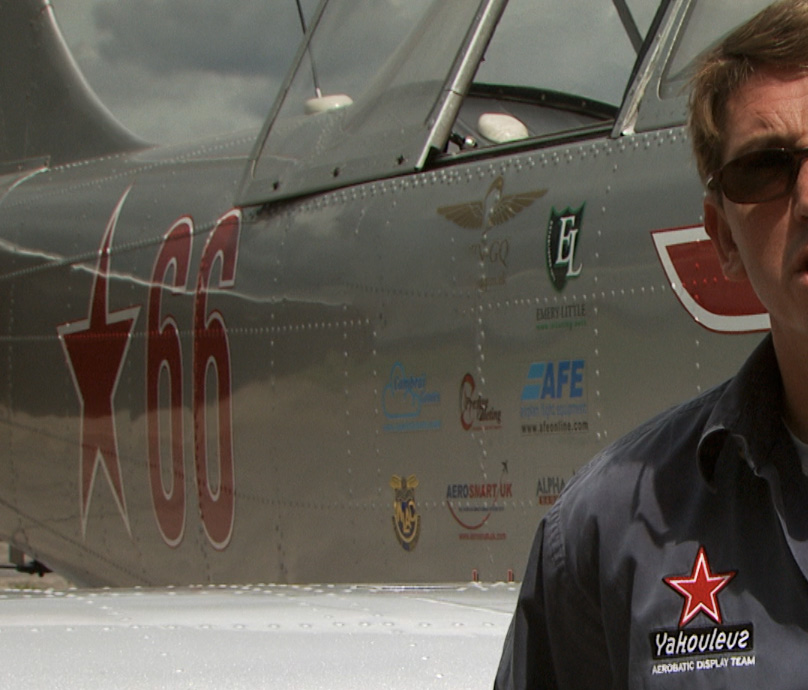
See the final result!
NOTE: This works provided the element you want to hide and the area you are replacing it with don’t move.
OBJECT REMOVER
If the element you need to hide changes size or position, Patch Replacer won’t work. It’s time for Object Remover.
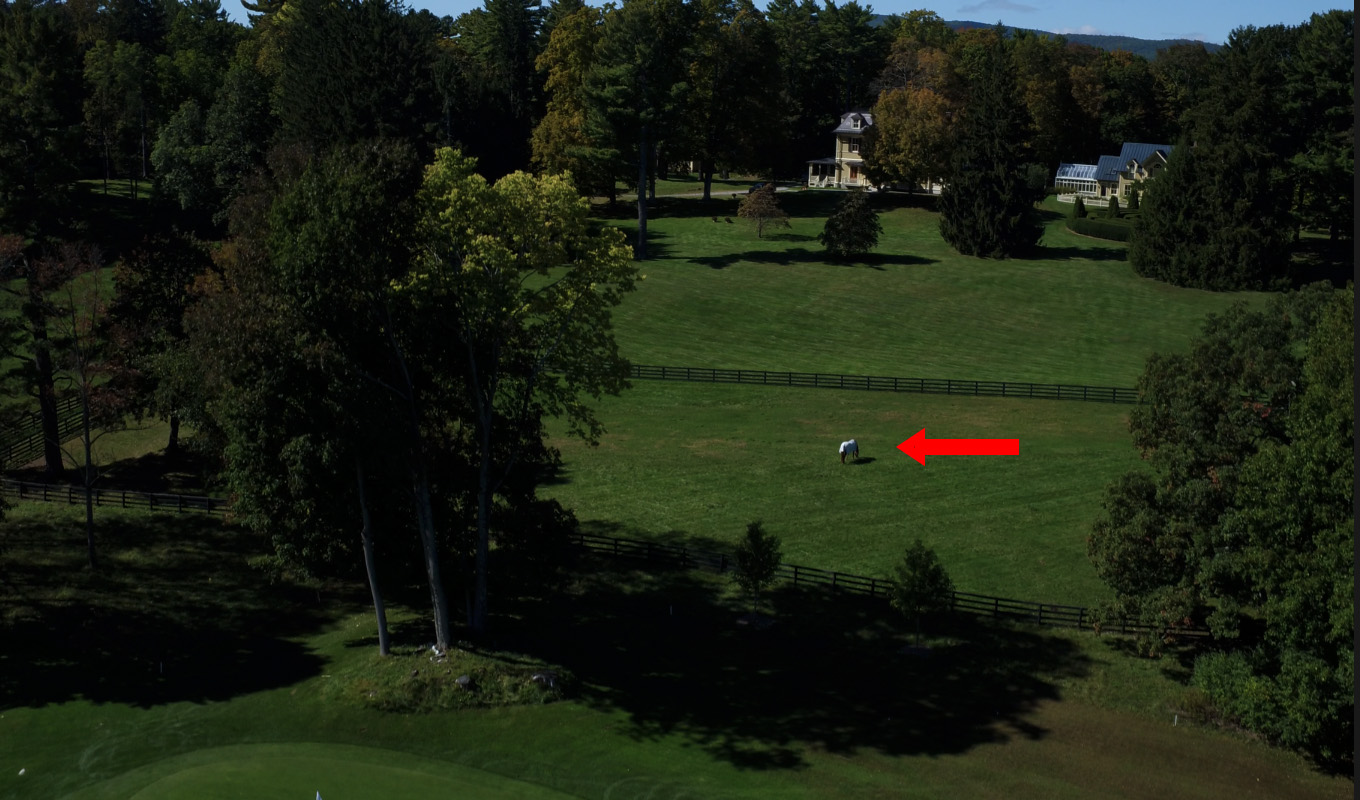
[Image courtesy: Terry Holland, Northeast Drone Video]
For whatever reason, this white horse was not supposed to be in this drone shot. The problem is that both the drone and the horse are moving.
Now what?
Time to move to the Color page (shortcut: Shift + 4) and use Object Remover.
Select the clip in the Clips timeline of the Color page.
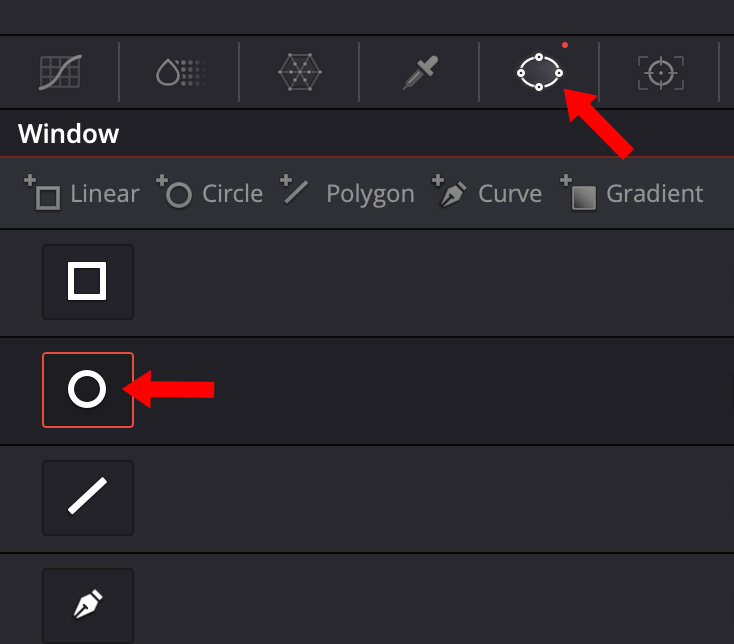
Power windows are masks and we want to mask this horse so it disappears. From the settings in the lower middle of the Color page, click the Power Window icon (top red arrow). Select a shape that roughly corresponds to the element you want to remove. A circle will do fine (lower red arrow).
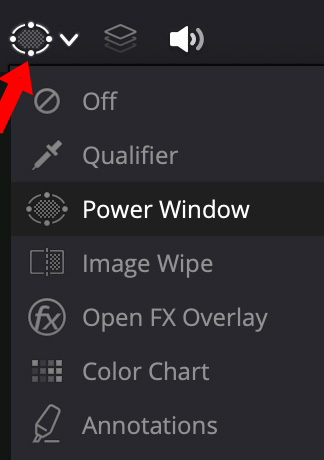
If the on-screen controls for the Power Window are not displayed in the Viewer, enable them from the monitor menu in the lower left corner of the Viewer.
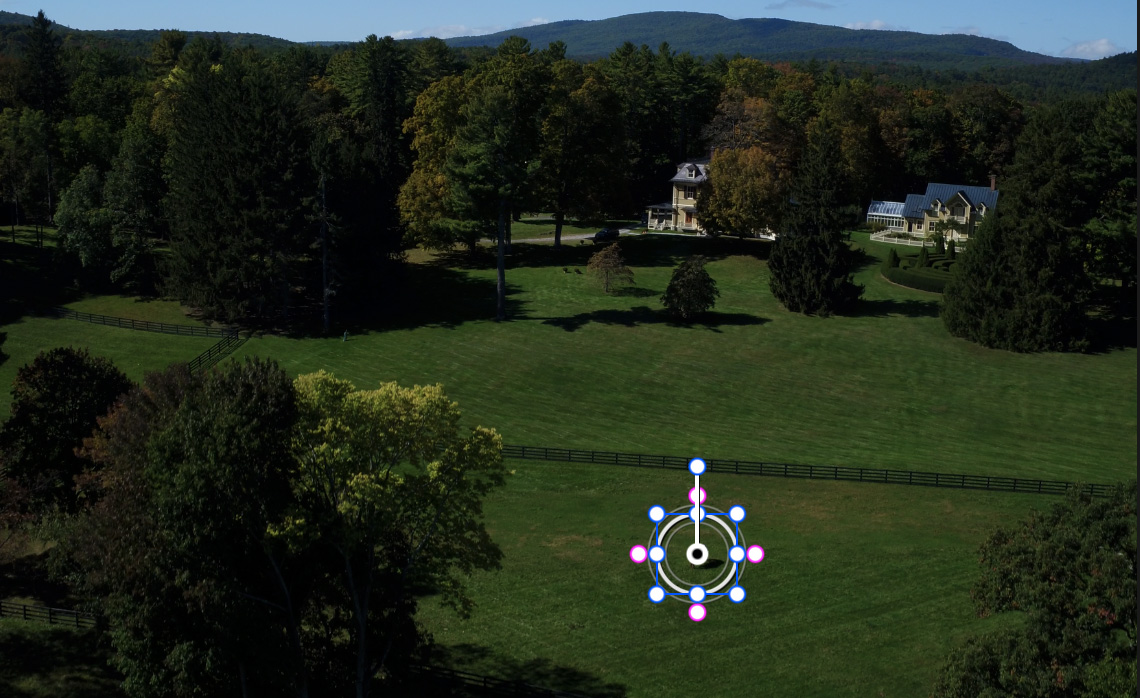
Adjust the size, shape and position of the Power Window so it is just large enough to cover the element you want to hide.
NOTE: The fit of the Power Window doesn’t need to be perfect, just be sure it covers the entire element you want to hide. Make it as small as possible and minimize feathering.
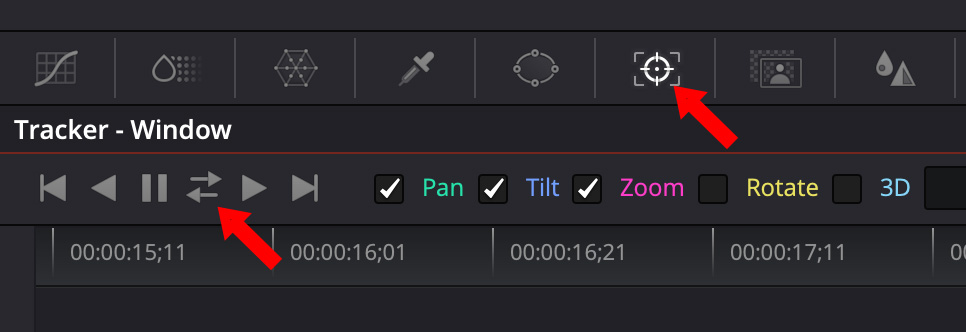
Click the Tracker icon, the icon to the right of the Power window icon (top red arrow), then click the bi-directional tracking button (lower red arrow). This will track how the position of the horse changes during the clip. These double arrows mean that the entire clip will be tracked, starting at the position of the playhead.
NOTE: Uncheck any parameters you don’t need to track. For example, the image doesn’t rotate or involve 3D, so I unchecked both. Unchecking tracking parameters that are not needed provides a faster and more accurate track.
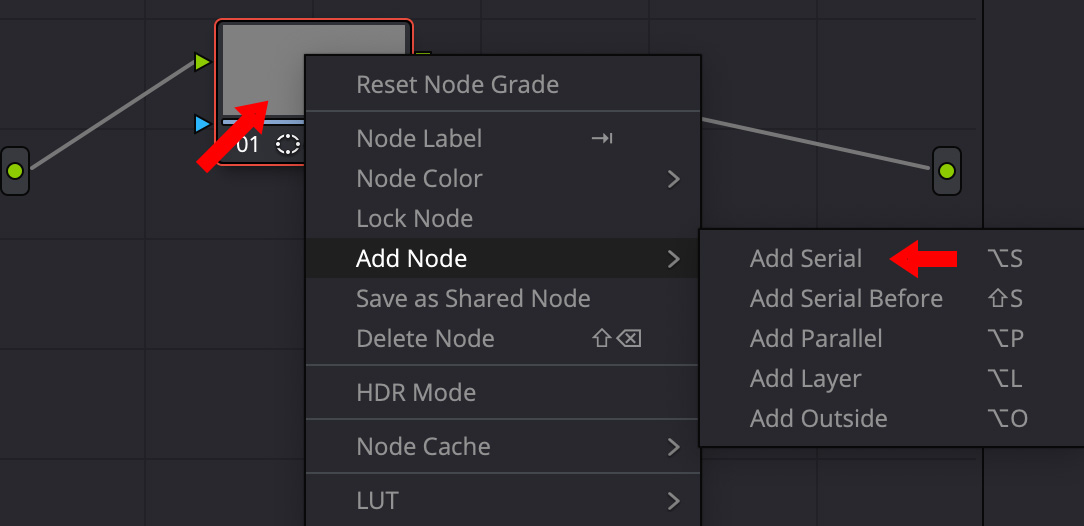
Right-click the node in the Nodes window and select Add Node Serial. (If nodes are not showing, click the Nodes text button in the menu bar at the top.)
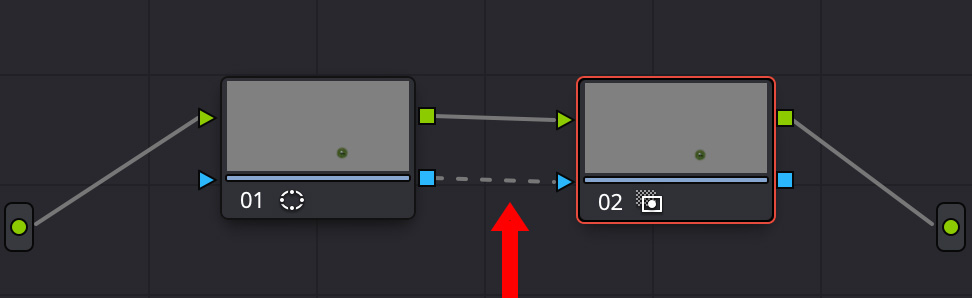
Connect the two blue arrows by dragging from the left to the right node (red arrow).
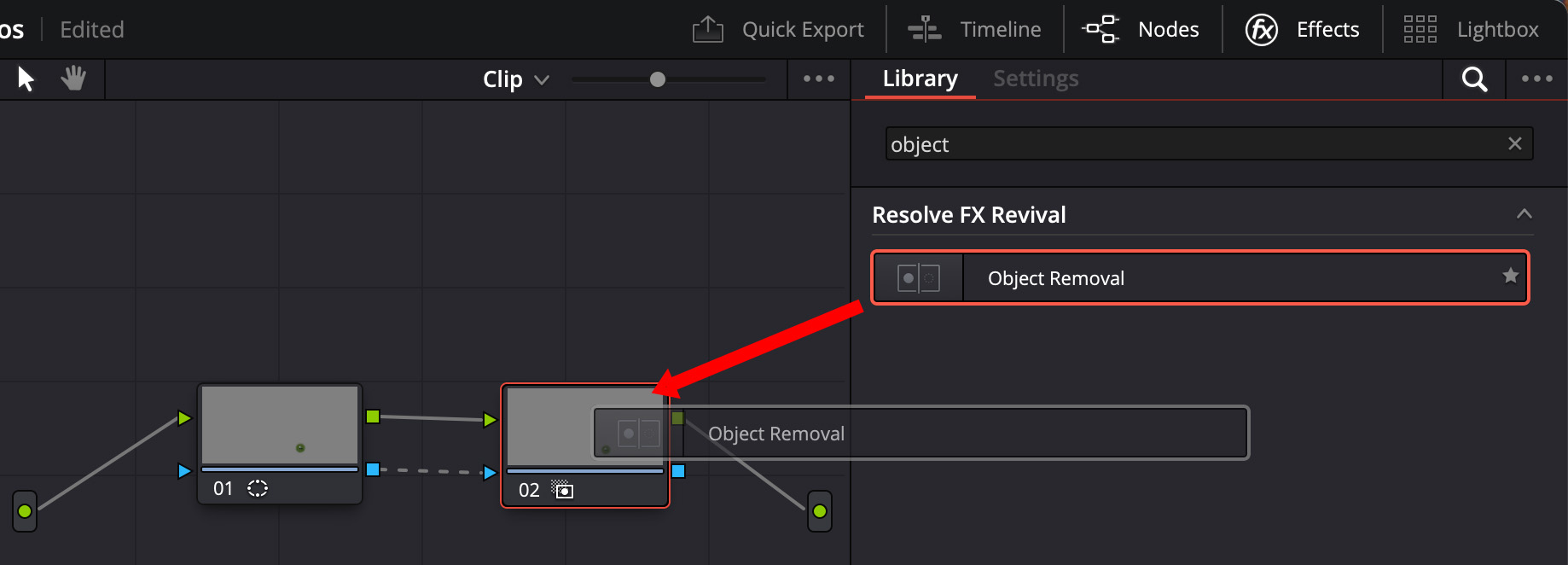
Click to see larger image.
In the Effects panel, search for “Object”, then drag Object Removal on top of the second (right-hand) node.
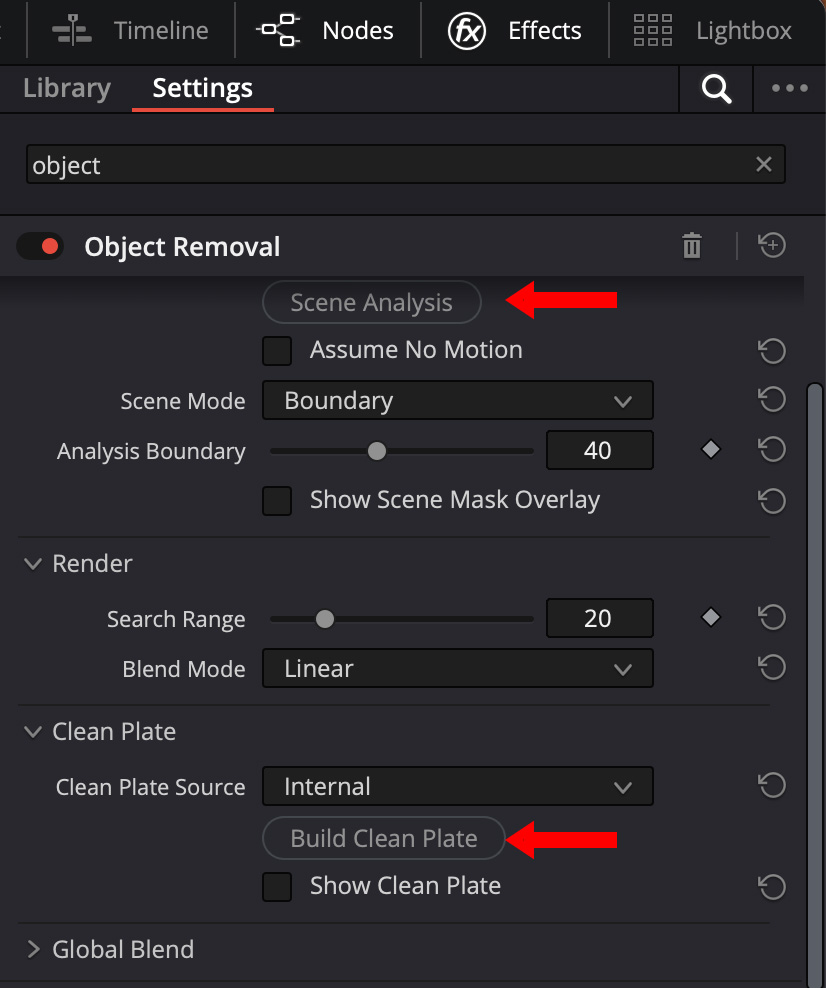
With the second node selected:
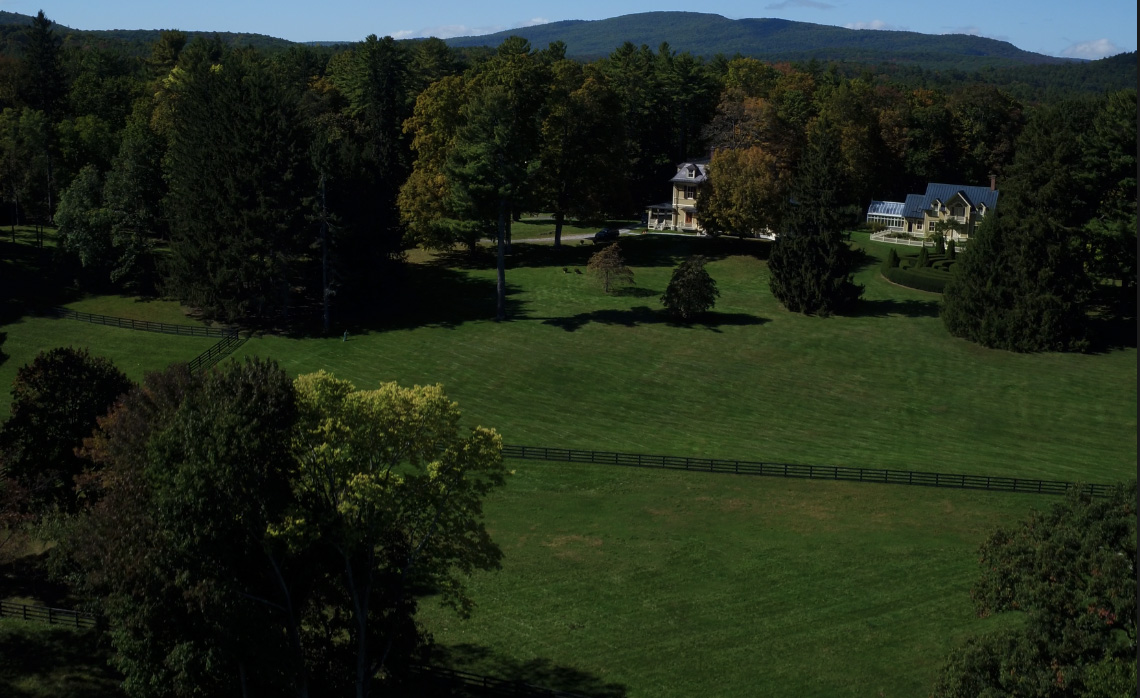
Poof! The horse is gone and stays gone; even though both the shot and horse are moving.
SUMMARY
When I demoed these two effects at the LA Creative Pro User Group, they both got a loud round of applause. Now, you, too, can do magic.


