A Fast & Easy Way to Rename Mac Files
 I’m a big fan of Better Rename 11 for file name manipulation. It supports everything from renaming files to replacing text. It’s the Swiss Army Knife of file names.
But, for those that are looking for a simpler way to rename files quickly, nothing beats the Finder. Let me show you how.

Here’s a collection of files that I want to rename into something that’s a bit more, ah, intelligible.
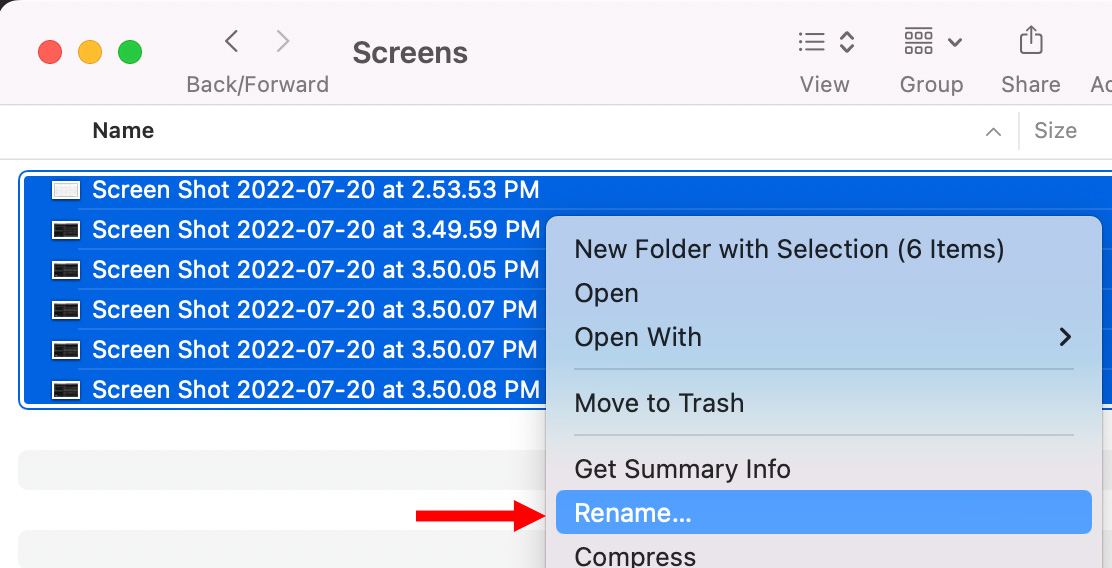
- Select the files you want to rename.
- Then right-click any of the selected files.
- Choose Rename.
NOTE: If you only select one file, the file name opens for you to type in a new name. If multiple files are selected, the Rename panel appears.
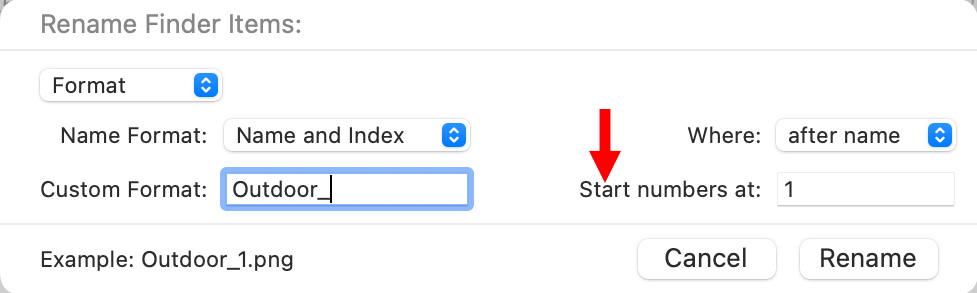
This opens the Rename dialog box, which contains a variety of renaming options.

- The Format menu supports renaming files, replacing text with new text, or adding text to the beginning or end of the file name.

The Name Format determines how the file names will be changed.
- Name and Index replaces the name with the text entered into Custom Format, plus a sequential series of numbers starting with the number on the right (red arrow above).
- Name and Counter replaces the name with the text entered into Custom Format, plus a 5 digit counter, starting with the number on the right (red arrow above).
- Name and Date replaces the name with the text entered into Custom Format, plus today’s date in the form of year – month – day – time.

- Where determines whether the Custom Format occurs before or after the numbering scheme.

- The Example, at the bottom (red arrow), illustrates how the new name will look.

Click Rename and the file names are instantly changed.
CAUTION
This works great – with one caution. If you want to rename files in the order you created them – as I do with screen shots associated with a tutorial where I take screen shots as I write a tutorial, you need to sort the files in the order in which they were created.
If they are sorted in reverse order, with the most recent file listed first, renaming numbers files incorrectly.
SUMMARY
For simple file renaming, this is an instantly available and easy to use tool.
Bookmark the
permalink.
2,000 Video Training Titles
- Apple Final Cut Pro
- Adobe Premiere Pro
- DaVinci Resolve
Edit smarter with Larry Jordan. Available in our store.
Subscribe to Larry's FREE weekly "Edit Smarter" newsletter and
save 10%
on your first store purchase.
Read the latest Media Industry News, curated by Larry Jordan
Media News




4 Responses to A Fast & Easy Way to Rename Mac Files
Thank you for this great tip! Just made my life easier!
Shari:
Making your life easier is a great way to start my week!
Thanks,
Larry
Thanks for the tip, Larry. So glad file renaming is built-in and easy to use.
The file creation date/time is a similar problem that can be a frustrating time waster. After a trip I often spend hours trying to synchronize timestamps; various devices are always off by minutes, hours, multiple timezones, or the International Dateline!
The tools built-in to Photos and Final Cut help to sort it out, but first you have to import. But after importing, the media browser is a tangled mess if sorted by date/time.
Maybe you know a way to adjust the timestamps in Finder before importing files to FCPX and Photos?
Thanks as always!
George
George:
I’ve always found timestamps to be notoriously unreliable for editing. Instead, use markers to set common sync points.
I’m sure there’s a utility that resets timestamps, but I don’t know what it is.
Larry