
389: Essential Editing Workflow for Apple Final Cut Pro 11
389: Essential Editing Workflow for Apple Final Cut Pro 11
$19.95
In this one-hour session, Larry Jordan starts at the beginning and takes you through the entire editing process – from import to export – to create a finished video in Apple Final Cut Pro 11.
Presented: Nov. 12, 2025
Several times each month, Larry Jordan presents a live, on-line, video webinar presenting issues related to video editing and post-production. For a list of upcoming webinars, click here.
Duration: 1:03:36
Download file size: 2.0 GB MB (ZIP file)
Format: MPEG-4 – Frame size: 1920 x 1080
DOWNLOAD NOTE: After you complete the store checkout process, you will see a Download Link on the Order Confirmation page. This link allows you to download the product to your computer. You are given four attempts over ten days to download the file.
SESSION DESCRIPTION
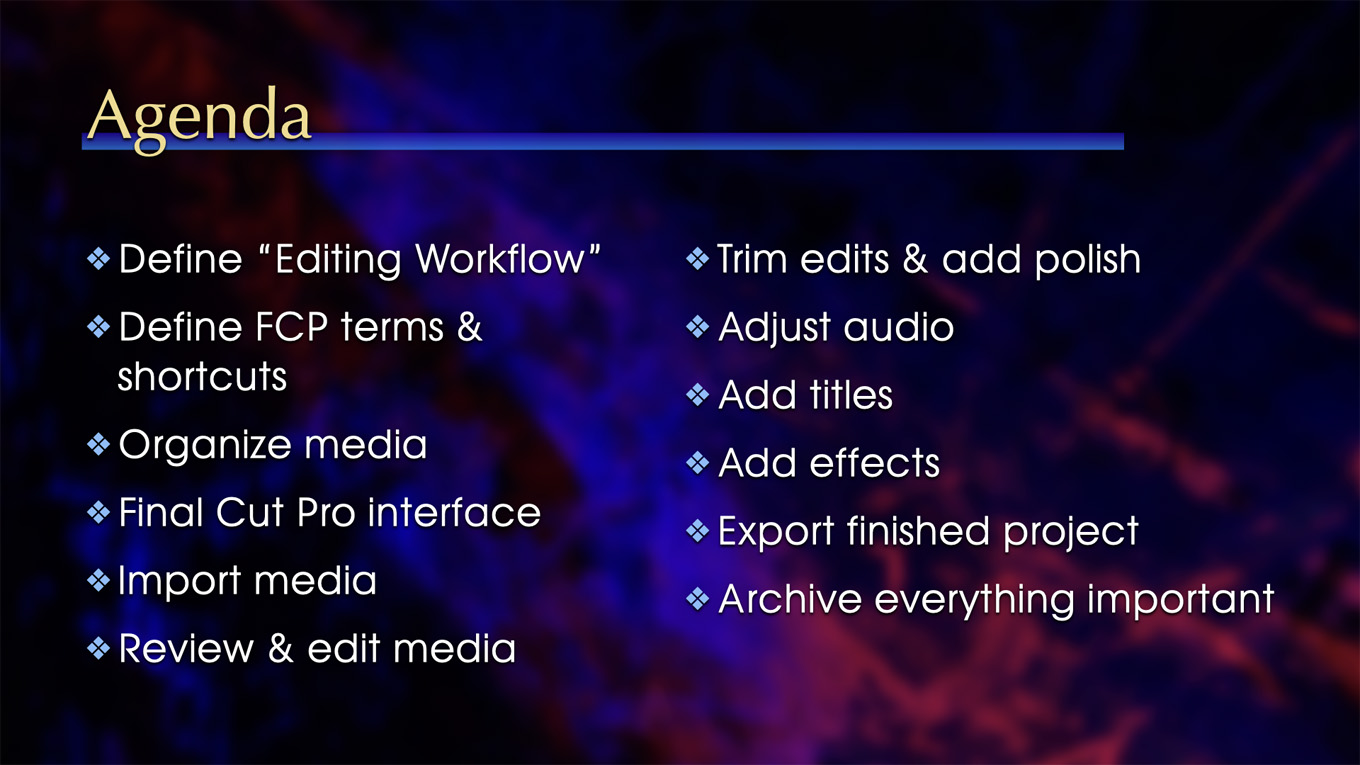
In this one-hour session, Larry Jordan starts at the beginning and takes you through the entire editing process – from import to export – to create a finished video in Apple Final Cut Pro 11. All in one-hour!
Subjects include:
- Organizing media
- Media Import
- Review and marking clips
- Editing
- Trimming
- Audio
- Transitions
- Titles
- Effects
- Export
- Archiving
If you are just learning Final Cut, or want to brush up your skills, in this one-hour session you’ll learn everything you need to know; including a ton of useful keyboard shortcuts.
AUDIENCE LEVEL
This is an introductory-level session. No Final Cut skills are required to understand this material.
CHAPTER MARKERS
To help you quickly find the information you need, we included chapter markers in the QuickTime download to simplify navigation. Click here to learn how to display them in your download.
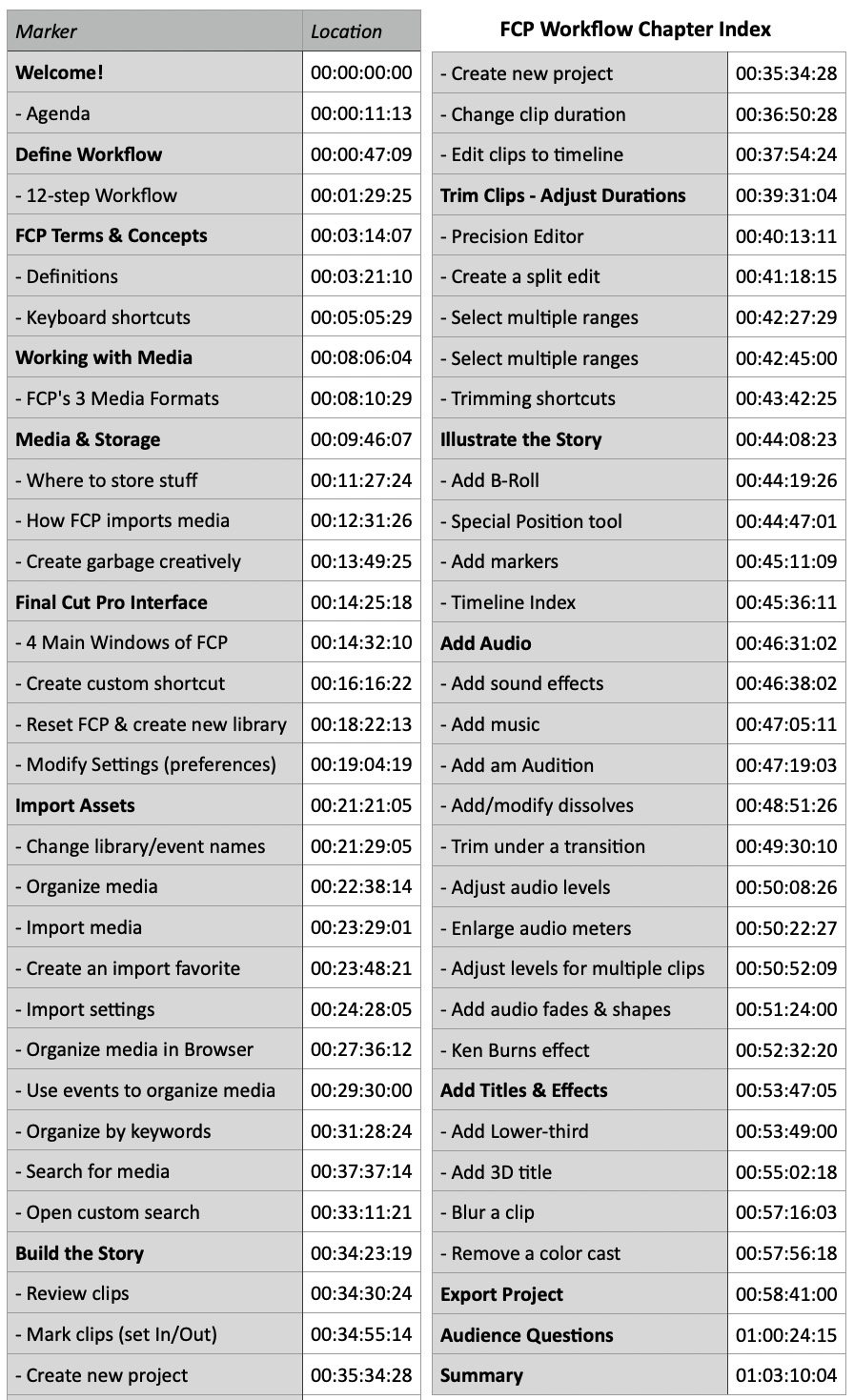
DETAILED INDEX
- Welcome!
- – Agenda
- Define Workflow
- – 12-step Workflow
- FCP Terms & Concepts
- – Definitions
- – Keyboard shortcuts
- Working with Media
- – FCP’s 3 Media Formats
- Media & Storage
- – Where to store stuff
- – How FCP imports media
- – Create garbage creatively
- Final Cut Pro Interface
- – 4 Main Windows of FCP
- – Create custom shortcut
- – Reset FCP & create new library
- – Modify Settings (preferences)
- Import Assets
- – Change library/event names
- – Organize media
- – Import media
- – Create an import favorite
- – Import settings
- – Organize media in Browser
- – Use events to organize media
- – Organize by keywords
- – Search for media
- – Open custom search
- Build the Story
- – Review clips
- – Mark clips (set In/Out)
- – Create new project
- – Change clip duration
- – Edit clips to timeline
- Trim Clips – Adjust Durations
- – Precision Editor
- – Create a split edit
- – Select multiple ranges
- – Trimming shortcuts
- Illustrate the Story
- – Add B-Roll
- – Special Position tool
- – Add markers
- – Timeline Index
- Add Audio
- – Add sound effects
- – Add music
- – Add an Audition
- – Add/modify dissolves
- – Trim under a transition
- – Adjust audio levels
- – Enlarge audio meters
- – Adjust levels for multiple clips
- – Add audio fades & shapes
- Add Titles & Effects
- – Ken Burns effect
- – Add Lower-third
- – Add 3D title
- – Blur a clip
- – Remove a color cast
- Export Project
- Audience Questions
- Summary
